> ## Documentation Index
> Fetch the complete documentation index at: https://help.gorelo.io/llms.txt
> Use this file to discover all available pages before exploring further.
# Automatically assign a ticket type
> Use Gorelo AI to automatically assign the most relevant Ticket Type based on a ticket's subject and first inbound public comment for faster sorting.
Auto Ticket Types help you cut through the noise and sort tickets faster. It looks at the subject and first inbound public comment, then picks the most relevant ticket type — automatically.
You need to enable [**Ticket Types**](/sort-with-tickets-types) before you can use the AI feature.
## Turn on auto ticket types (via AI)
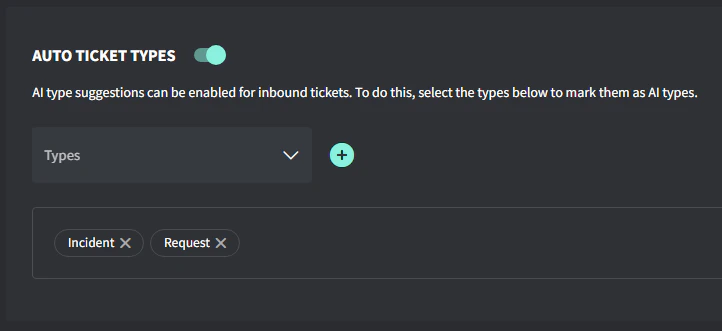
1. Navigate to **Settings → AI →** [**Auto Ticket Types**](https://app.gorelo.io/admin/admin-settings#ai#types)
2. Toggle **Auto Ticket Types** on
3. Select the Ticket Types you would like to be assigned automatically
4. Click ‘Update’
 ## How it works
* AI checks the **ticket subject** and **first inbound public comment**
* It compares the wording to the **name and description** of the types you’ve selected
* The best match gets picked
- Use distinct names and descriptions so the AI can tell them apart easily
- Want to test it? Just submit a dummy ticket with a realistic subject/comment combo and see what type it picks
- If you’ve got similar types, tweak the descriptions to make them more specific
## How it works
* AI checks the **ticket subject** and **first inbound public comment**
* It compares the wording to the **name and description** of the types you’ve selected
* The best match gets picked
- Use distinct names and descriptions so the AI can tell them apart easily
- Want to test it? Just submit a dummy ticket with a realistic subject/comment combo and see what type it picks
- If you’ve got similar types, tweak the descriptions to make them more specific