> ## Documentation Index
> Fetch the complete documentation index at: https://help.gorelo.io/llms.txt
> Use this file to discover all available pages before exploring further.
# 审批和开票
> 在 Gorelo 中审阅和批准时间条目及产品后再流转到合同或发票,为已完成的所有工作向客户准确计费。
## 时间条目和产品
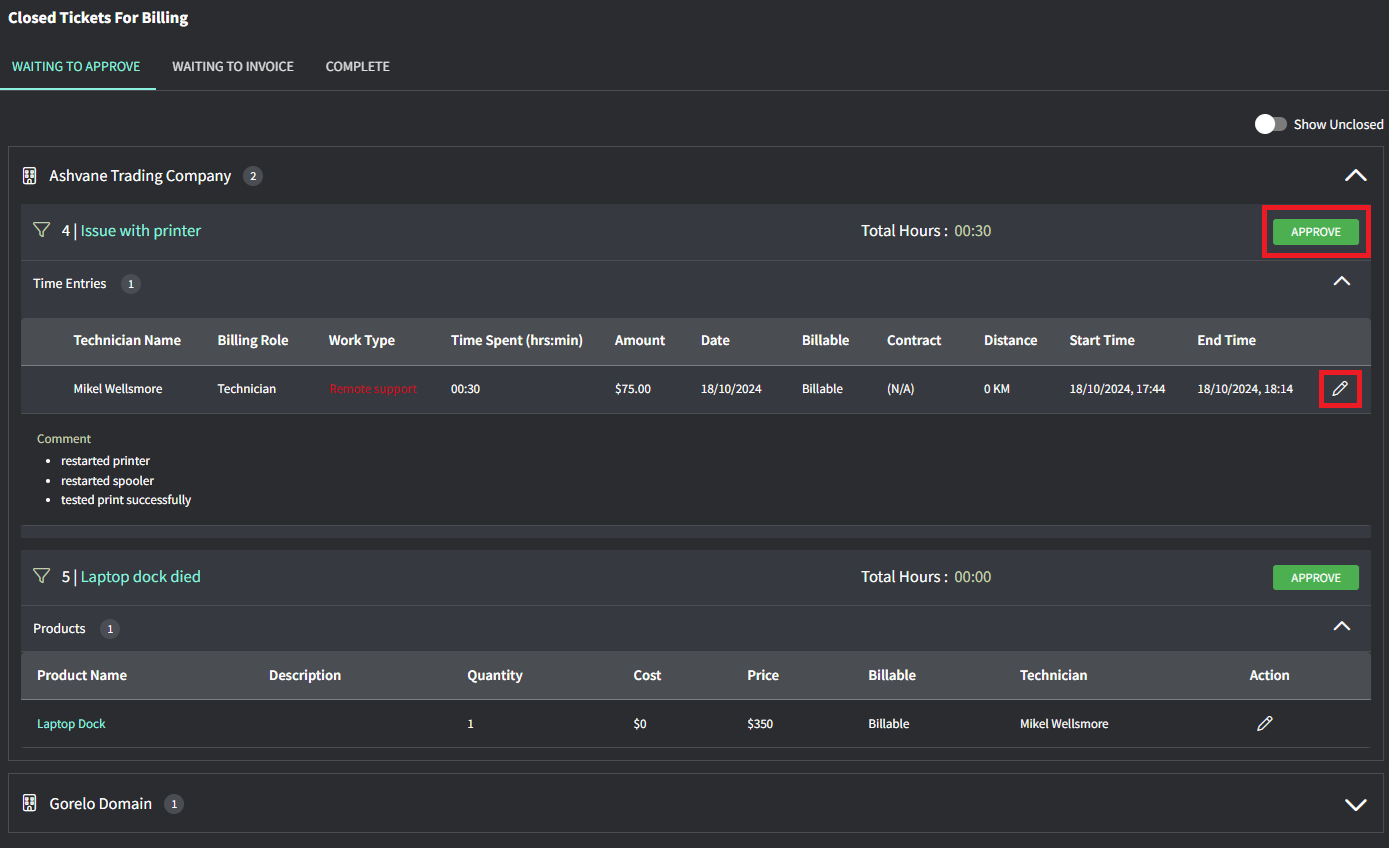
你会进入 **Waiting to Approve** 选项卡,其中显示所有在流转到合同或发票前需要审批的内容。
然后,当你对工单上的所有内容都满意时,点击 **Approve**。
 提示!
* 如果时间条目未关联合同,只使用默认的劳动费率,那么 **Contract** 列会显示 **(N/A)**。
* 如果时间条目在你配置的营业时间之外,工作类型 (Work Type) 会显示为红色。
* 你可以在 **Waiting to Approve** 屏幕右上角开启 "Show Unclosed",从而为未关闭的工单部分开票(针对时间和产品)。
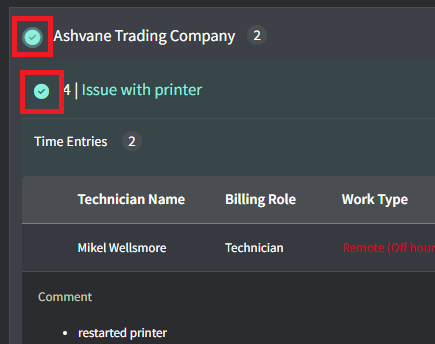
你会看到所有已批准、等待添加到发票中的项目。
选择以下之一:
* 单个工单
* 某个客户的所有工单
提示!
* 如果时间条目未关联合同,只使用默认的劳动费率,那么 **Contract** 列会显示 **(N/A)**。
* 如果时间条目在你配置的营业时间之外,工作类型 (Work Type) 会显示为红色。
* 你可以在 **Waiting to Approve** 屏幕右上角开启 "Show Unclosed",从而为未关闭的工单部分开票(针对时间和产品)。
你会看到所有已批准、等待添加到发票中的项目。
选择以下之一:
* 单个工单
* 某个客户的所有工单
 使用它可以:
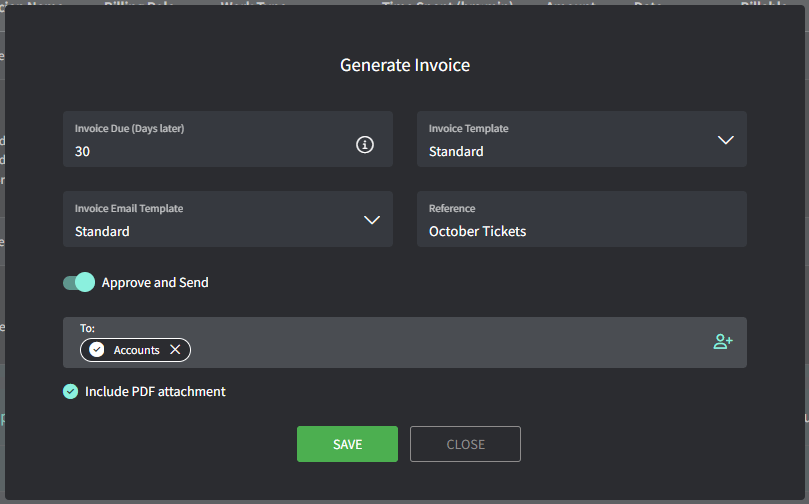
* **Generate Invoice**:这将创建一张新发票,包含所选工单的时间/产品。
* **Add to Invoice**:允许你选择一张已有发票并将所选工单的时间/产品添加进去。
* **Write off**:核销工单的时间/产品,不会生成任何发票。
填写详细信息,然后:
* 点击 **Save** 生成一张草稿发票。
* 如果你希望创建一张已批准的发票并发送给所选联系人,请开启 **Approve and Send**。
要发送发票,客户必须已设置 **Billing Contacts**。如果尚未设置,你可以从发票中添加:
1. 在发票上,点击客户名称。
2. 在 **Location** 表中,点击**三点**图标,然后点击 **Edit location**。
3. 在 **Billing Contacts** 字段中,选择一个已有联系人或添加一个新联系人。
4. 保存并返回你的发票以发送。
使用它可以:
* **Generate Invoice**:这将创建一张新发票,包含所选工单的时间/产品。
* **Add to Invoice**:允许你选择一张已有发票并将所选工单的时间/产品添加进去。
* **Write off**:核销工单的时间/产品,不会生成任何发票。
填写详细信息,然后:
* 点击 **Save** 生成一张草稿发票。
* 如果你希望创建一张已批准的发票并发送给所选联系人,请开启 **Approve and Send**。
要发送发票,客户必须已设置 **Billing Contacts**。如果尚未设置,你可以从发票中添加:
1. 在发票上,点击客户名称。
2. 在 **Location** 表中,点击**三点**图标,然后点击 **Edit location**。
3. 在 **Billing Contacts** 字段中,选择一个已有联系人或添加一个新联系人。
4. 保存并返回你的发票以发送。