> ## Documentation Index
> Fetch the complete documentation index at: https://help.gorelo.io/llms.txt
> Use this file to discover all available pages before exploring further.
# 部署 Gorelo Agent
> 在 Windows 和 macOS 上使用通用或客户端特定的 PowerShell 安装程序或手动可执行文件部署 Gorelo Agent,用于资产采纳和监控。
可以通过 PowerShell 命令(推荐)或手动可执行文件安装 Gorelo Agent。如果使用客户端特定的安装程序,它将自动与指定的客户/位置关联。如果使用通用安装程序,则可供采纳。
Gorelo 仅支持供应商(Microsoft/Apple)当前支持的操作系统。
* [**https://endoflife.date/windows**](https://endoflife.date/windows)
* [**https://endoflife.date/windows-server**](https://endoflife.date/windows-server)
* [**https://endoflife.date/macos**](https://endoflife.date/macos)
## 通过 PowerShell 安装通用 Windows 代理
1. 在主菜单中导航到 [**Assets List**](https://app.gorelo.io/Asset/asset-list)。
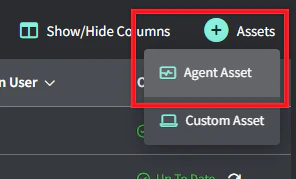
2. 将鼠标悬停在右上角的 **+Assets** 按钮上,然后点击 **Agent Asset**。
 3. 在弹出窗口中点击 **Request Agent**。
 4. 复制 PowerShell 命令,粘贴到目标计算机上的 PowerShell 中,然后按 **Enter。**
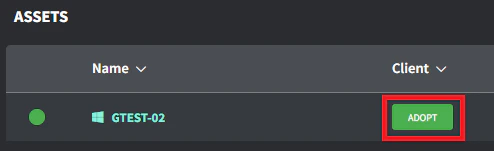
5. 当代理资产出现在资产列表中后,点击 Client/Location 列中的 **Adopt** 按钮(根据互联网带宽,这可能需要几分钟才能出现)。
6. 选择正确的 Client/Location 并点击 **Save** 以采纳。
代理安装需要提升的会话权限。
* 对于 Windows,以管理员身份运行 PowerShell。
* 对于 macOS,运行 `sudo su`(如果需要)。
有关故障排除,请参阅 [**Gorelo Agent 无法安装**](/gorelo-agent-wont-install) 页面。
4. 复制 PowerShell 命令,粘贴到目标计算机上的 PowerShell 中,然后按 **Enter。**
5. 当代理资产出现在资产列表中后,点击 Client/Location 列中的 **Adopt** 按钮(根据互联网带宽,这可能需要几分钟才能出现)。
6. 选择正确的 Client/Location 并点击 **Save** 以采纳。
代理安装需要提升的会话权限。
* 对于 Windows,以管理员身份运行 PowerShell。
* 对于 macOS,运行 `sudo su`(如果需要)。
有关故障排除,请参阅 [**Gorelo Agent 无法安装**](/gorelo-agent-wont-install) 页面。