> ## Documentation Index
> Fetch the complete documentation index at: https://help.gorelo.io/llms.txt
> Use this file to discover all available pages before exploring further.
# 使用 Windows Patch Management 自动化更新
> 部署 Gorelo Windows Patch Management 插件,在受管 Windows 资产上强制执行自动更新、延期、截止日期和重启行为。
**Windows Patch Management** 插件可对受管资产上的 Windows 更新进行集中控制。该插件的功能类似于 Windows Update for Business(WUfB),并符合 Microsoft 的推荐做法——专注于延期、截止日期和用户体验,而非逐个补丁的批准。
## 添加插件
1. 导航到 **Policies**。
2. 选择 **Windows** 选项卡。
3. 点击 **+ Add** 并选择 **Plugin**。
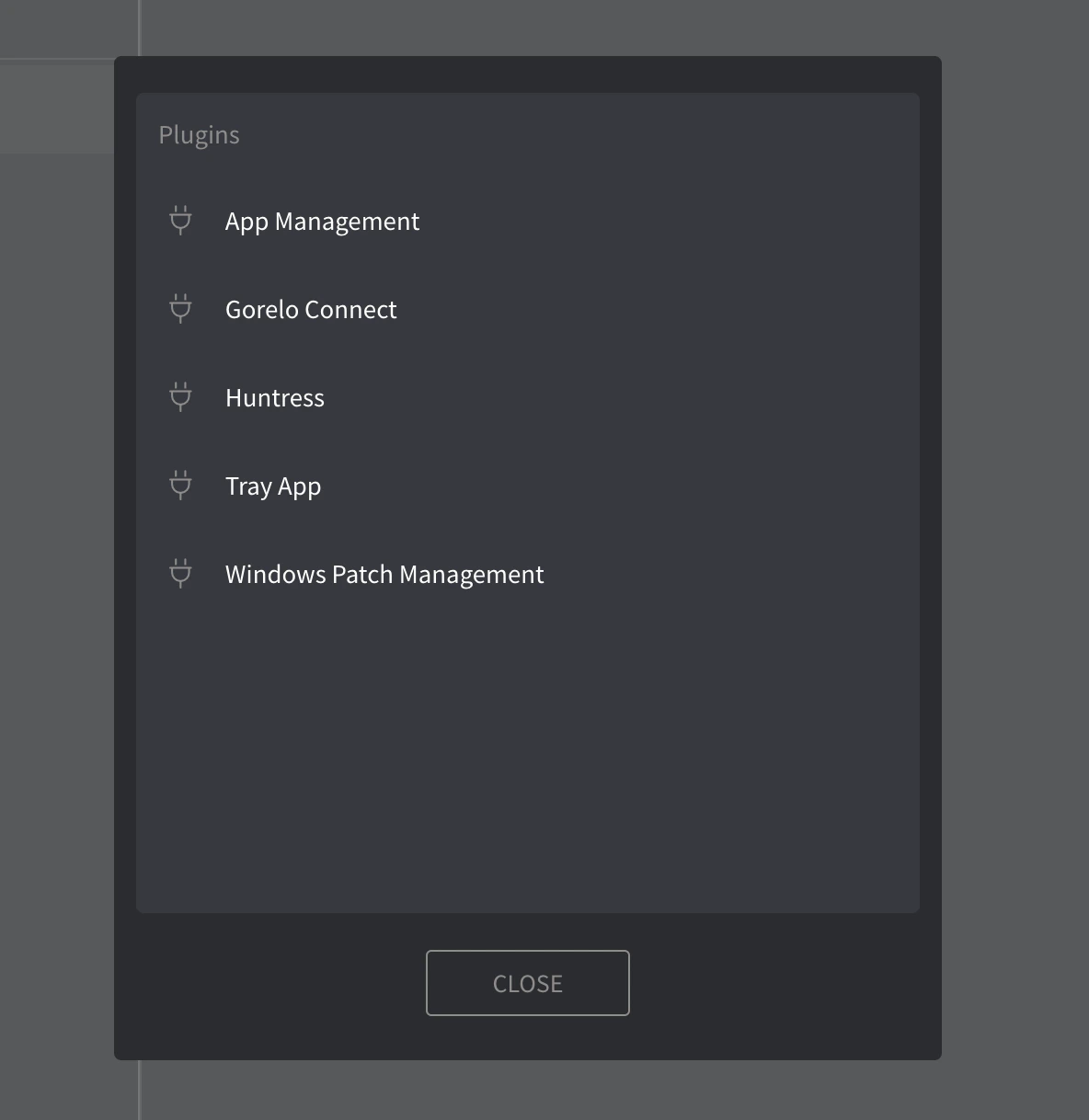
4. 从弹出窗口中,选择 **Windows Patch Management**。
 ## 工作原理
该插件通过本地策略配置 **Windows 自动更新**,允许设备根据你的 Gorelo 策略中定义的设置自主接收、安装更新并重启。
应用后,这些设置会覆盖本地用户的偏好设置,并强制执行,直到策略被移除或修改。
## 更新设置
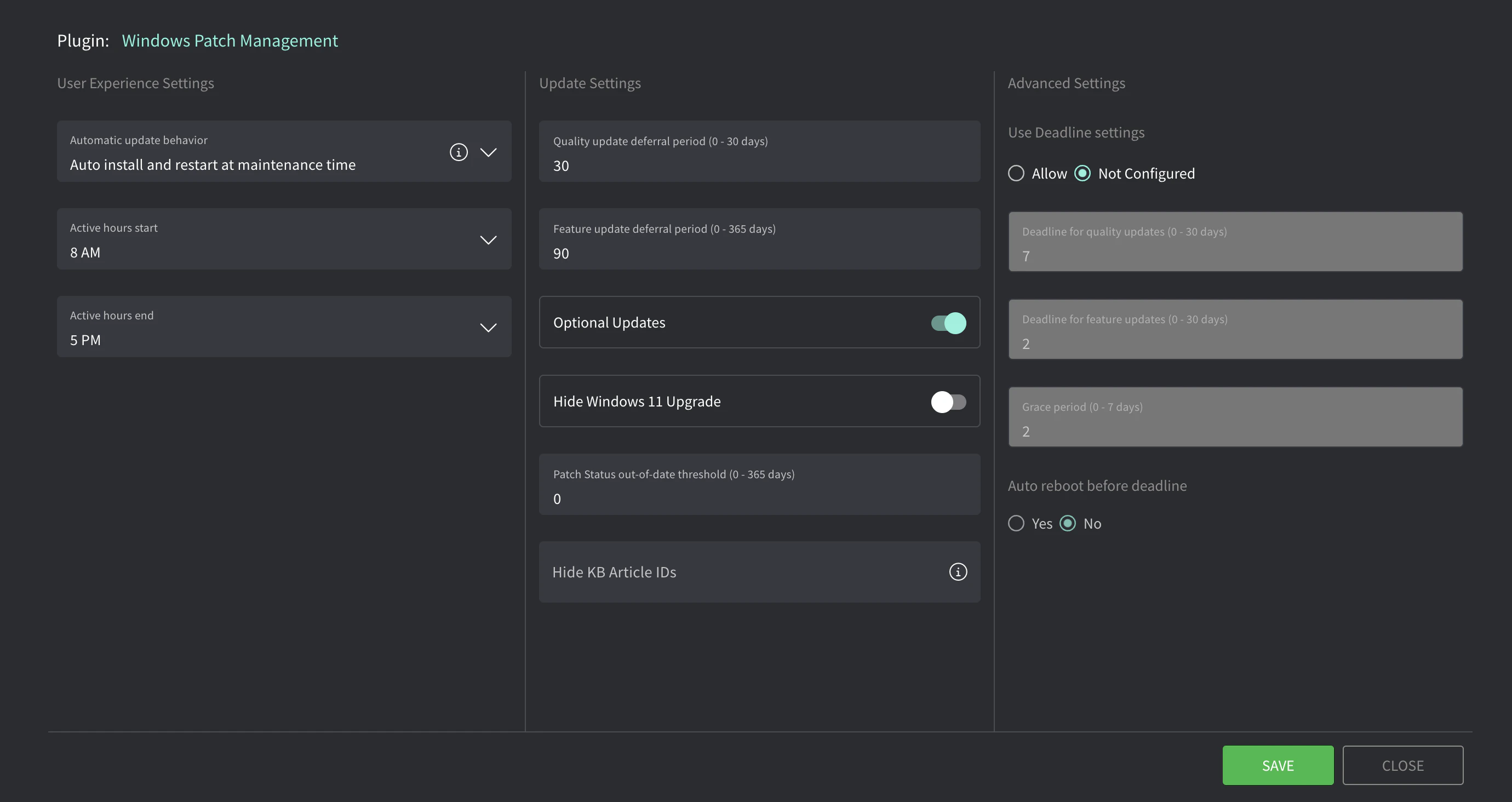
从你的 **Policy** 列表中,点击铅笔图标编辑 Windows Patch Management 插件设置。这会打开一个带有以下选项的弹出窗口。
## 工作原理
该插件通过本地策略配置 **Windows 自动更新**,允许设备根据你的 Gorelo 策略中定义的设置自主接收、安装更新并重启。
应用后,这些设置会覆盖本地用户的偏好设置,并强制执行,直到策略被移除或修改。
## 更新设置
从你的 **Policy** 列表中,点击铅笔图标编辑 Windows Patch Management 插件设置。这会打开一个带有以下选项的弹出窗口。
 | **设置** | **描述** |
| :----------------------------- | :------------------------------------------------------------------------------------------------------------------------------------------------------------------------------------------------------------------------------------------------------------------------------------------------------------------------------------------------------------------ |
| **Automatic update behavior** | 设置更新操作:`推荐:在维护时间自动安装并重启`。 **Auto install and restart at maintenance time**
| **设置** | **描述** |
| :----------------------------- | :------------------------------------------------------------------------------------------------------------------------------------------------------------------------------------------------------------------------------------------------------------------------------------------------------------------------------------------------------------------ |
| **Automatic update behavior** | 设置更新操作:`推荐:在维护时间自动安装并重启`。 **Auto install and restart at maintenance time**
更新自动下载,然后在设备未使用或未使用电池电源时在自动维护期间安装。当需要重启时,设备会在不使用时重启。使用活动时间设置定义一个阻止自动重启的时段。 **Auto download and schedule the install**
自动下载更新并按下面指定的计划安装。当选择 **"Automatic"** 作为计划安装时间时,Windows 将自动检查、下载并安装更新。设备将按 Windows 默认设置重启,除非在 **"Always automatically restart at scheduled time"** 中配置 |
| **Active hours start/end** | 适用于 "Auto install and restart at maintenance time"。防止在工作时间自动重启。 |
| **Scheduled install day/time** | 适用于 "Auto download and schedule the install"。更新在此日/时间安装。 |
## OS 更新截止日期
这些设置定义资产在强制执行开始之前必须安装更新的时间。如果启用,资产将首先尝试在常规维护时间内安装更新。如果在截止日期内无法做到这一点,它将进入宽限期,在此期间会提示用户安排重启。一旦宽限期到期,更新和重启将被强制执行。
| **设置** | **描述** |
| :------------------------------- | :----------------------------------------------- |
| **Use Deadline settings** | 如果启用,更新将在设定的时间范围内强制执行。 |
| **Deadline for quality updates** | 更新提供后,资产必须在多少天(0-30)内安装它才能进入宽限期。`推荐:2 天` |
| **Deadline for feature updates** | 更新提供后,资产必须在多少天(0-30)内安装它才能进入宽限期。`推荐:7 天` |
| **Grace period** | 截止日期后多少天(0-7)内会提示用户重启或安排重启。在此之后,设备将强制重启。`推荐:2 天` |
| **Auto reboot before deadline** | 如果启用,允许系统在截止日期到期前自动重启以完成安装。`推荐:是` |
\
将这些设置与 CIS Controls、Essential Eight、NIST 等对齐时,延期期 + 截止日期 + 宽限期定义了总天数。例如,如果你要求关键更新在发布后 7 天内安装:
* 质量更新延期期 = 3 天
* 质量更新截止日期 = 2 天
* 宽限期 = 2 天
* 3 + 2 + 2 = 7——你现在达到了 7 天的最大值。
⚠️ 建议在首次使用 Gorelo 入职时将此设置为 "Not configured",因为这是影响最小的选项。当你选择将其更改为 "Allow" 时,开始时将每个截止日期和宽限期值设置得高得多,然后逐渐降低到你的首选数字。