> ## Documentation Index
> Fetch the complete documentation index at: https://help.gorelo.io/llms.txt
> Use this file to discover all available pages before exploring further.
# ScreenConnect 集成
> 将 ScreenConnect 与 Gorelo 集成,实现一键远程桌面会话和代理安装,配置 Instance ID、API 路径和凭据。
Gorelo 与 ScreenConnect 集成,实现一键远程桌面连接和代理安装。
1. 导航到 **Settings** > **[Integrations](https://app.gorelo.io/Admin/admin-settings#integrations)。**
2. 点击 ⚙️**齿轮**图标以配置 **ScreenConnect。**
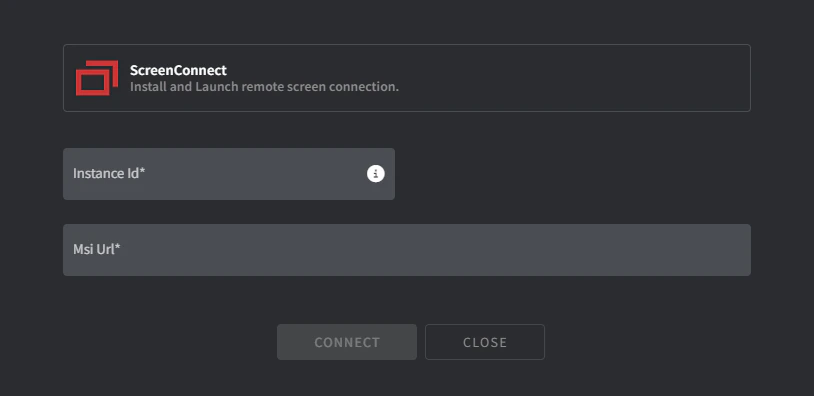 3. 填写必填字段:
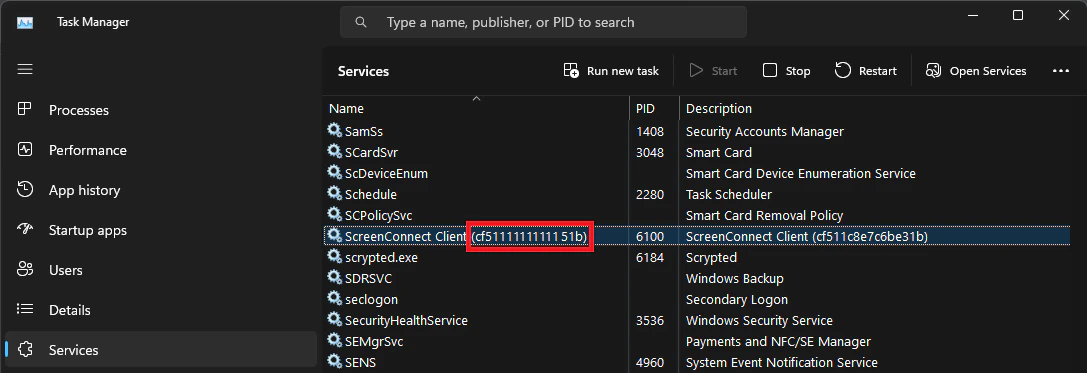
* **Instance ID**
1. 访问你已安装 ScreenConnect Client 的某个端点。
2. 导航到 **Services**。
3. 复制括号中 ScreenConnect Client Service 的值:
3. 填写必填字段:
* **Instance ID**
1. 访问你已安装 ScreenConnect Client 的某个端点。
2. 导航到 **Services**。
3. 复制括号中 ScreenConnect Client Service 的值:
 * **MSI URL**
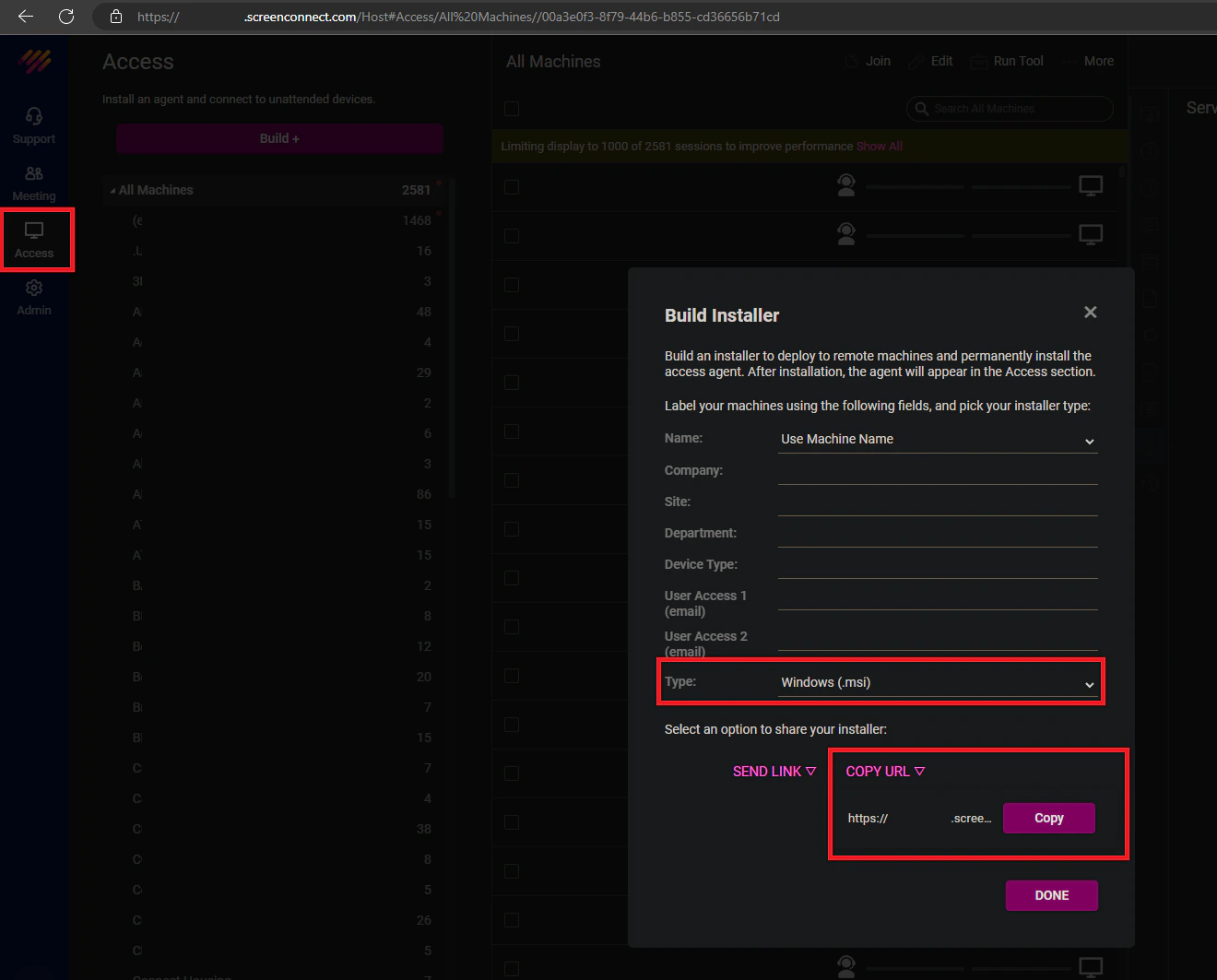
1. 登录你的 ScreenConnect 租户。
2. 点击 **Access。**
3. 点击 **Build。**
4. 将类型更改为 **Windows (MSI)。**
5. 点击 **copy URL。**
* **MSI URL**
1. 登录你的 ScreenConnect 租户。
2. 点击 **Access。**
3. 点击 **Build。**
4. 将类型更改为 **Windows (MSI)。**
5. 点击 **copy URL。**
 4. 点击 **Connect。**
Gorelo 在安装时会自动将客户名称插入 ScreenConnect 公司字段。有关其他配置,请参阅步骤 3。
1. 在主菜单中导航到 [Policies](https://app.gorelo.io/Asset/policy-management)。
2. 将 ScreenConnect 插件添加到现有策略或创建新策略。
3. 点击 **Distribute。**
**提示!**
有关其他信息,请参阅[策略](/how-policies-work)指南。
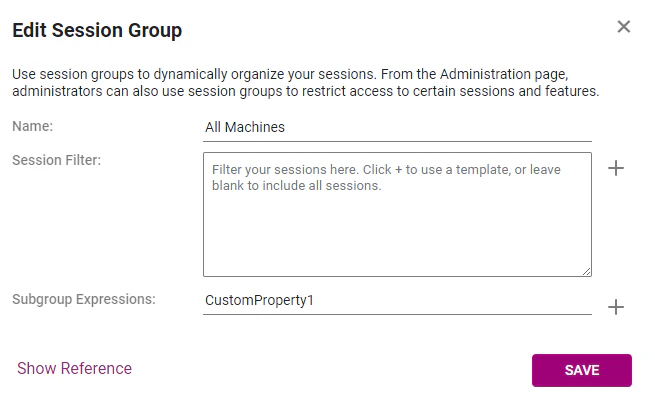
1. 登录你的 ScreenConnect 租户。
2. 导航到 **Access**。
3. 点击 **All Machines** 会话组上的**三点菜单**并点击 **Edit。**
4. 在 **Subgroup Expressions** 字段中输入 `CustomProperty1`。
5. 点击 **Save。**
4. 点击 **Connect。**
Gorelo 在安装时会自动将客户名称插入 ScreenConnect 公司字段。有关其他配置,请参阅步骤 3。
1. 在主菜单中导航到 [Policies](https://app.gorelo.io/Asset/policy-management)。
2. 将 ScreenConnect 插件添加到现有策略或创建新策略。
3. 点击 **Distribute。**
**提示!**
有关其他信息,请参阅[策略](/how-policies-work)指南。
1. 登录你的 ScreenConnect 租户。
2. 导航到 **Access**。
3. 点击 **All Machines** 会话组上的**三点菜单**并点击 **Edit。**
4. 在 **Subgroup Expressions** 字段中输入 `CustomProperty1`。
5. 点击 **Save。**
 ## 故障排除
### ScreenConnect 在特定资产上未连接
如果 ScreenConnect 未在特定资产上显示连接,请按照以下步骤重新安装:
1. 导航到特定资产的详情页面。
2. 点击左下角的 **Policy** 选项卡:
## 故障排除
### ScreenConnect 在特定资产上未连接
如果 ScreenConnect 未在特定资产上显示连接,请按照以下步骤重新安装:
1. 导航到特定资产的详情页面。
2. 点击左下角的 **Policy** 选项卡:
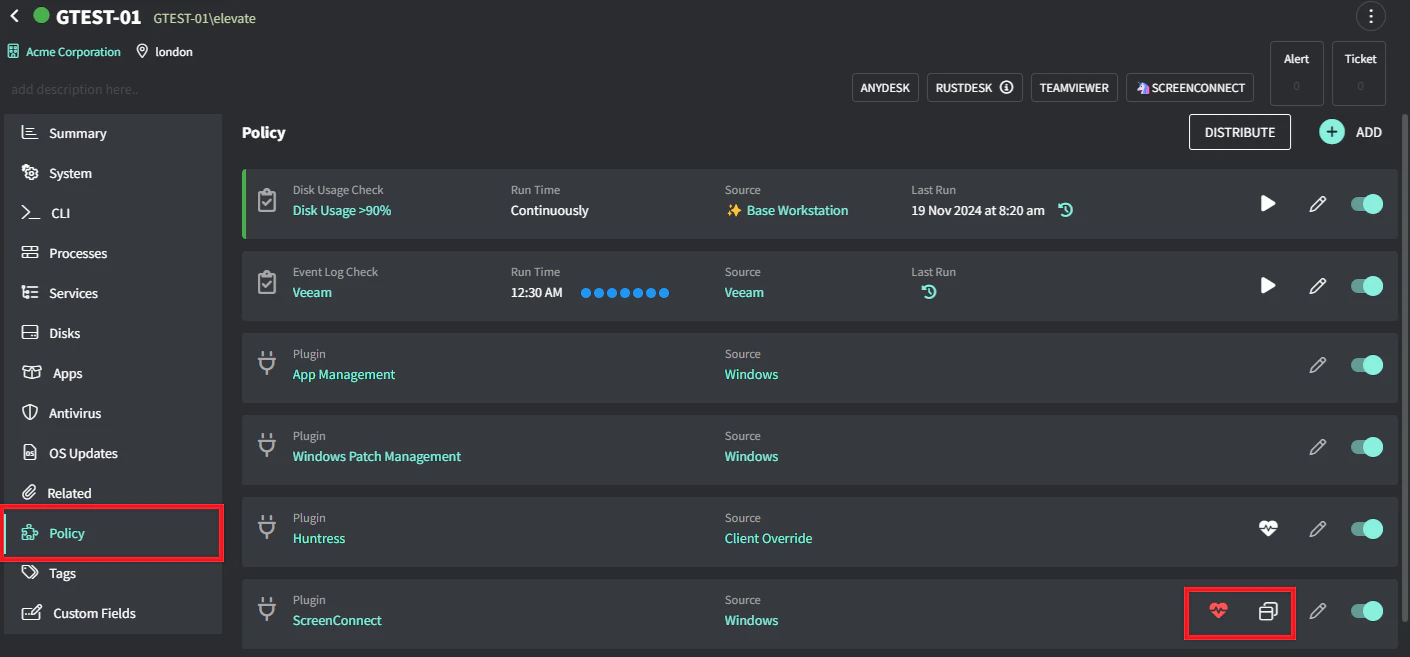 3. 在 ScreenConnect 插件上点击 heart 图标。
4. 点击 ScreenConnect 图标以重新安装。
3. 在 ScreenConnect 插件上点击 heart 图标。
4. 点击 ScreenConnect 图标以重新安装。