> ## Documentation Index
> Fetch the complete documentation index at: https://help.gorelo.io/llms.txt
> Use this file to discover all available pages before exploring further.
# 编写和测试脚本
> 在 Gorelo 中编写和测试 PowerShell、Command Line 或 Bash 脚本,支持类型选择、超时设置以及在部署之前对代理资产进行 CLI 测试。
对于无法通过检查和插件原生完成的任何事情,可以使用**脚本**。
## 创建脚本
1. 从主菜单导航到 [**Scripts**](https://app.gorelo.io/Asset/script-list)。
2. 点击左下角的 **Create a script**。
3. 给脚本一个标题。
4. 在编辑器字段中输入或粘贴你的脚本(例如 `ipconfig`)。
5. 点击右上角的 **Save**。
## 额外设置
* **Script type**:这会将脚本类型从默认的 PowerShell 更改为 Command Line 或 Bash。PowerShell 和 Command Line 仅适用于 Windows,Bash 仅适用于 macOS。
* **Timeout**:这让你能以分钟为单位设置脚本的超时时间。
* **Run as user**:这将在最近登录的用户上下文中运行脚本。
* **Variables**:这是 Gorelo 中可用的变量列表,你可以使用它们。创建[**自定义资产字段**](https://app.gorelo.io/Admin/admin-settings#asset#assetcustomfields)、[**自定义客户字段**](https://app.gorelo.io/Admin/admin-settings#crm#clientcustomfields)和[**自定义文件**](https://app.gorelo.io/Admin/admin-settings#asset#filerepository)将填充此列表。
**提示!**
有关通过自定义字段和告警的额外功能,请参阅 [**GoreloAction**](/gorelo-action-cli)
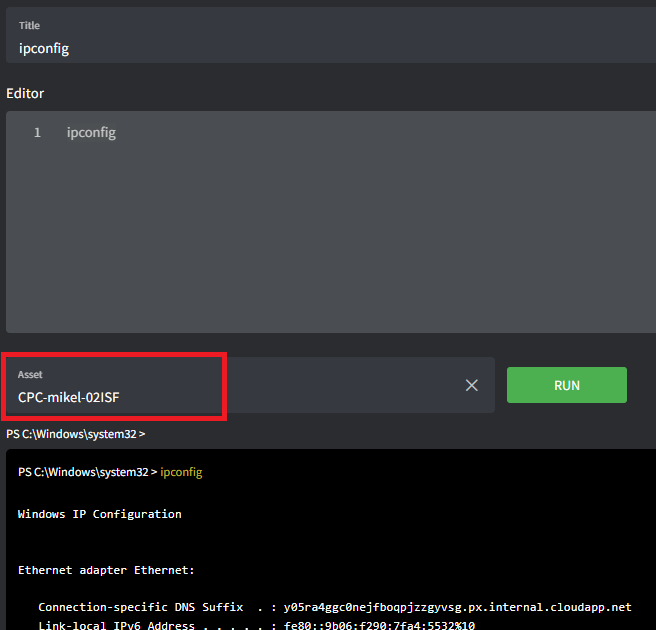
## 测试你的脚本
1. 打开或创建一个新脚本。
2. 将光标放在页面底部的 **Asset** 字段中。
3. 输入你想要测试的资产的主机名。
4. 点击 **Run**。