> ## Documentation Index
> Fetch the complete documentation index at: https://help.gorelo.io/llms.txt
> Use this file to discover all available pages before exploring further.
# Create a form
> Create a form in Gorelo to capture client information, build it with question and answer blocks, mark required fields, and publish it for self-service use.
To create a form:
1. Navigate to [**Forms**](https://app.gorelo.io/form/form-list) from the menu.
2. Click **Create form** down the bottom-left.
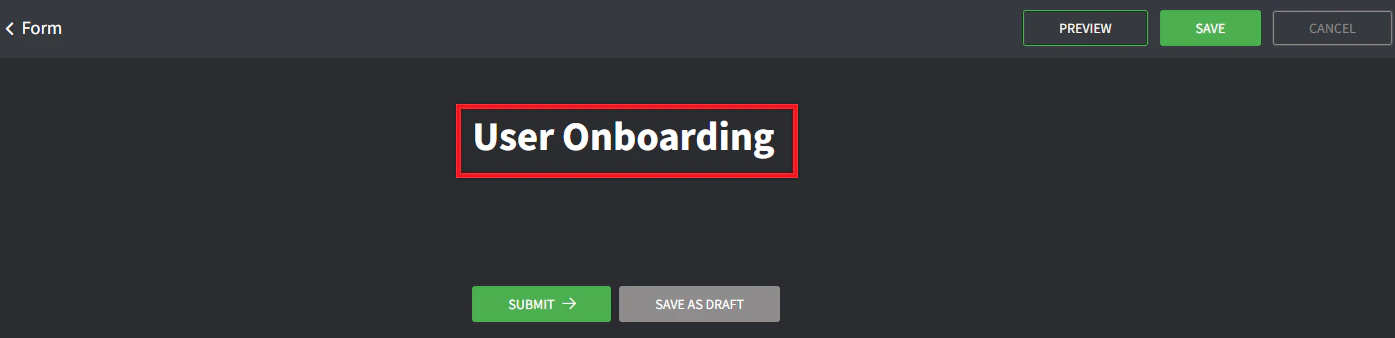
3. Give the form a title (this is what the client will see).
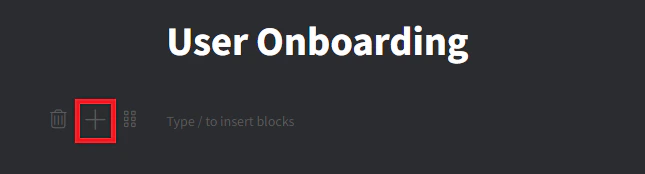
 4. Create a new field block by clicking the + button or typing `/`.
 5. Select **Question + Short Answer.**
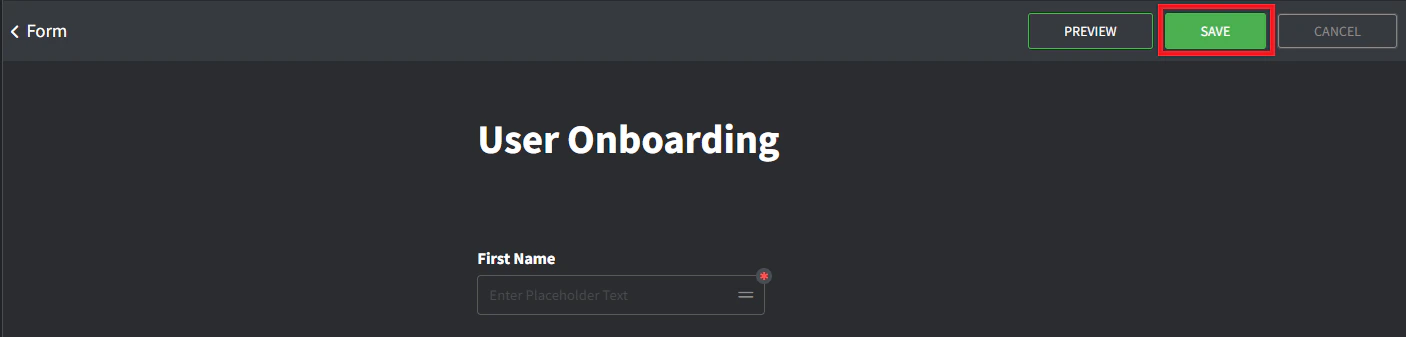
6. Give the field block a title of **First Name.**
7. Click the **required** toggle to make this field mandatory.
8. Click **Save** up the top right.
5. Select **Question + Short Answer.**
6. Give the field block a title of **First Name.**
7. Click the **required** toggle to make this field mandatory.
8. Click **Save** up the top right.
 9. Click **Preview** up the top right to see what the form will look like.
10. Click **Go Back** up the top right to navigate back to the Form editor and continue with additional fields.
9. Click **Preview** up the top right to see what the form will look like.
10. Click **Go Back** up the top right to navigate back to the Form editor and continue with additional fields.