> ## Documentation Index
> Fetch the complete documentation index at: https://help.gorelo.io/llms.txt
> Use this file to discover all available pages before exploring further.
# Automatically solve and close
> Build Ticket Shortcuts in Gorelo to automate repetitive actions like canned responses, solve-and-close workflows, and project baselines from one click.
Ticket Shortcuts keep things consistent and save time by automating actions. You can use Ticket Shortcuts for something as basic as a canned response or even something more complex like a project baseline.
## Create a ticket shortcut
1. Navigate to **Settings** —> **Tickets** —> [**Shortcuts**](https://app.gorelo.io/Admin/admin-settings#ticket#shortcuts)
2. Click ‘**Add Shortcut**’ up the top-right
3. Fill in the necessary fields:
* **Name**: this is the name of the shortcut and will be used to search for it (on the Ticket Detail)
* **Description**: this is where you can describe the shortcut in extra detail. It will show when hovering the ℹ️ icon next to the name when searching for it (on the Ticket Detail)
* **Visibility**: this defines who can see/use the shortcut
* **Public**: everyone in your organization
* **Private**: only you
* **Groups**: only users in the specified groups
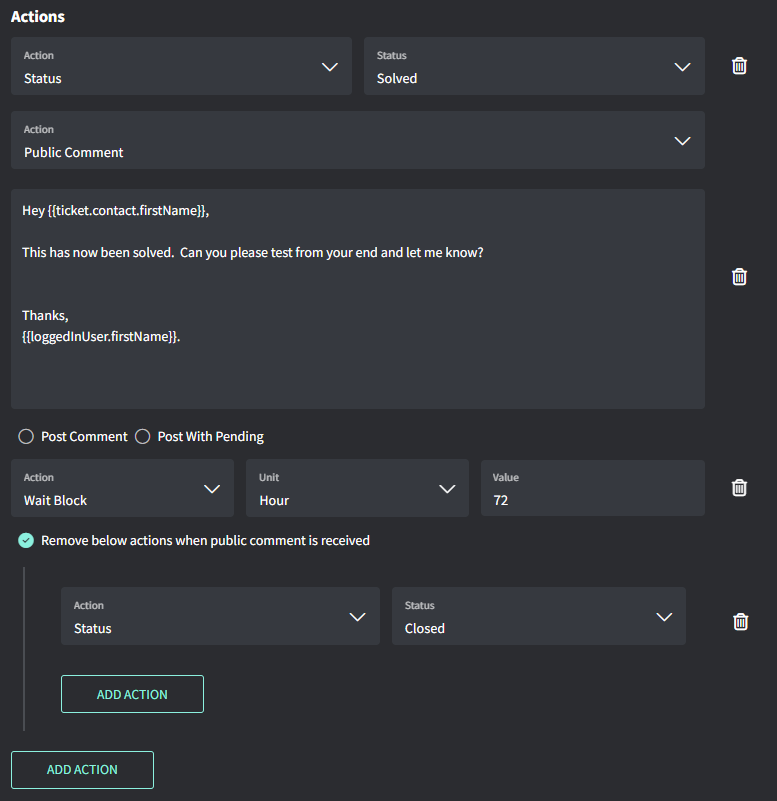
4. Add the **Actions** (see examples below)
5. Click ‘**Create**’
## Example: solve and close a ticket
* Immediately mark as **Solved**
* Immediately insert **public comment** draft
* Wait 72 hours
* Mark as **Closed** (if no public comment reply was received)