> ## Documentation Index
> Fetch the complete documentation index at: https://help.gorelo.io/llms.txt
> Use this file to discover all available pages before exploring further.
# Deploy the Gorelo Agent
> Deploy the Gorelo Agent on Windows and macOS using the generic or client-specific PowerShell installer or manual executable for asset adoption and monitoring.
The Gorelo Agent can be installed via a PowerShell command (recommended) or via a manual executable. If using a client-specific installer, it will automatically associate with the specified client/location. If using the generic installer, it will be ready for adoption.
Gorelo only supports operating systems that are currently supported by the vendor themselves (Microsoft/Apple).
* [**https://endoflife.date/windows**](https://endoflife.date/windows)
* [**https://endoflife.date/windows-server**](https://endoflife.date/windows-server)
* [**https://endoflife.date/macos**](https://endoflife.date/macos)
## Install the generic Windows agent via PowerShell
1. Navigate to the [**Assets List**](https://app.gorelo.io/Asset/asset-list) in the main menu.
2. Hover over the **+Assets** button in the top right and click **Agent Asset**.
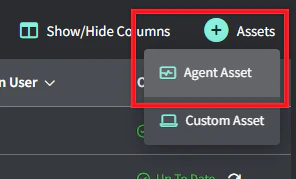 3. Click **Request Agent** in the popup.
 4. Copy the PowerShell command, paste into PowerShell on the target computer and press **Enter.**
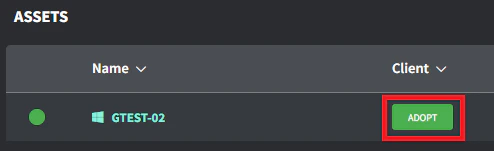
5. Click the **Adopt** button in the Client/Location column once the agent asset appears in the asset list (this can take a few minutes to appear based on internet bandwidth).
6. Select the correct Client/Location and click **Save** to Adopt.
An elevated session is required for agent install.
* For Windows, run PowerShell as administrator.
* For macOS, run `sudo su` (if required).
For troubleshooting, see the [**Gorelo Agent won’t install**](/gorelo-agent-wont-install) page.
4. Copy the PowerShell command, paste into PowerShell on the target computer and press **Enter.**
5. Click the **Adopt** button in the Client/Location column once the agent asset appears in the asset list (this can take a few minutes to appear based on internet bandwidth).
6. Select the correct Client/Location and click **Save** to Adopt.
An elevated session is required for agent install.
* For Windows, run PowerShell as administrator.
* For macOS, run `sudo su` (if required).
For troubleshooting, see the [**Gorelo Agent won’t install**](/gorelo-agent-wont-install) page.