> ## Documentation Index
> Fetch the complete documentation index at: https://help.gorelo.io/llms.txt
> Use this file to discover all available pages before exploring further.
# Filter data with Views and Client Focus
> Use Views and Client Focus in Gorelo to filter tickets, assets, and alerts by saved criteria or a specific client, with team-shareable boards across lists.
**Views** are boards that filter your data on each (like Tickets, Assets, Alerts). You can customize your filters in many ways and then save the result as a View. You can also share Views globally with your team.
Use **Client Focus** when you want to filter based on a specific client. The **Client Focus** works in combination with your selected View. For example:
* You have a View that shows ‘Mine & Unassigned’ tickets.
* When applying a Client Focus will filter the data to only show ‘Mine & Unassigned’ for that specific client.
The Client Focus also persists across all lists.
## Create a view from alerts
This example uses the Alerts list.
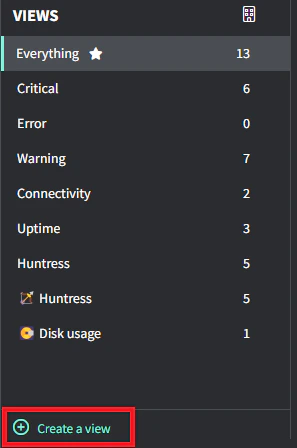
1. Navigate to the [**Alerts list**](https://app.gorelo.io/Alert/alerts)
2. Click ‘Create a view’ at the bottom of the Views pane
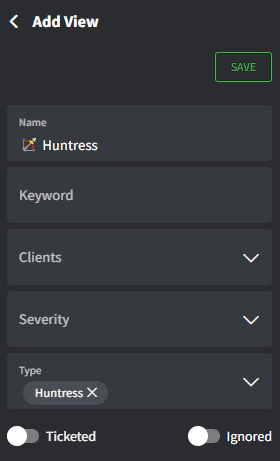
3. Enter the fields to filter the list
* **Name**: this is the name that shows in the Views pane (emojis work), e.g., 🏹 Huntress
* **Keyword**: this will filter by keyword in the Alert **name** (white text)
* **Clients**: leave blank for **all** clients or choose specific clients
* **Severity**: choose one or multiple severity levels
* **Type**: choose one or multiple types
* **Ticketed**: toggle on to show alerts that have been associated with a ticket
* **Ignored**: toggle on to show ignored alerts
4. Click **Save** and navigate back to the Views pane
Tips!
* The 3-dot menu beside each View can be used to:
* **Edit**: make changes to the View
* **Set Default**: this is the view that will load automatically for you
* **Set Global**: this will share the View to everyone in your organization (only Admins can do this)
* **Hide**: this will put the View into the collapsible section called ‘Hidden Views’
* Delete: this will delete the View
* Some lists will have toggles up the top-right to quickly make changes, e.g., show Ticketed/Ignored on the Alerts list
## Filter alerts by client
The Alerts list is used as an example here.
1. Navigate to the [**Alerts list**](https://app.gorelo.io/Alert/alerts)
2. Click the Client Focus button in the top right of the Views pane
3. Enter the client’s name. Your list will now be filtered by the **View** AND the **Client Focus.**
Tips!
* Client Focus persists across all lists in Gorelo. If you set the Client Focus on alerts and then navigate to Tickets, it will still be there.
## Next steps
Manage your clients’ requests and organize your work.
Monitor important events or issues in Gorelo.
 3. Enter the fields to filter the list
* **Name**: this is the name that shows in the Views pane (emojis work), e.g., 🏹 Huntress
* **Keyword**: this will filter by keyword in the Alert **name** (white text)
* **Clients**: leave blank for **all** clients or choose specific clients
* **Severity**: choose one or multiple severity levels
* **Type**: choose one or multiple types
* **Ticketed**: toggle on to show alerts that have been associated with a ticket
* **Ignored**: toggle on to show ignored alerts
3. Enter the fields to filter the list
* **Name**: this is the name that shows in the Views pane (emojis work), e.g., 🏹 Huntress
* **Keyword**: this will filter by keyword in the Alert **name** (white text)
* **Clients**: leave blank for **all** clients or choose specific clients
* **Severity**: choose one or multiple severity levels
* **Type**: choose one or multiple types
* **Ticketed**: toggle on to show alerts that have been associated with a ticket
* **Ignored**: toggle on to show ignored alerts
 4. Click **Save** and navigate back to the Views pane