> ## Documentation Index
> Fetch the complete documentation index at: https://help.gorelo.io/llms.txt
> Use this file to discover all available pages before exploring further.
# What are forms
> Forms in Gorelo capture information from end users for hardware requests, user lifecycle, client onboarding, and more, with name and description settings.
## Form settings
### Name
To change the internal name of the form:
1. Navigate to [**Forms**](https://app.gorelo.io/form/form-list) from the menu
2. Select the form on the left
3. Click the edit icon to the right of the existing form name
 4. Change the name and click ‘Update’
### Description
To change the internal description of the form:
1. Navigate to [**Forms**](https://app.gorelo.io/form/form-list) from the menu
2. Select the form on the left
3. Click the edit icon to the right of the description field
4. Change the name and click ‘Update’
### Description
To change the internal description of the form:
1. Navigate to [**Forms**](https://app.gorelo.io/form/form-list) from the menu
2. Select the form on the left
3. Click the edit icon to the right of the description field
 4. Add/change the description and click the save icon
### Groups
One or more Groups can be automatically added to a ticket created via a form. You can also choose to notify those groups on ticket creation.
1. Navigate to [**Forms**](https://app.gorelo.io/form/form-list) from the menu
2. Select the form on the left
3. Select the **Settings** tab
4. Select the Group(s) you’d like to automatically apply via the dropdown
4. Add/change the description and click the save icon
### Groups
One or more Groups can be automatically added to a ticket created via a form. You can also choose to notify those groups on ticket creation.
1. Navigate to [**Forms**](https://app.gorelo.io/form/form-list) from the menu
2. Select the form on the left
3. Select the **Settings** tab
4. Select the Group(s) you’d like to automatically apply via the dropdown
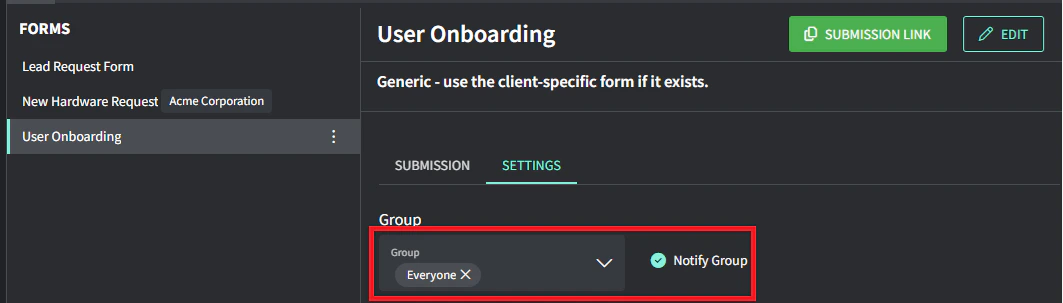 5. Toggle on **Notify group** to generate a notification to those group members when a ticket is created via this form
6. Click **Save changes** at the bottom
### Tags
One or more Tags can be automatically added to a ticket created via a form.
1. Navigate to [**Forms**](https://app.gorelo.io/form/form-list) from the menu
2. Select the form on the left
3. Select the **Settings** tab
4. Select the tags(s) you’d like to automatically apply via the dropdown
5. Toggle on **Notify group** to generate a notification to those group members when a ticket is created via this form
6. Click **Save changes** at the bottom
### Tags
One or more Tags can be automatically added to a ticket created via a form.
1. Navigate to [**Forms**](https://app.gorelo.io/form/form-list) from the menu
2. Select the form on the left
3. Select the **Settings** tab
4. Select the tags(s) you’d like to automatically apply via the dropdown
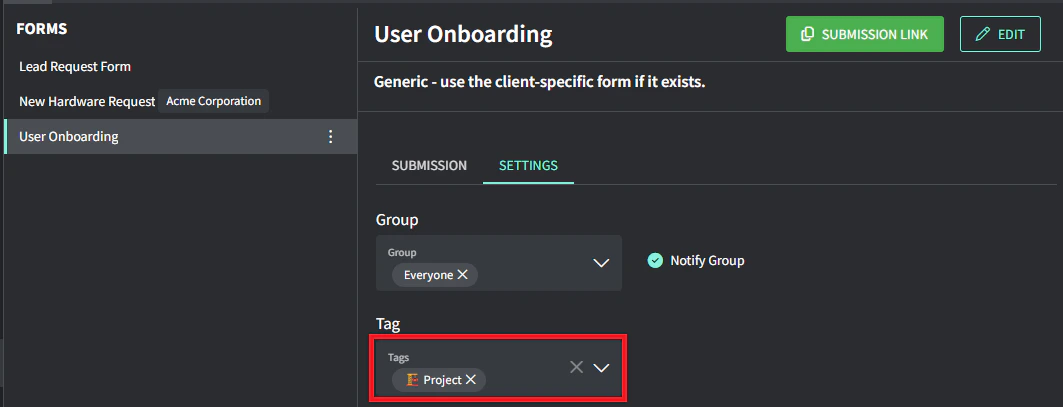 5. Click **Save changes** at the bottom
### Clients
Forms can be set so only certain Clients have access to them. This is a great way to reduce clutter when generating a form link from an existing ticket.
1. Navigate to [**Forms**](https://app.gorelo.io/form/form-list) from the menu
2. Select the form on the left
3. Select the **Settings** tab
4. Select the tags(s) you’d like to automatically apply via the dropdown
5. Click **Save changes** at the bottom
### Clients
Forms can be set so only certain Clients have access to them. This is a great way to reduce clutter when generating a form link from an existing ticket.
1. Navigate to [**Forms**](https://app.gorelo.io/form/form-list) from the menu
2. Select the form on the left
3. Select the **Settings** tab
4. Select the tags(s) you’d like to automatically apply via the dropdown
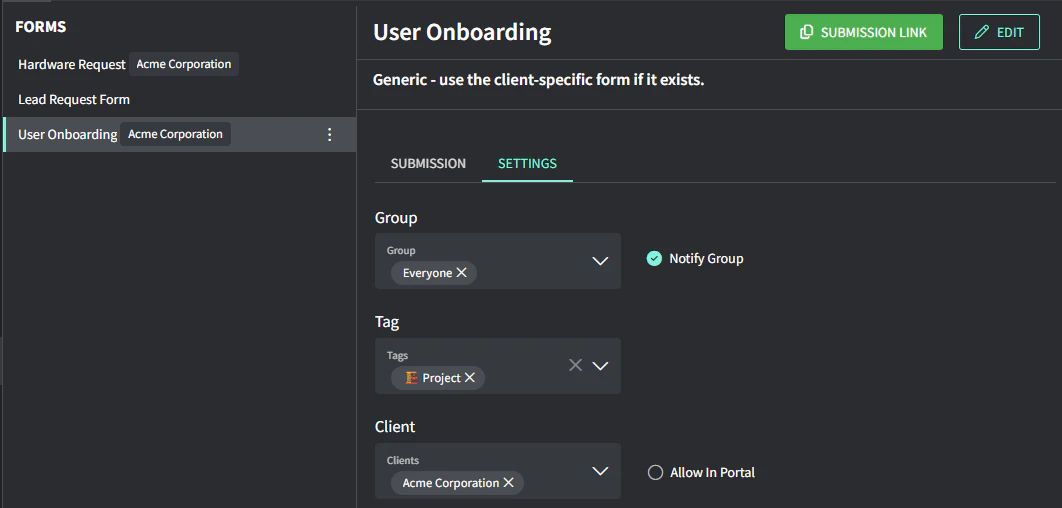 5. Click **Save changes** at the bottom