> ## Documentation Index
> Fetch the complete documentation index at: https://help.gorelo.io/llms.txt
> Use this file to discover all available pages before exploring further.
# Generate and rephrase replies
> Use Gorelo Prompt Management to build custom AI prompts that generate ticket replies or rephrase text, keeping full control of tone and style for your team.
Prompt Management lets you create your own custom prompts to either generate replies or rephrase text. This allows you to make use of AI while keeping full control over the tone and style.
 ## Add a prompt
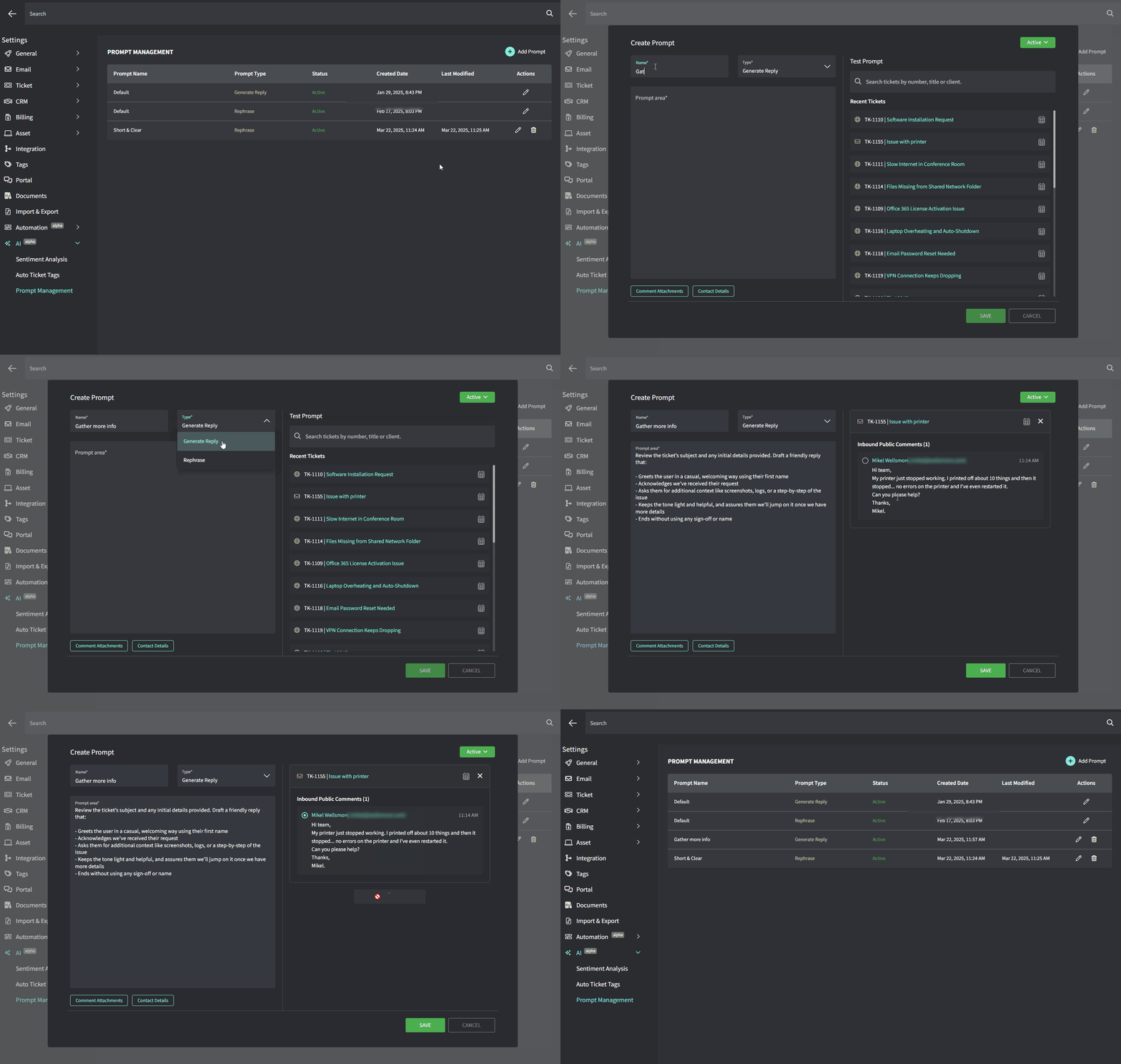
1. Navigate to **Settings** → **AI** → **Prompt Management**
2. Click **Add Prompt** and fill out the following fields:
* **Name**: A quick label so you know what it’s for
* **Prompt Type**: Select **Generate reply** or **Rephrase**
* **Prompt Text**: The actual text or instructions you want the AI to follow
## Add a prompt
1. Navigate to **Settings** → **AI** → **Prompt Management**
2. Click **Add Prompt** and fill out the following fields:
* **Name**: A quick label so you know what it’s for
* **Prompt Type**: Select **Generate reply** or **Rephrase**
* **Prompt Text**: The actual text or instructions you want the AI to follow
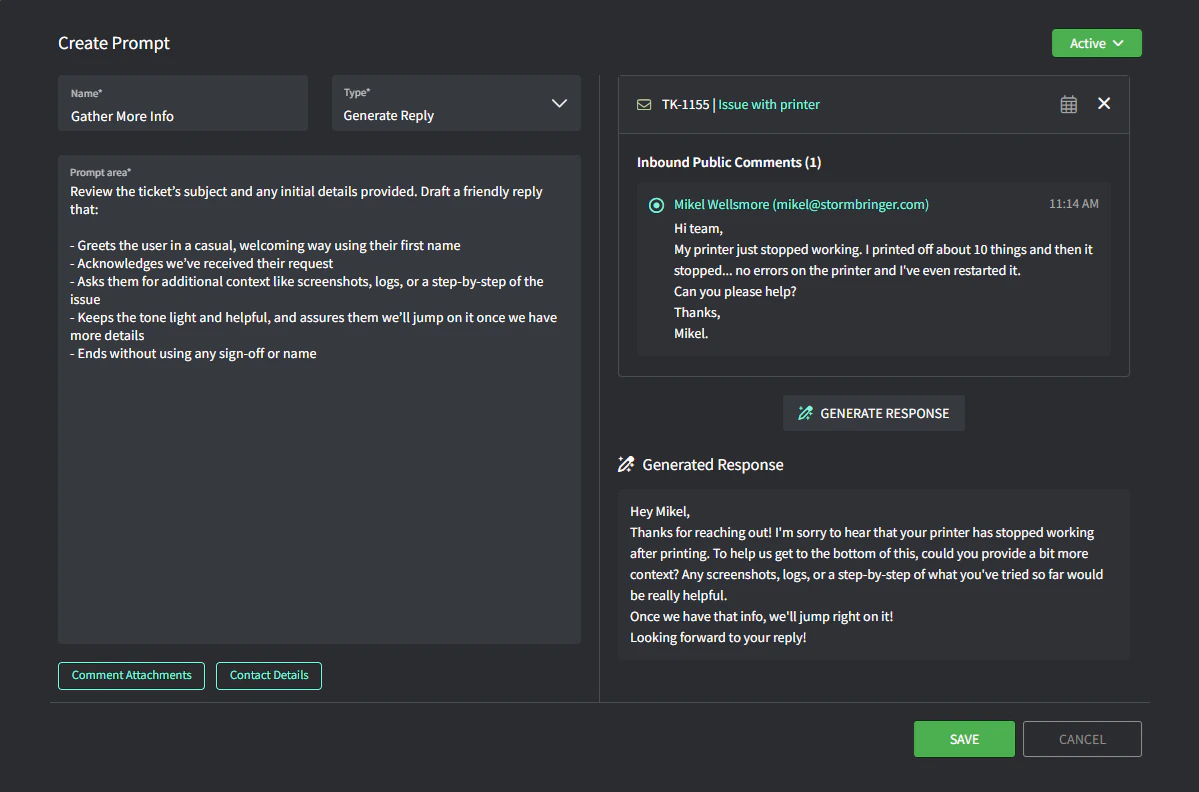 3. On the right-side, you can test each prompt type:
* For Generate Reply — select the ticket and then select a comment and click ‘Generate Response’
* For Rephrase — type your text and click ‘Rephrase’
4. Change the status to **Active** (top-right) when you’re ready to make it available for use on tickets
5. Click ‘**Save**’
## How the prompts work
**Generate reply**:
* Uses details from the ticket title, latest comment, and contact info.
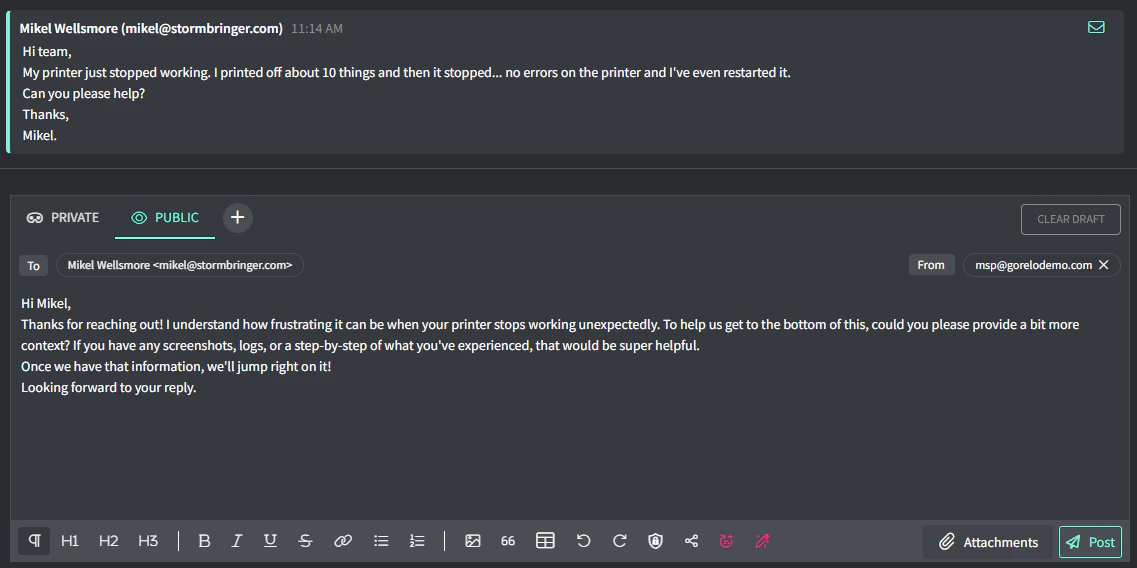
* Example: If your prompt says, “Gather More Info,” the AI will use the ticket’s context to create that reply.
3. On the right-side, you can test each prompt type:
* For Generate Reply — select the ticket and then select a comment and click ‘Generate Response’
* For Rephrase — type your text and click ‘Rephrase’
4. Change the status to **Active** (top-right) when you’re ready to make it available for use on tickets
5. Click ‘**Save**’
## How the prompts work
**Generate reply**:
* Uses details from the ticket title, latest comment, and contact info.
* Example: If your prompt says, “Gather More Info,” the AI will use the ticket’s context to create that reply.
 * **Rephrase**:
* Takes whatever text you’ve typed in the comment box and reworks it.
* Example: If you write a response but want a more concise version, click **Rephrase**.
* **Rephrase**:
* Takes whatever text you’ve typed in the comment box and reworks it.
* Example: If you write a response but want a more concise version, click **Rephrase**.
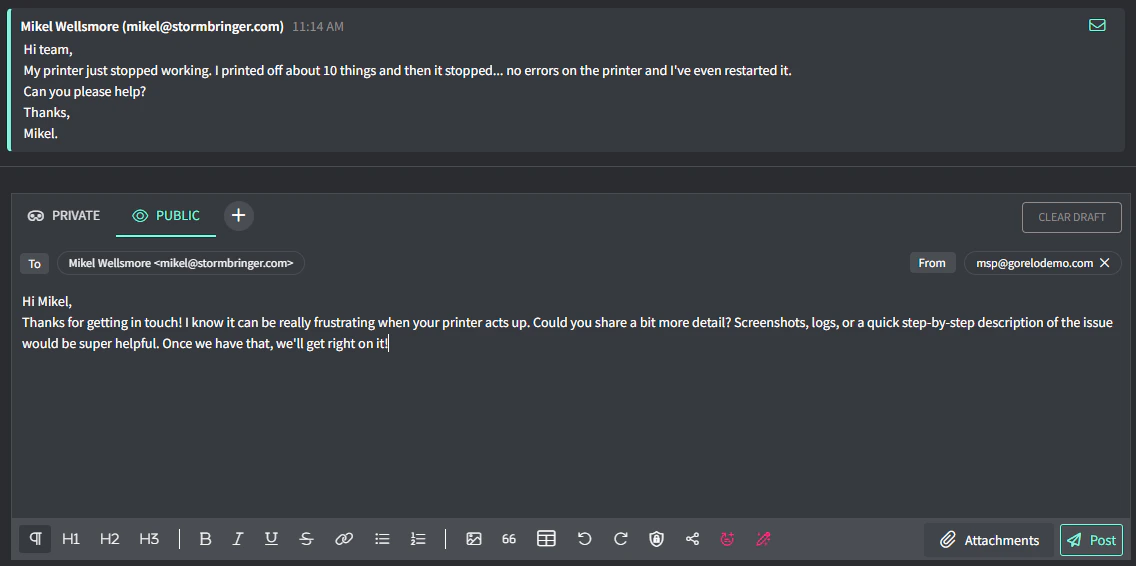 ## Rephrase or generate a reply
* In the ticket’s **Public Comment** box, you’ll see two buttons:
* **Rephrase your text** (for Rephrase prompts)
## Rephrase or generate a reply
* In the ticket’s **Public Comment** box, you’ll see two buttons:
* **Rephrase your text** (for Rephrase prompts)
 * **Generate a reply** (for Generate reply prompts)
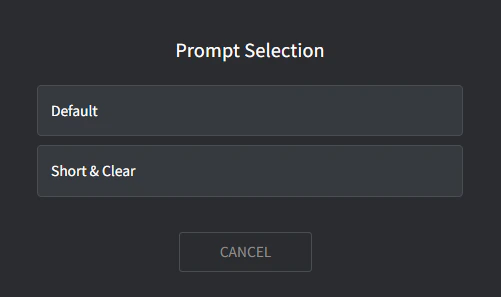
* If you’ve got more than one active prompt for a type, a popup appears and lets you pick which one to use.
* **Generate a reply** (for Generate reply prompts)
* If you’ve got more than one active prompt for a type, a popup appears and lets you pick which one to use.