> ## Documentation Index
> Fetch the complete documentation index at: https://help.gorelo.io/llms.txt
> Use this file to discover all available pages before exploring further.
# Group assets with tags
> Group assets in Gorelo with built-in and custom tags driven by apps, services, registry keys, or Windows features to target policies and run scripts.
## Custom tags
1. Navigate to Settings > [**Tags**](https://app.gorelo.io/Admin/admin-settings#tagmanagementsettings) > Asset Policy Tags.
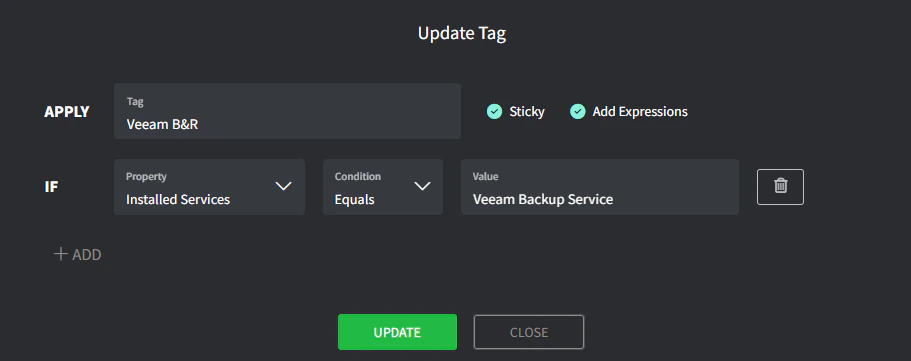
2. Create an Asset Tag (down the bottom):
* **Tag**: this is the name of the tag (for example, *Veeam B\&R*).
* **Sticky**: the tag can be automatically added but not automatically removed.
* **Property**: select from Apps, Services, Registry Key and Windows Features.
* **Condition**: select the appropriate condition.
* **Value**: enter the expected value.
**Tag expressions** are evaluated every \~6 hours and immediately when the [Gorelo.Rmm.Shell](http://Gorelo.Rmm.Shell) service starts (at first boot or manually).
**Sticky** should be used when you have policies attached with important checks (like backup monitoring). In the event someone accidentally uninstalls Veeam, the tag would remain and the Veeam backup check would continue to alert.\
These tags can be manually removed once the expression no longer matches.
 **Tag expressions** are evaluated every \~6 hours and immediately when the [Gorelo.Rmm.Shell](http://Gorelo.Rmm.Shell) service starts (at first boot or manually).