> ## Documentation Index
> Fetch the complete documentation index at: https://help.gorelo.io/llms.txt
> Use this file to discover all available pages before exploring further.
# Integrate with 1Password
> Integrate 1Password with Gorelo to sync items across vaults for search, embedding, and related items, using the MSP edition and a Service Account Token.
Integrating 1Password with Gorelo allows you to sync 1Password items across your vaults into Gorelo for use in search, embedding, related items and more.
We recommend the **MSP Edition**\
[**https://1password.com/product/enterprise-password-manager-msp-edition**](https://1password.com/product/enterprise-password-manager-msp-edition)
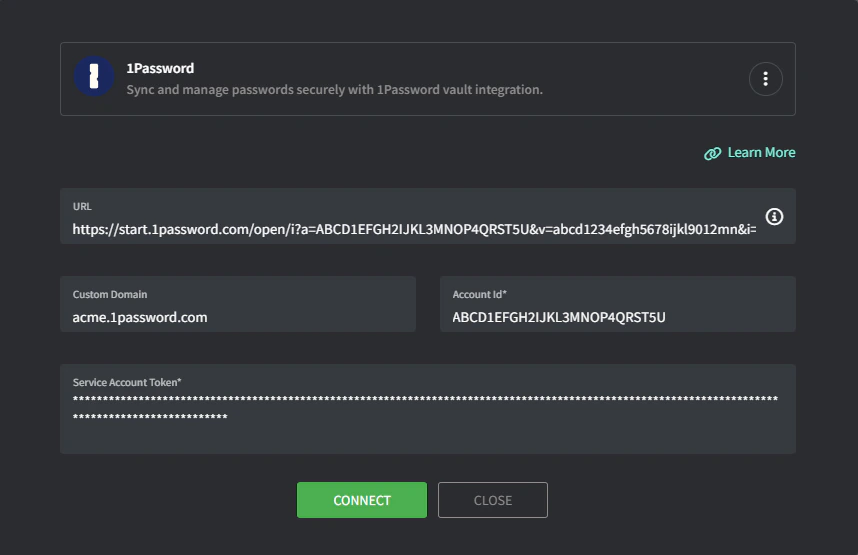
| Field | Value | Example |
| ----------------- | ------------------------------------------------------------------------------------------------------------------------------------------------- | ------------------------------------------------------------------------------------------------------------------------------------------------ |
| **URL** | In any 1Password application, right-click an item and choose ‘Copy Private Link’ and paste it here to auto-fill your Custom Domain and Account ID | `https://start.1password.com/open/i?a=ABCD1EFGH2IJKL3MNOP4QRST5U&v=abcd1234efgh5678ijkl9012mn&i=zyxw9876vuts5432rqpo1098ml&h=acme.1password.com` |
| **Custom Domain** | Your [1password.com](http://1password.com) subdomain and will be auto-filled by your 1Password | `acme.1password.com` |
| **Account ID** | Your account ID and will be auto-filled by your 1Password URL | `ABCD1EFGH2IJKL3MNOP4QRST5U` |
**Service Account Token:**
* Navigate to your 1Password admin console > Developer > Service accounts.
* Click **New service account** up the top right.
* Enter `Gorelo` as the name.
* Select your vaults and give **write permissions.**
* Create the account and copy the service account token into Gorelo.
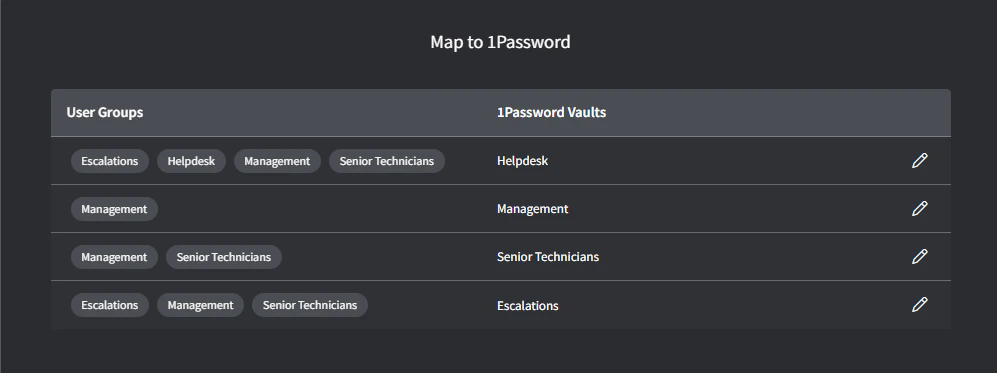
 Vault mapping screen will appear.
 ## Troubleshooting
Your integration is probably missing the write permission (step 3). To change the vaults/permissions, 1Password requires you to **delete the service account and recreate it**. Make sure to add the write permission when adding the Service Account Token.
## Troubleshooting
Your integration is probably missing the write permission (step 3). To change the vaults/permissions, 1Password requires you to **delete the service account and recreate it**. Make sure to add the write permission when adding the Service Account Token.