> ## Documentation Index
> Fetch the complete documentation index at: https://help.gorelo.io/llms.txt
> Use this file to discover all available pages before exploring further.
# Automatically assign a ticket based on events and time
> Create event and time automation rules in Gorelo to assign tickets, notify users, or trigger actions based on ticket creation, status changes, and unread state.
1. Navigate to Settings —> Automation —> [**Event and Time**](https://app.gorelo.io/Admin/admin-settings#automation#eventandtime)
2. Click ‘**+Automation Rule**’ up the top-right
3. Enter the details:
* **Title**: this is the title of the rule
* **When**: this is the trigger that the rule is based on
* **Condition**: these conditions must be met for the rule to apply (AND operator between each condition)
* **Then**: these are the actions that will then take place
**Tip!**
Automation Rules are forward-looking: they only evaluate triggers that occur after the rule is created. Think of creating a rule as drawing a line in time:
* If your trigger is 'Ticket Created': Only new tickets created after the rule setup will trigger the automation
* If your trigger is 'Ticket Status Updated': Only status changes that happen after the rule setup will trigger the automation
* If your trigger is 'Ticket is Unread': Only changes to the read/unread state that happen after the rule setup will trigger the automation
The rule doesn't retroactively look at past events or states - it only watches for new instances of your chosen trigger from the moment the rule is activated.
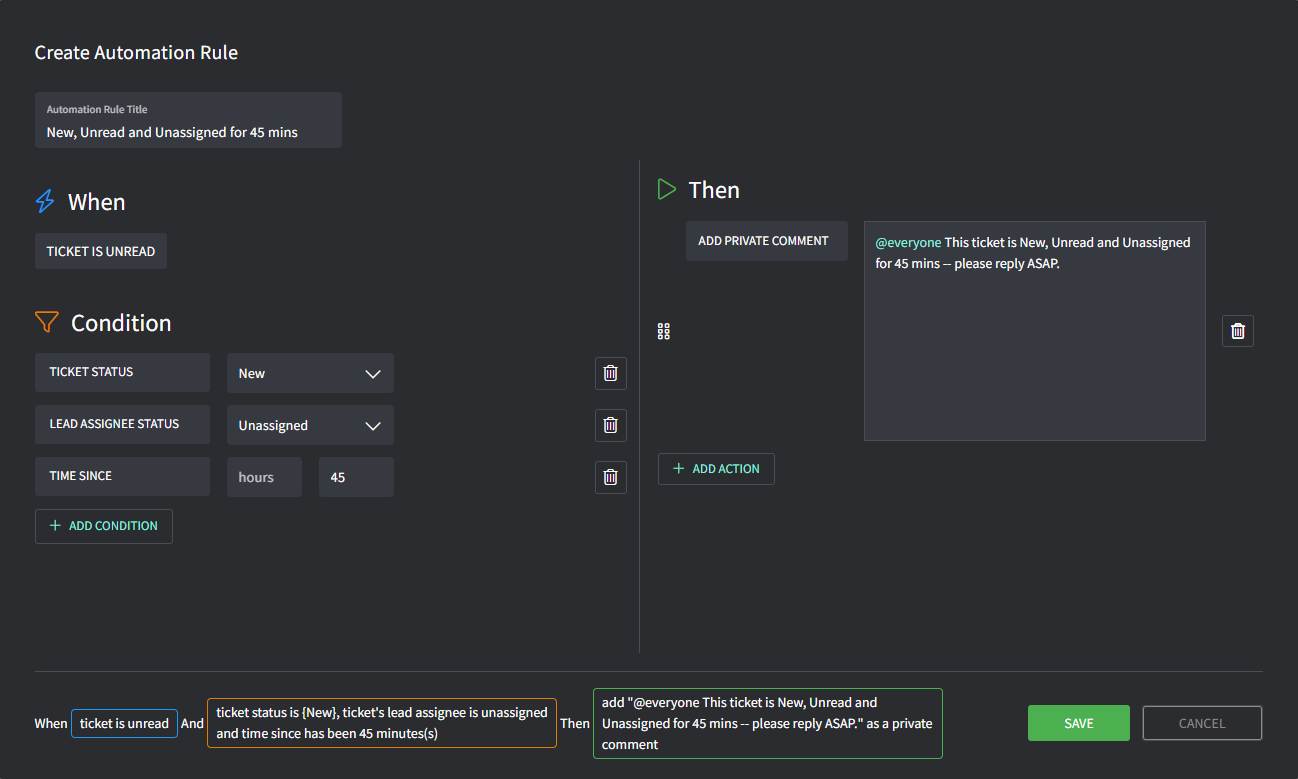
## Example: Notify @everyone
Notify @everyone when a ticket is:
* New
* Unread
* Unassigned for over 45mins