> ## Documentation Index
> Fetch the complete documentation index at: https://help.gorelo.io/llms.txt
> Use this file to discover all available pages before exploring further.
# QuickBooks Online integration
> Integrate Gorelo with QuickBooks Online to sync clients, invoices, tax rates, payments, and more, with step-by-step setup and account authentication.
Gorelo integrates with QuickBooks Online which allows you to sync clients, invoices, tax rates, payments and more!
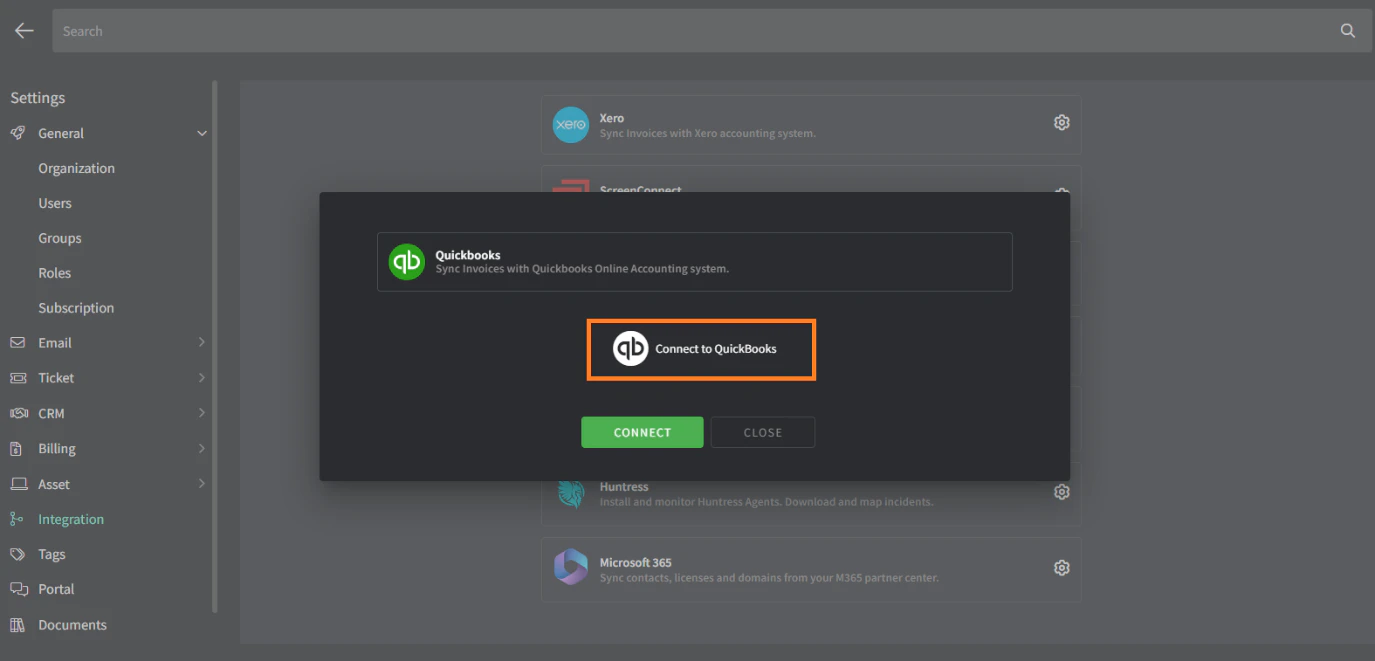 You will then be redirected back to Gorelo with a success message.
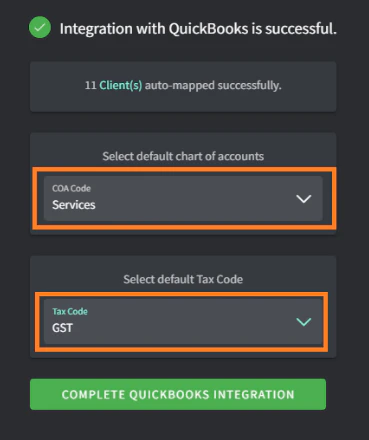 This will be used for any item synced from Gorelo to QuickBooks that does **not** have a COA code applied automatically to the product/bundle/category.
Gorelo recommends creating a new COA code such as '**4444 Uncoded from Gorelo**' to make it obvious when something synced without a legitimate COA code. If this code has just been created, then F5 refreshes while on the '*Integration with QuickBooks is successful*' screen so it appears, or start the integration again.
**Tips!**
* *Clients in Gorelo with identical names to Contacts in QBO will be mapped automatically*
* Chart of Account (COA) codes can be set individually on the following levels:
* Products
* Bundles
* Chart of Account (COA) codes can be set via [**Product Categories**](https://app.gorelo.io/Admin/admin-settings#billing#productcategories) and Subcategories — products/bundles will then inherit these COA codes.
## Optional settings
Clicking the **Mark as default** button on the far right of your chosen tax rate.
**Tips!**
* Tax rates can be set individually on the following levels:
* Products
* Bundles
* Contract line items
* Invoice line items
* Tax rates can be set via [**Product Categories**](https://app.gorelo.io/Admin/admin-settings#billing#productcategories) and Subcategories — products/bundles will then inherit these tax rates
## How Gorelo syncs with QuickBooks Online
The following table explains how to use invoices in Gorelo to ensure they sync in QuickBooks Online, and vice versa.
| Action | Do it from |
| :-------------------------- | :-------------------------- |
| Creating an invoice | Gorelo |
| Approving a drafted invoice | Gorelo or QuickBooks Online |
| Sending an invoice | Gorelo |
| Posting a payment | QuickBooks Online |
This will be used for any item synced from Gorelo to QuickBooks that does **not** have a COA code applied automatically to the product/bundle/category.
Gorelo recommends creating a new COA code such as '**4444 Uncoded from Gorelo**' to make it obvious when something synced without a legitimate COA code. If this code has just been created, then F5 refreshes while on the '*Integration with QuickBooks is successful*' screen so it appears, or start the integration again.
**Tips!**
* *Clients in Gorelo with identical names to Contacts in QBO will be mapped automatically*
* Chart of Account (COA) codes can be set individually on the following levels:
* Products
* Bundles
* Chart of Account (COA) codes can be set via [**Product Categories**](https://app.gorelo.io/Admin/admin-settings#billing#productcategories) and Subcategories — products/bundles will then inherit these COA codes.
## Optional settings
Clicking the **Mark as default** button on the far right of your chosen tax rate.
**Tips!**
* Tax rates can be set individually on the following levels:
* Products
* Bundles
* Contract line items
* Invoice line items
* Tax rates can be set via [**Product Categories**](https://app.gorelo.io/Admin/admin-settings#billing#productcategories) and Subcategories — products/bundles will then inherit these tax rates
## How Gorelo syncs with QuickBooks Online
The following table explains how to use invoices in Gorelo to ensure they sync in QuickBooks Online, and vice versa.
| Action | Do it from |
| :-------------------------- | :-------------------------- |
| Creating an invoice | Gorelo |
| Approving a drafted invoice | Gorelo or QuickBooks Online |
| Sending an invoice | Gorelo |
| Posting a payment | QuickBooks Online |