> ## Documentation Index
> Fetch the complete documentation index at: https://help.gorelo.io/llms.txt
> Use this file to discover all available pages before exploring further.
# Set up notifications
> Set up Gorelo notifications to surface ticket updates, alerts, and assignments in the bell pane and mobile push, so you never miss client-impacting events.
Notifications are a critical feature in Gorelo. They allow you to act as soon as an issue on your client's side appears and more. Learn on this page how to make use of them properly.
Here’s what notifications look like in a production setting:
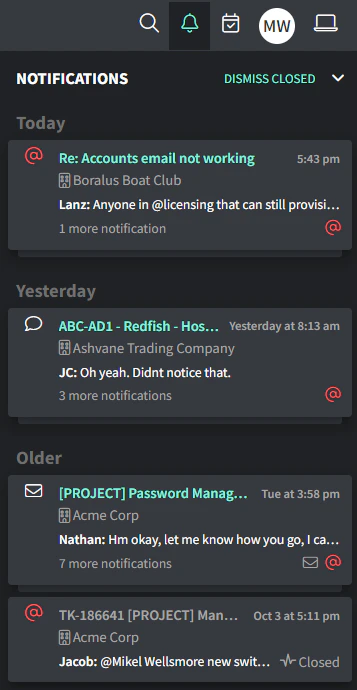 Expand the notification pane by using the bell icon in the top right. Consider keeping it open permanently to make sure you don't miss anything.
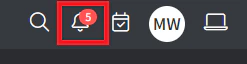
If collapsed, the bell icon will show how many new notifications popped up since you last expanded.
Expand the notification pane by using the bell icon in the top right. Consider keeping it open permanently to make sure you don't miss anything.
If collapsed, the bell icon will show how many new notifications popped up since you last expanded.
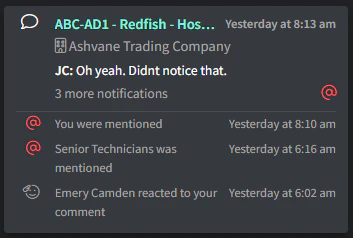
 Gorelo generates one notification card per ticket — and subsequent notifications on the same ticket will stack the cards (just like iOS or Android).
## What info you find in a notification card
Gorelo generates one notification card per ticket — and subsequent notifications on the same ticket will stack the cards (just like iOS or Android).
## What info you find in a notification card
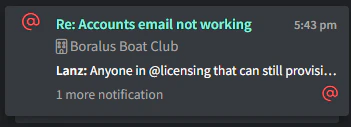
 The lines in the previous image contain:
1. The title of the ticket.
2. The client's name.
3. The content of the notification (for example: private comment, status change, time entry).
## Critical notification highlights
The lines in the previous image contain:
1. The title of the ticket.
2. The client's name.
3. The content of the notification (for example: private comment, status change, time entry).
## Critical notification highlights
 Gorelo considers **public comments** and **@mentions** (individuals or groups) as critical. Therefore, it highlights them with icons if they’re buried under a stack of other notifications.
## Dismiss a notification
Gorelo considers **public comments** and **@mentions** (individuals or groups) as critical. Therefore, it highlights them with icons if they’re buried under a stack of other notifications.
## Dismiss a notification
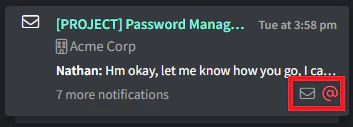 Dismiss a single notification card by hovering and clicking the X in the top-right OR the entire stack by hovering and clicking ‘Dismiss all’.
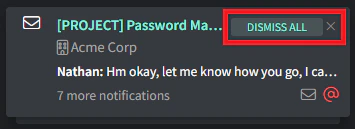 From the top right on your notifications pane, you can also:
* Dismiss all notifications.
* Dismiss all notifications from closed tickets.
## Subscribe to notifications
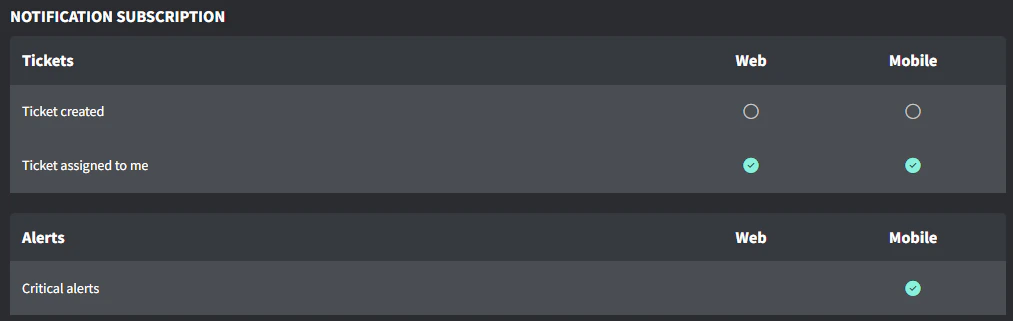
There are two types of ticket notifications you can choose to subscribe to:
* **Newly created tickets**.
* **Tickets assigned to you**.
You can also choose to subscribe to Critical Alerts and receive them as a native iOS/Android notification.
1. Navigate to your Profile icon up the top right and then to [**Settings**](https://app.gorelo.io/application/setting)**.**
2. Scroll down to Notification Subscription
3. Toggle on/off where needed.
From the top right on your notifications pane, you can also:
* Dismiss all notifications.
* Dismiss all notifications from closed tickets.
## Subscribe to notifications
There are two types of ticket notifications you can choose to subscribe to:
* **Newly created tickets**.
* **Tickets assigned to you**.
You can also choose to subscribe to Critical Alerts and receive them as a native iOS/Android notification.
1. Navigate to your Profile icon up the top right and then to [**Settings**](https://app.gorelo.io/application/setting)**.**
2. Scroll down to Notification Subscription
3. Toggle on/off where needed.
 Tips!
* Larger MSPs will find they have most users toggling off 'Ticket created’ to reduce noise and leave that to the triage team.
## Next steps
Create boards with filters and save them, then filter by client.
The most powerful and accurate tool in Gorelo.
Tips!
* Larger MSPs will find they have most users toggling off 'Ticket created’ to reduce noise and leave that to the triage team.
## Next steps
Create boards with filters and save them, then filter by client.
The most powerful and accurate tool in Gorelo.