> ## Documentation Index
> Fetch the complete documentation index at: https://help.gorelo.io/llms.txt
> Use this file to discover all available pages before exploring further.
# Slide backup integration
> Integrate Slide with Gorelo to view snapshot status and initiate new backups directly from the Asset Detail page for protected Windows endpoints.
Gorelo integrates with Slide which allows you to view the status of existing snapshots and initiate a new snapshot from the Asset Detail page.
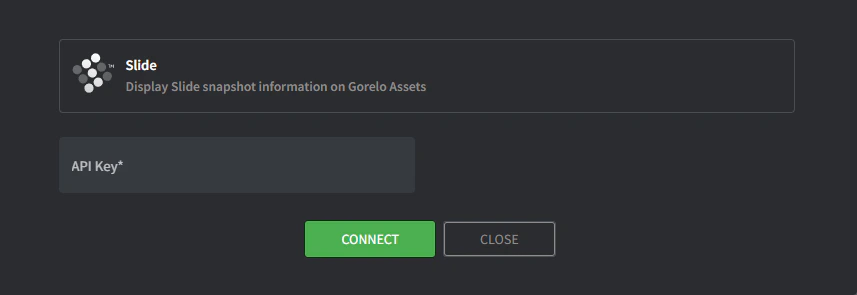 * API Key:
1. Navigate to [https://console.slide.tech/settings](https://console.slide.tech/settings)
2. ‘Create API Token’
3. Copy and paste the token into Gorelo
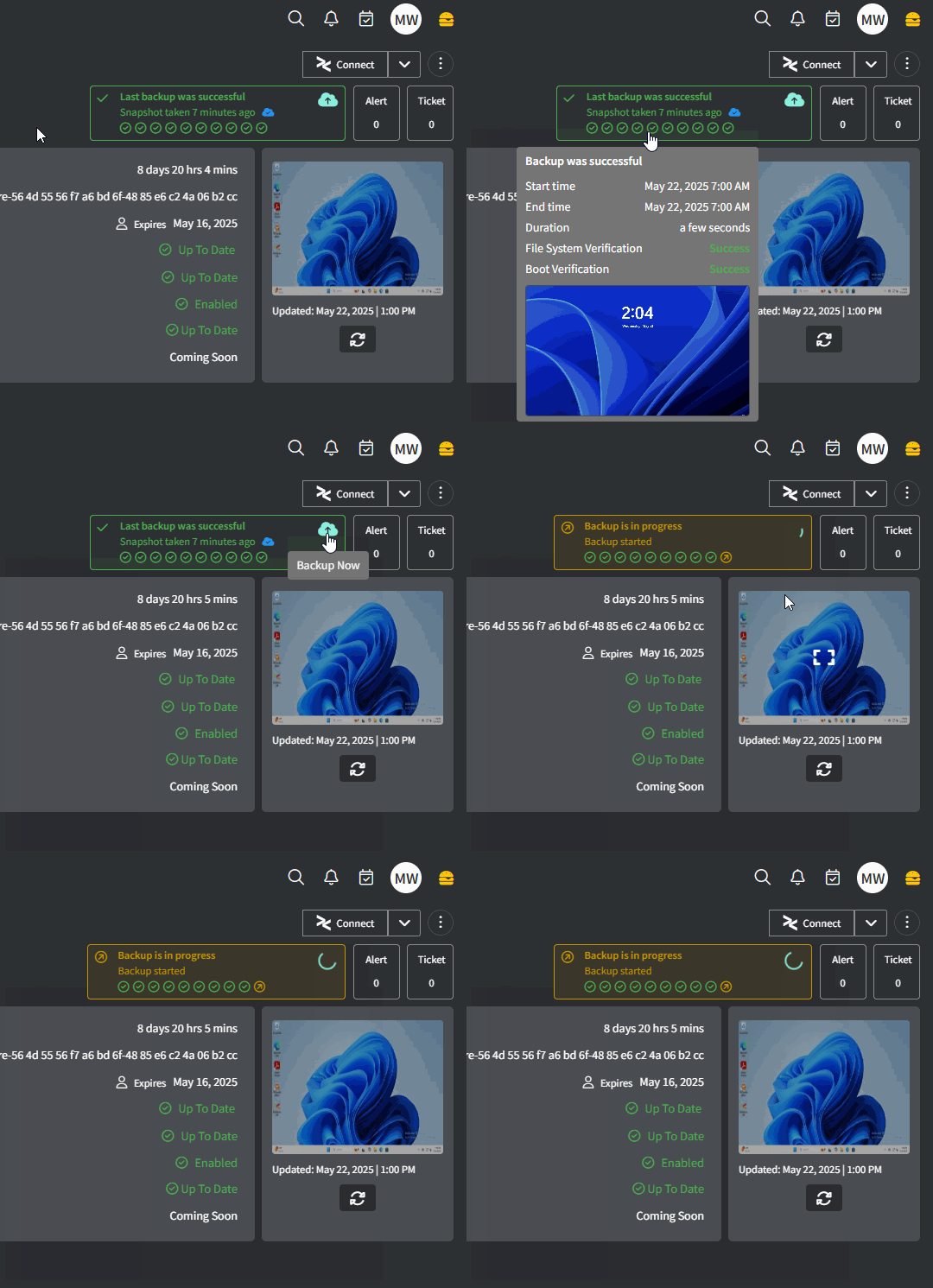
To view the integration in action, navigate to a mapped asset in Gorelo and you will see Slide backup info in the top-right corner:
* API Key:
1. Navigate to [https://console.slide.tech/settings](https://console.slide.tech/settings)
2. ‘Create API Token’
3. Copy and paste the token into Gorelo
To view the integration in action, navigate to a mapped asset in Gorelo and you will see Slide backup info in the top-right corner:
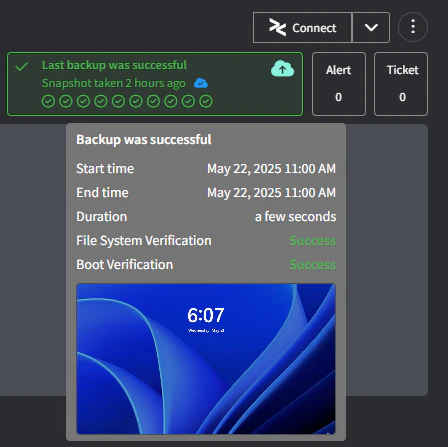 * **Yellow:** The status of the last 10 snapshots (oldest to newest). Hover to see more detail.
* **Red:** The status of cloud replication (solid blue is replicated to the cloud, outline-only is not replicated to the cloud).
* **Orange:** Click to initiate a snapshot.
* Click anywhere else to navigate to the Slide portal.
* **Yellow:** The status of the last 10 snapshots (oldest to newest). Hover to see more detail.
* **Red:** The status of cloud replication (solid blue is replicated to the cloud, outline-only is not replicated to the cloud).
* **Orange:** Click to initiate a snapshot.
* Click anywhere else to navigate to the Slide portal.