> ## Documentation Index
> Fetch the complete documentation index at: https://help.gorelo.io/llms.txt
> Use this file to discover all available pages before exploring further.
# Sort tickets with Ticket Types
> Enable Ticket Types in Gorelo to sort tickets with custom categories, optionally require a type per ticket, and assign types automatically using AI.
Ticket Types help sort tickets. You can:
* Create your own custom types.
* Require the selection on each ticket.
* Automatically assign the correct type via AI.
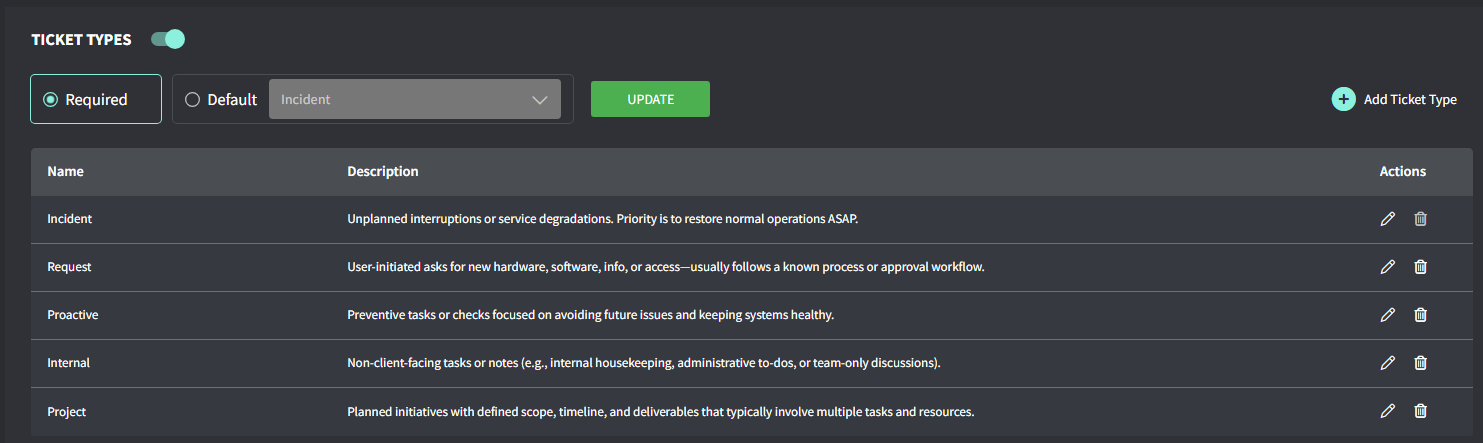 ## Enable ticket types
1. Navigate to **Settings** > **Tickets** > **Type**.
2. Toggle **Ticket Type** on.
3. Select between Required or Default.
* **Required**: Ticket Type field will start blank and require selection via AI or manual entry.
* **Default**: The automation will prefill the Ticket Type field with incidents. You can change it via AI or manual entry if needed.
4. Add/Edit Ticket Types if required
Enable [**Auto Ticket Types**](/automated-ticket-types) via AI to get the most value.
## Assign a type to a ticket
1. Open a ticket.
2. In the right pane, check the **Info** tab.
3. Scroll down to Types, and open the dropdown menu.
4. Click the Type
## Sort tickets by type
To sort tickets by type, leverage the **View** feature:
1. From the left general menu, open Tickets. A list of all your tickets appears.
2. At the bottom of the left pane, click the option **+ Create View**.
3. Add a name and scroll down, click **View Additional Fields**.
4. From the **Ticket Type** option, select the Type to filter tickets by.
5. Scroll up to the top and click **Save**.
Once saved, your new View automatically displays all tickets by the selected Type. Gorelo lists this new View in the left pane.
## Enable ticket types
1. Navigate to **Settings** > **Tickets** > **Type**.
2. Toggle **Ticket Type** on.
3. Select between Required or Default.
* **Required**: Ticket Type field will start blank and require selection via AI or manual entry.
* **Default**: The automation will prefill the Ticket Type field with incidents. You can change it via AI or manual entry if needed.
4. Add/Edit Ticket Types if required
Enable [**Auto Ticket Types**](/automated-ticket-types) via AI to get the most value.
## Assign a type to a ticket
1. Open a ticket.
2. In the right pane, check the **Info** tab.
3. Scroll down to Types, and open the dropdown menu.
4. Click the Type
## Sort tickets by type
To sort tickets by type, leverage the **View** feature:
1. From the left general menu, open Tickets. A list of all your tickets appears.
2. At the bottom of the left pane, click the option **+ Create View**.
3. Add a name and scroll down, click **View Additional Fields**.
4. From the **Ticket Type** option, select the Type to filter tickets by.
5. Scroll up to the top and click **Save**.
Once saved, your new View automatically displays all tickets by the selected Type. Gorelo lists this new View in the left pane.