> ## Documentation Index
> Fetch the complete documentation index at: https://help.gorelo.io/llms.txt
> Use this file to discover all available pages before exploring further.
# How tickets work
> Tickets in Gorelo capture client requests with conversations, statuses, assignees, time entries, and products. Learn the anatomy and ticket lifecycle.
A ticket is the record for a client request or issue in Gorelo. It allows you to track the work from start to finish. The Ticket Detail page captures:
* The conversation
* Status
* Assignees
* Time entries
* Products
* Related details
## Ticket details page
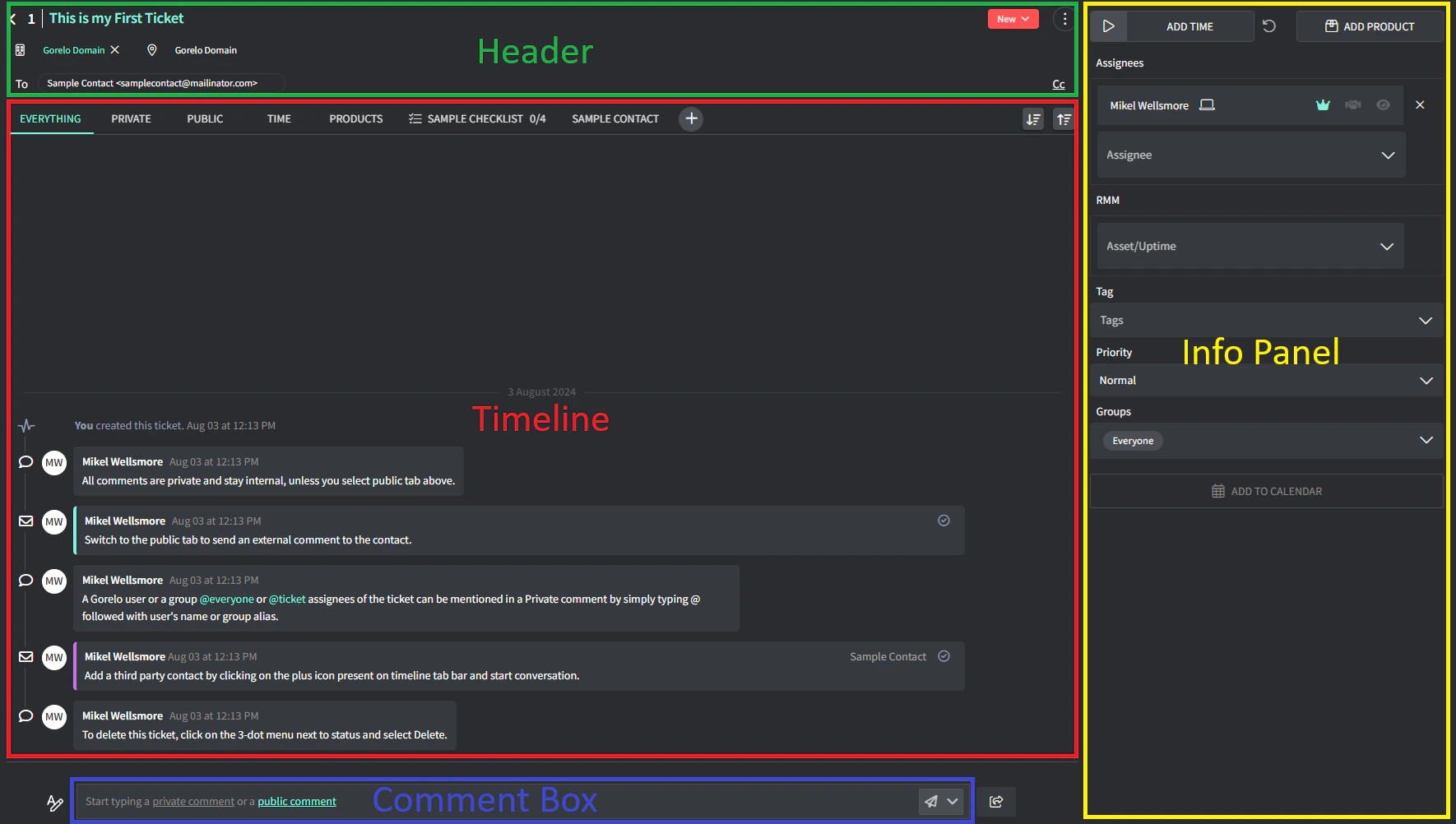
A ticket details page contains the following sections:
 ### Header
The top area of a ticket shows the following details:
* **Ticket number:** automatically attributed, you can't edit it.
* **Ticket Title:** hover it and click the pencil icon to rename a ticket.
* **Client and Location:** click the area to change it.
* **To and Cc** contacts: click the area to add or remove contacts.
* **Status:** click the label and scroll the options to change the status.
* 3-dot menu with:
* **The ticket link** to share it.
* **Merge with** to merge the current ticket's data with another one. The source ticket becomes part of the target ticket, decreasing the number of tickets.
* **Billing** to link the ticket to a [contract](/contacts-overview).
* **QR code label** linked to the contract to print or see.
* **Banner** to set a banner over the ticket (for warnings, etc.).
* The option to mark the ticket as **read/unread.**
### Timeline
The activity feed of a ticket that records all interactions and updates related to the ticket. It includes:
* Timeline tabs
* Plus (+) button to add **Third-party conversations**, **Shipment Tracking**, **Checklists** and [**Approvals**](/create-an-approval-workflow)
* Timeline entries
### Comment box
The editor where you write public or private comments and send updates on a ticket. Allows the following actions:
* Click to type a private comment (anywhere not underlined)
* Click ‘**private comment**’ to expand and type a private comment
* Click ‘**public comment**’ to expand and type a public comment (sent via email)
* Ticket Shortcuts off to the far-right
### Header
The top area of a ticket shows the following details:
* **Ticket number:** automatically attributed, you can't edit it.
* **Ticket Title:** hover it and click the pencil icon to rename a ticket.
* **Client and Location:** click the area to change it.
* **To and Cc** contacts: click the area to add or remove contacts.
* **Status:** click the label and scroll the options to change the status.
* 3-dot menu with:
* **The ticket link** to share it.
* **Merge with** to merge the current ticket's data with another one. The source ticket becomes part of the target ticket, decreasing the number of tickets.
* **Billing** to link the ticket to a [contract](/contacts-overview).
* **QR code label** linked to the contract to print or see.
* **Banner** to set a banner over the ticket (for warnings, etc.).
* The option to mark the ticket as **read/unread.**
### Timeline
The activity feed of a ticket that records all interactions and updates related to the ticket. It includes:
* Timeline tabs
* Plus (+) button to add **Third-party conversations**, **Shipment Tracking**, **Checklists** and [**Approvals**](/create-an-approval-workflow)
* Timeline entries
### Comment box
The editor where you write public or private comments and send updates on a ticket. Allows the following actions:
* Click to type a private comment (anywhere not underlined)
* Click ‘**private comment**’ to expand and type a private comment
* Click ‘**public comment**’ to expand and type a public comment (sent via email)
* Ticket Shortcuts off to the far-right
 ### Info panel
The side panel for operational details that allows you to:
* Add **time in two ways:**
* Using the **ticket time tracker:** click the start icon to launch a timer and track the time you spend on a ticket.
* **Manually:** over the numbers and click ADD TIME add the time spent on this ticket.
* **Products**
* Add/remove **assignees**
* Add/remove **assets** and **uptime**
* Add/remove **tags**
* change **priority**
* Add/remove **groups**
* Add to **calendar**
## Ticket statuses
Tickets in Gorelo have the following statuses that indicate where the ticket is in its lifecycle:
| Status | Description | Example |
| ------- | ------------------------------------------------------------------------------------------------------- | ------------------------------------------------------------- |
| New | Automatically applied to newly created tickets. Indicates the ticket is under initial review or triage. | A ticket created via email with a public comment. |
| Open | Work has started and the ticket is assigned to a user. | A teammate begins investigating and replies to the requester. |
| On Hold | Work is paused for an external dependency or response. | Waiting on a vendor update or client reply. |
| Solved | The main issue is resolved, but follow-up tasks may remain. | The fix is applied and you’re waiting for confirmation. |
| Closed | All work is complete and no further action is required. | The requester confirms the issue is resolved. |
You can't manually change the status of a ticket to **New**.
### Info panel
The side panel for operational details that allows you to:
* Add **time in two ways:**
* Using the **ticket time tracker:** click the start icon to launch a timer and track the time you spend on a ticket.
* **Manually:** over the numbers and click ADD TIME add the time spent on this ticket.
* **Products**
* Add/remove **assignees**
* Add/remove **assets** and **uptime**
* Add/remove **tags**
* change **priority**
* Add/remove **groups**
* Add to **calendar**
## Ticket statuses
Tickets in Gorelo have the following statuses that indicate where the ticket is in its lifecycle:
| Status | Description | Example |
| ------- | ------------------------------------------------------------------------------------------------------- | ------------------------------------------------------------- |
| New | Automatically applied to newly created tickets. Indicates the ticket is under initial review or triage. | A ticket created via email with a public comment. |
| Open | Work has started and the ticket is assigned to a user. | A teammate begins investigating and replies to the requester. |
| On Hold | Work is paused for an external dependency or response. | Waiting on a vendor update or client reply. |
| Solved | The main issue is resolved, but follow-up tasks may remain. | The fix is applied and you’re waiting for confirmation. |
| Closed | All work is complete and no further action is required. | The requester confirms the issue is resolved. |
You can't manually change the status of a ticket to **New**.