> ## Documentation Index
> Fetch the complete documentation index at: https://help.gorelo.io/llms.txt
> Use this file to discover all available pages before exploring further.
# Use checklists to track your work
> Add checklists to Gorelo tickets to track your work, assign items to teammates, set due dates, and keep complex projects consistent from start to finish.
## Create and use checklists
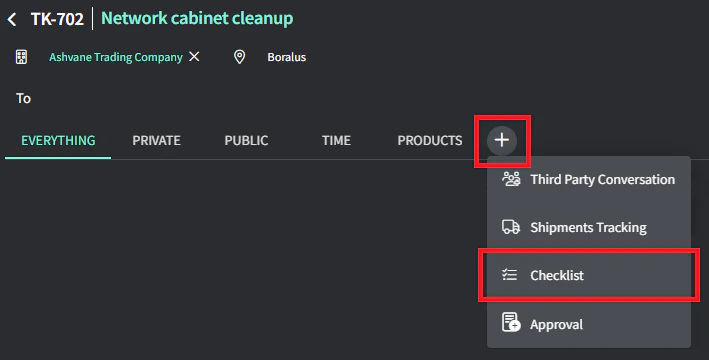
1. Navigate to a ticket
2. Click the **+** button in the timeline tab and add a **Checklist**
 1. Modify the name (optional) and click Save
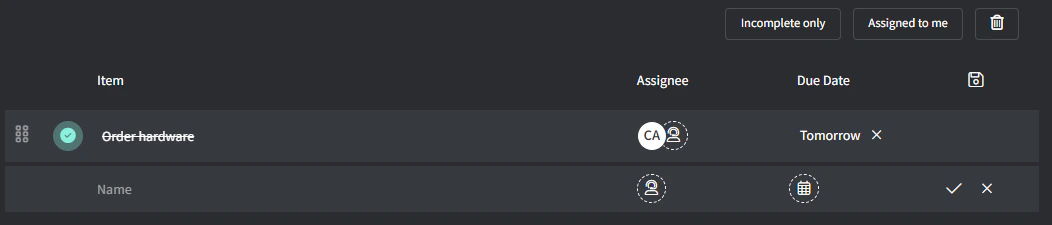
2. You can now add checklist items:
* Put your cursor in the **Name** field and type something, e.g., Order hardware
* **Assign** someone and set a **due date** (both optional)
* Click the ✔️ button to add (or press Enter if your cursor is still in the Name field)
1. Modify the name (optional) and click Save
2. You can now add checklist items:
* Put your cursor in the **Name** field and type something, e.g., Order hardware
* **Assign** someone and set a **due date** (both optional)
* Click the ✔️ button to add (or press Enter if your cursor is still in the Name field)
 Tips!
* Use the tick box to complete items (on the far left)
* Use the grabby icon to rearrange items (on the far left)
* Use Tab to indent items
* Type // in the name field to embed items
* Toggle ‘Incomplete Only’ to view only incomplete items (top-right)
* Toggle ‘Assigned to me’ to view only items assigned to you (top-right)
## Create a checklist template
1. Create a checklist (as per above) that you would like to save as a template
2. Click the 💾 button (top-right) to save as a template
* **Name**: this is the name of the checklist template and it can be changed later, e.g., New Computer Setup
* **Visibility**: this determines who can see and use this template
* Public = everyone
* Private = only you
* Shortcut = only visible via Ticket Shortcuts
* Click **Save**
## Use and edit checklist templates
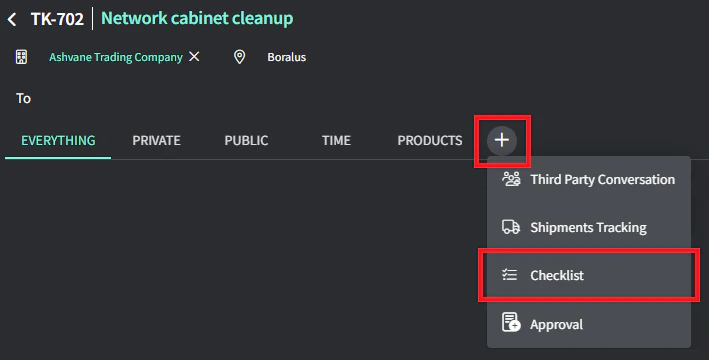
1. Create or navigate to an existing ticket
2. Click the **+** button in the timeline tab and add a **Checklist**
Tips!
* Use the tick box to complete items (on the far left)
* Use the grabby icon to rearrange items (on the far left)
* Use Tab to indent items
* Type // in the name field to embed items
* Toggle ‘Incomplete Only’ to view only incomplete items (top-right)
* Toggle ‘Assigned to me’ to view only items assigned to you (top-right)
## Create a checklist template
1. Create a checklist (as per above) that you would like to save as a template
2. Click the 💾 button (top-right) to save as a template
* **Name**: this is the name of the checklist template and it can be changed later, e.g., New Computer Setup
* **Visibility**: this determines who can see and use this template
* Public = everyone
* Private = only you
* Shortcut = only visible via Ticket Shortcuts
* Click **Save**
## Use and edit checklist templates
1. Create or navigate to an existing ticket
2. Click the **+** button in the timeline tab and add a **Checklist**
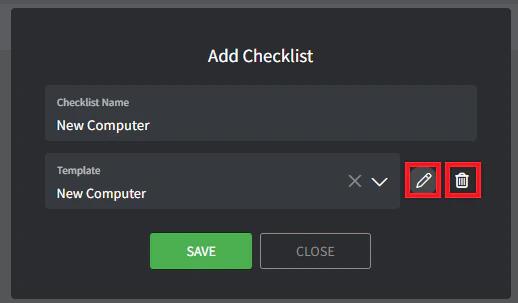
 3. From the Template dropdown, select the appropriate template
4. Use the **Edit** and **Delete** icons on the right
3. From the Template dropdown, select the appropriate template
4. Use the **Edit** and **Delete** icons on the right
 5. Checklist templates can be edited in many ways
* Name can be changed
* Order can be changed
* Items can be added/removed
* Assignees can be added/removed
* Relative due dates can be set, e.g., 7 days would mean the item is due 7 days after the checklist template was added to the ticket
5. Checklist templates can be edited in many ways
* Name can be changed
* Order can be changed
* Items can be added/removed
* Assignees can be added/removed
* Relative due dates can be set, e.g., 7 days would mean the item is due 7 days after the checklist template was added to the ticket