> ## Documentation Index
> Fetch the complete documentation index at: https://help.gorelo.io/llms.txt
> Use this file to discover all available pages before exploring further.
# Write and test a script
> Write and test PowerShell, Command Line, or Bash scripts in Gorelo with type selection, timeout settings, and CLI testing on agent assets before deploying.
For anything that can’t be done natively with checks and plugins, **scripts** can be used.
## Create a script
1. Navigate to [**Scripts**](https://app.gorelo.io/Asset/script-list) from the main menu.
2. Click **Create a script** down the bottom-left.
3. Give the script a title.
4. Type or paste your script in the editor field (for example, `ipconfig`).
5. Click **Save** up the top-right.
## Extra settings
* **Script type**: this will change the script type from default PowerShell to either Command Line or Bash. PowerShell and Command Line is exclusive to Windows and Bash is exclusive to macOS.
* **Timeout**: this allows you to set the timeout period of the script in minutes.
* **Run as user**: this will run the script in the context of the most recently logged on user.
* **Variables**: this is a list of variables available in Gorelo that you can use. Creating [**custom assets fields**](https://app.gorelo.io/Admin/admin-settings#asset#assetcustomfields), [**custom clients fields**](https://app.gorelo.io/Admin/admin-settings#crm#clientcustomfields) and [**custom files**](https://app.gorelo.io/Admin/admin-settings#asset#filerepository) will populate this list.
**Tip!**
See [**GoreloAction**](/gorelo-action-cli) for additional functionality via custom fields and alerting
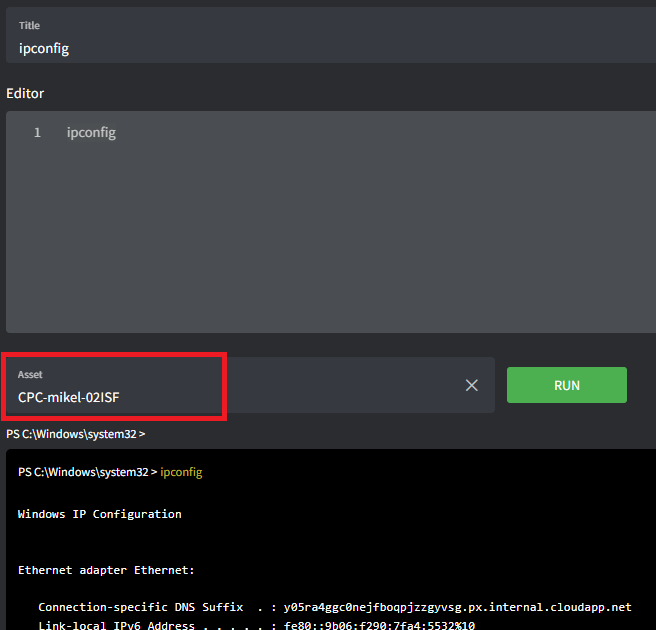
## Test your script
1. Open or create a new script.
2. Place your cursor in the **Asset** field at the bottom of the page.
3. Type the hostname of the asset you’d like to test against.
4. Click **Run**.