> ## Documentation Index
> Fetch the complete documentation index at: https://help.gorelo.io/llms.txt
> Use this file to discover all available pages before exploring further.
# 建立表單
> 在 Gorelo 中建立表單以擷取客戶資訊,使用問答區塊建構、標記必填欄位,並發布以供自助使用。
建立表單:
1. 從選單前往 [**Forms**](https://app.gorelo.io/form/form-list)。
2. 點擊左下角的 **Create form**。
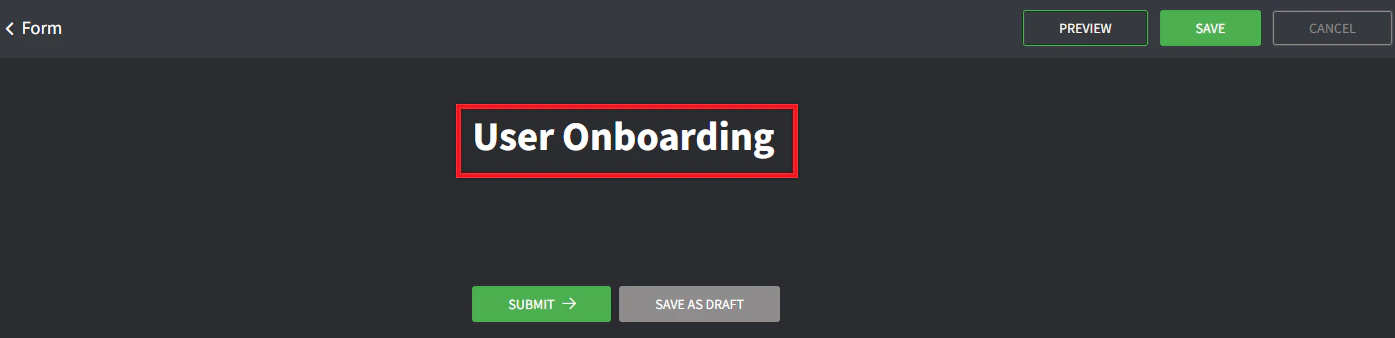
3. 為表單設定標題(這是客戶會看到的內容)。
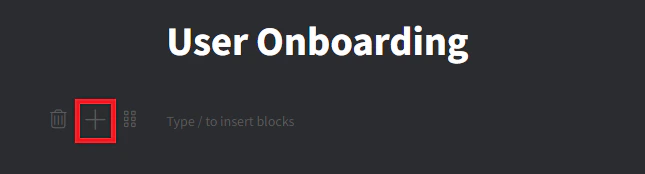
 4. 點擊 + 按鈕或輸入 `/` 來建立新的欄位區塊。
 5. 選擇 **Question + Short Answer。**
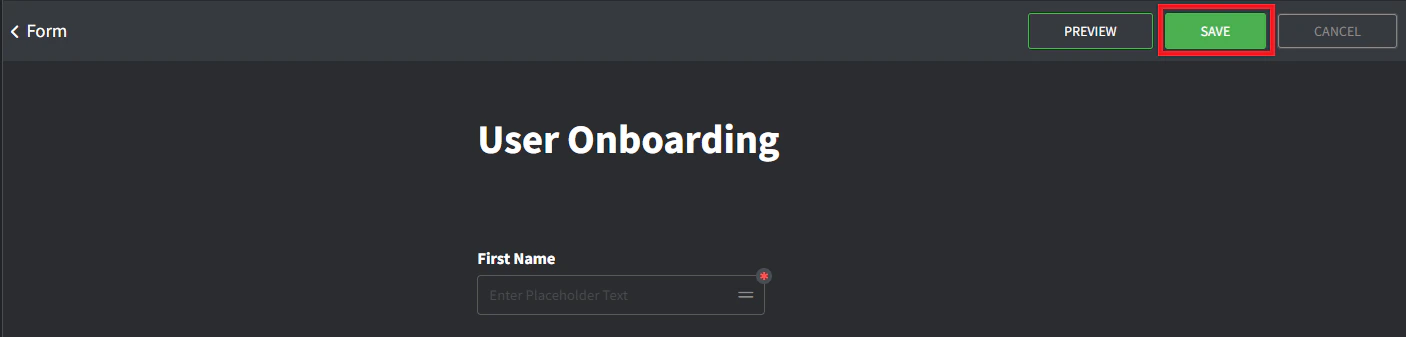
6. 將欄位區塊的標題設為 **First Name。**
7. 點擊 **required** 切換以將此欄位設為必填。
8. 點擊右上角的 **Save**。
5. 選擇 **Question + Short Answer。**
6. 將欄位區塊的標題設為 **First Name。**
7. 點擊 **required** 切換以將此欄位設為必填。
8. 點擊右上角的 **Save**。
 9. 點擊右上角的 **Preview** 查看表單樣式。
10. 點擊右上角的 **Go Back** 回到表單編輯器並繼續新增其他欄位。
9. 點擊右上角的 **Preview** 查看表單樣式。
10. 點擊右上角的 **Go Back** 回到表單編輯器並繼續新增其他欄位。