> ## Documentation Index
> Fetch the complete documentation index at: https://help.gorelo.io/llms.txt
> Use this file to discover all available pages before exploring further.
# 部署 Gorelo Agent
> 在 Windows 與 macOS 上透過通用或客戶專屬的 PowerShell 安裝程式,或手動執行檔來部署 Gorelo Agent 以採用與監控資產。
Gorelo Agent 可透過 PowerShell 指令(建議)或手動執行檔安裝。若使用客戶專屬安裝程式,會自動關聯到指定的客戶/位置;若使用通用安裝程式,則準備好供採用。
Gorelo 僅支援目前仍受供應商(Microsoft/Apple)支援的作業系統。
* [**https://endoflife.date/windows**](https://endoflife.date/windows)
* [**https://endoflife.date/windows-server**](https://endoflife.date/windows-server)
* [**https://endoflife.date/macos**](https://endoflife.date/macos)
## 透過 PowerShell 安裝通用 Windows agent
1. 從主選單前往 [**Assets List**](https://app.gorelo.io/Asset/asset-list)。
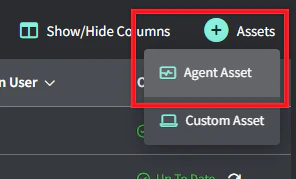
2. 將滑鼠移到右上角的 **+Assets** 按鈕並點擊 **Agent Asset**。
 3. 在彈出視窗中點擊 **Request Agent**。
 4. 複製 PowerShell 指令,貼到目標電腦的 PowerShell 並按 **Enter。**
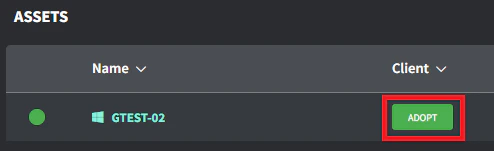
5. 當 agent asset 出現在資產清單時(依網路頻寬可能需要幾分鐘),點擊 Client/Location 欄的 **Adopt** 按鈕。
6. 選擇正確的 Client/Location,然後點擊 **Save** 進行採用。
Agent 安裝需要提升權限的工作階段。
* 在 Windows,以系統管理員執行 PowerShell。
* 在 macOS,執行 `sudo su`(若需要)。
如需疑難排解,請參閱 [**Gorelo Agent 無法安裝**](/gorelo-agent-wont-install) 頁面。
4. 複製 PowerShell 指令,貼到目標電腦的 PowerShell 並按 **Enter。**
5. 當 agent asset 出現在資產清單時(依網路頻寬可能需要幾分鐘),點擊 Client/Location 欄的 **Adopt** 按鈕。
6. 選擇正確的 Client/Location,然後點擊 **Save** 進行採用。
Agent 安裝需要提升權限的工作階段。
* 在 Windows,以系統管理員執行 PowerShell。
* 在 macOS,執行 `sudo su`(若需要)。
如需疑難排解,請參閱 [**Gorelo Agent 無法安裝**](/gorelo-agent-wont-install) 頁面。