> ## Documentation Index
> Fetch the complete documentation index at: https://help.gorelo.io/llms.txt
> Use this file to discover all available pages before exploring further.
# 在所有資產上部署政策
> 在 Gorelo 中建立以標籤鎖定資產的政策,將檢查、外掛與指令稿一次分發到每一台工作站或伺服器。
使用政策透過標籤將**檢查**、**外掛**與**指令稿**分發到資產。本指南帶你建立第一個政策,將 ScreenConnect 外掛分發到所有工作站。
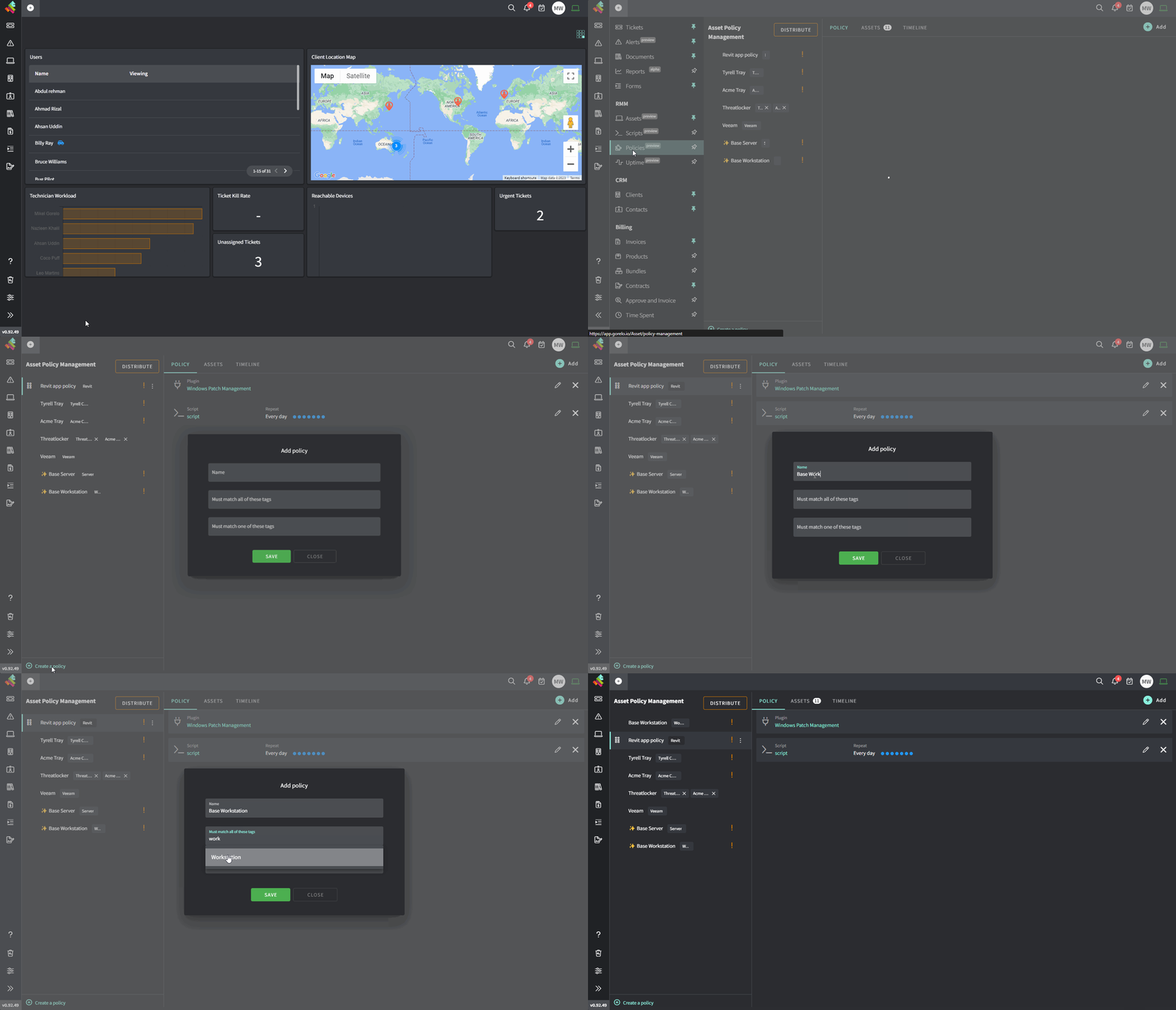
1. 從選單前往 [**Policies**](https://app.gorelo.io/Asset/policy-management)。
2. 點擊左下角的 **Create a policy**。
3. 將政策命名為 *Base Workstation*。
4. 在 **Must match all these tags** 下,新增 **Workstation** 標籤。
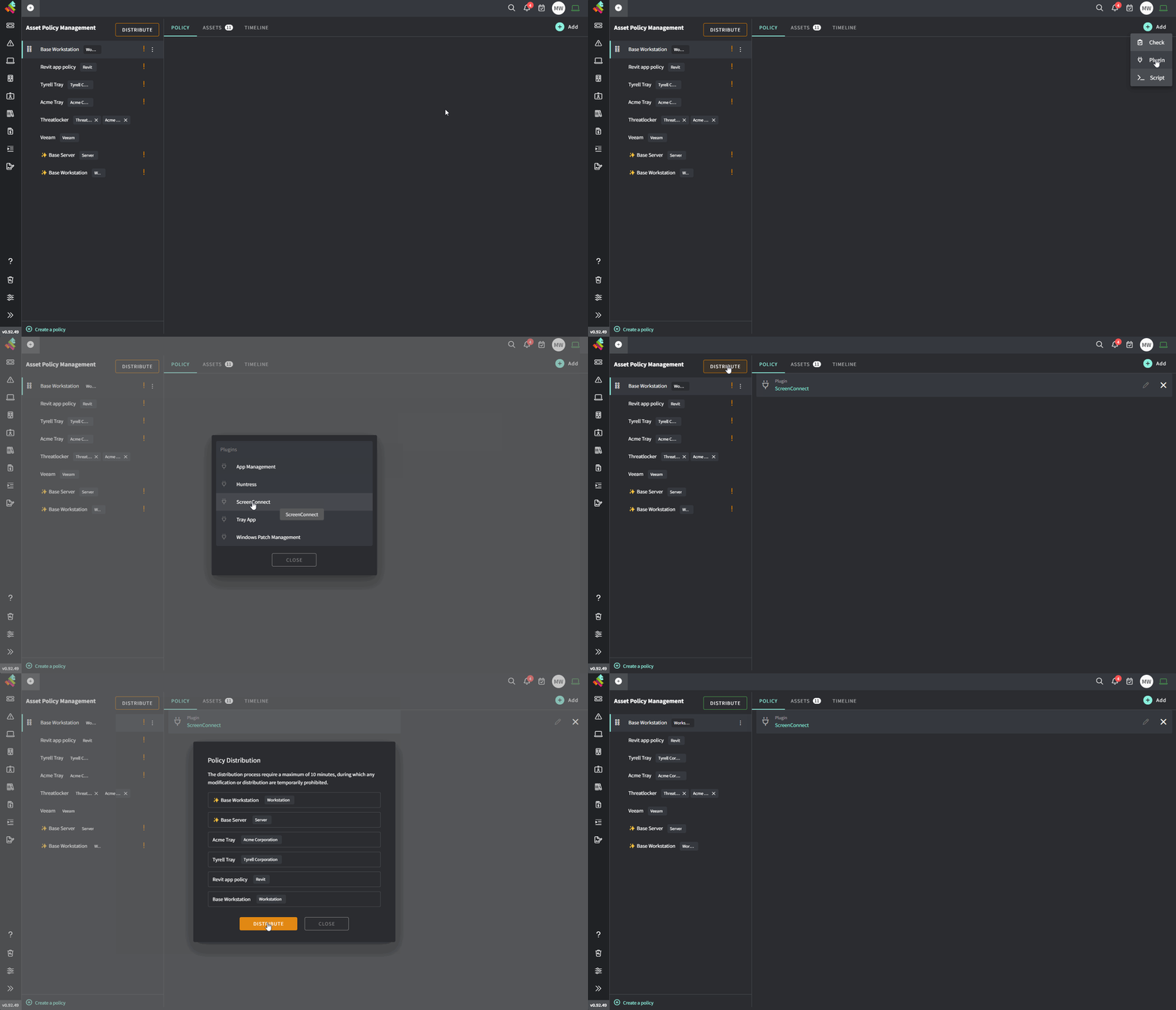
5. 當左欄選取 *Base Workstation* 政策時,將滑鼠移到 **Add**。
6. 選擇 **Plugin** 然後選擇 **ScreenConnect。**
 7. 在左上角 **Distribute** 該政策。
 相同流程可套用至任何 check/plugin/script。
Gorelo 套用政策的方式類似路由器的存取控制清單(ACL)。Checks/Plugins/Scripts 由上而下階層套用。若階層較高處有相同項目,會覆寫較低處的項目。
例如,Windows Patch Management 位於 *Base Workstation* 政策的最下方。在清單上方,你可建立特定客戶的政策並包含 Windows Patch Management,這會覆寫 *Base Workstation* 政策中的設定。
相同流程可套用至任何 check/plugin/script。
Gorelo 套用政策的方式類似路由器的存取控制清單(ACL)。Checks/Plugins/Scripts 由上而下階層套用。若階層較高處有相同項目,會覆寫較低處的項目。
例如,Windows Patch Management 位於 *Base Workstation* 政策的最下方。在清單上方,你可建立特定客戶的政策並包含 Windows Patch Management,這會覆寫 *Base Workstation* 政策中的設定。