> ## Documentation Index
> Fetch the complete documentation index at: https://help.gorelo.io/llms.txt
> Use this file to discover all available pages before exploring further.
# 用 Views 與 Client Focus 篩選資料
> 在 Gorelo 中使用 Views 與 Client Focus 依保存的條件或特定客戶篩選工單、資產與警示,並可在各清單間共享給團隊。
**Views** 是用於篩選每個資料(如 Tickets、Assets、Alerts)的看板。你可以以多種方式自訂篩選條件,然後將結果儲存為 View。你也可以將 View 全域分享給團隊。
當你想依特定客戶篩選時,使用 **Client Focus**。**Client Focus** 與你所選的 View 一起作用。例如:
* 你有一個顯示「Mine & Unassigned」工單的 View。
* 套用 Client Focus 後,資料只會顯示該特定客戶的「Mine & Unsigned」項目。
Client Focus 也會在所有清單之間保持有效。
## 從警示建立 view
此範例使用 Alerts 清單。
1. 前往 [**Alerts list**](https://app.gorelo.io/Alert/alerts)
2. 點擊 Views 面板底部的「Create a view」
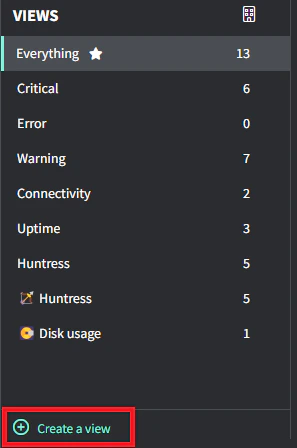 3. 輸入用來篩選清單的欄位
* **Name**:顯示在 Views 面板的名稱(可使用表情符號),例如 🏹 Huntress
* **Keyword**:將以警示**名稱**(白色文字)中的關鍵字篩選
* **Clients**:保持空白代表**所有**客戶,或選擇特定客戶
* **Severity**:選擇一個或多個嚴重性層級
* **Type**:選擇一個或多個類型
* **Ticketed**:開啟以顯示已關聯工單的警示
* **Ignored**:開啟以顯示被忽略的警示
3. 輸入用來篩選清單的欄位
* **Name**:顯示在 Views 面板的名稱(可使用表情符號),例如 🏹 Huntress
* **Keyword**:將以警示**名稱**(白色文字)中的關鍵字篩選
* **Clients**:保持空白代表**所有**客戶,或選擇特定客戶
* **Severity**:選擇一個或多個嚴重性層級
* **Type**:選擇一個或多個類型
* **Ticketed**:開啟以顯示已關聯工單的警示
* **Ignored**:開啟以顯示被忽略的警示
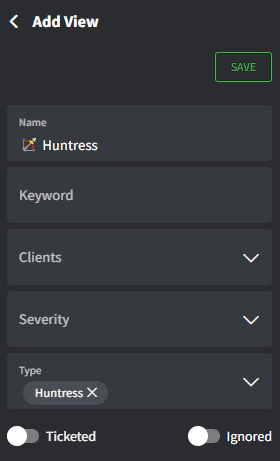 4. 點擊 **Save** 並返回 Views 面板
小提示!
* 每個 View 旁邊的三點選單可用於:
* **Edit**:修改 View
* **Set Default**:這是會自動為你載入的 view
* **Set Global**:將 View 分享給組織中的所有人(僅限管理員)
* **Hide**:將 View 放入名為「Hidden Views」的可折疊區段
* Delete:刪除 View
* 某些清單會在右上角提供切換以快速變更,例如在 Alerts 清單上顯示 Ticketed/Ignored
## 依客戶篩選警示
此處以 Alerts 清單為例。
1. 前往 [**Alerts list**](https://app.gorelo.io/Alert/alerts)
2. 點擊 Views 面板右上角的 Client Focus 按鈕
3. 輸入客戶名稱。你的清單現在會同時依 **View** 與 **Client Focus** 篩選。
小提示!
* Client Focus 在 Gorelo 的所有清單之間維持有效。如果你在 alerts 設定 Client Focus,然後切換到 Tickets,它仍然會在。
## 下一步
管理客戶的請求並組織你的工作。
監控 Gorelo 中的重要事件或問題。
4. 點擊 **Save** 並返回 Views 面板
小提示!
* 每個 View 旁邊的三點選單可用於:
* **Edit**:修改 View
* **Set Default**:這是會自動為你載入的 view
* **Set Global**:將 View 分享給組織中的所有人(僅限管理員)
* **Hide**:將 View 放入名為「Hidden Views」的可折疊區段
* Delete:刪除 View
* 某些清單會在右上角提供切換以快速變更,例如在 Alerts 清單上顯示 Ticketed/Ignored
## 依客戶篩選警示
此處以 Alerts 清單為例。
1. 前往 [**Alerts list**](https://app.gorelo.io/Alert/alerts)
2. 點擊 Views 面板右上角的 Client Focus 按鈕
3. 輸入客戶名稱。你的清單現在會同時依 **View** 與 **Client Focus** 篩選。
小提示!
* Client Focus 在 Gorelo 的所有清單之間維持有效。如果你在 alerts 設定 Client Focus,然後切換到 Tickets,它仍然會在。
## 下一步
管理客戶的請求並組織你的工作。
監控 Gorelo 中的重要事件或問題。