> ## Documentation Index
> Fetch the complete documentation index at: https://help.gorelo.io/llms.txt
> Use this file to discover all available pages before exploring further.
# 用 Windows Patch Management 自動更新
> 部署 Gorelo Windows Patch Management 外掛,以在受管理的 Windows 資產上強制自動更新、延遲、截止日與重新開機行為。
**Windows Patch Management** 外掛能集中控制受管理資產上的 Windows Update。此外掛功能類似 Windows Update for Business(WUfB),並符合 Microsoft 建議的實踐做法——著重於延遲、截止日與使用者體驗,而非逐個修補核准。
## 新增外掛
1. 前往 **Policies**。
2. 選擇 **Windows** 分頁。
3. 點擊 **+ Add** 並選擇 **Plugin**。
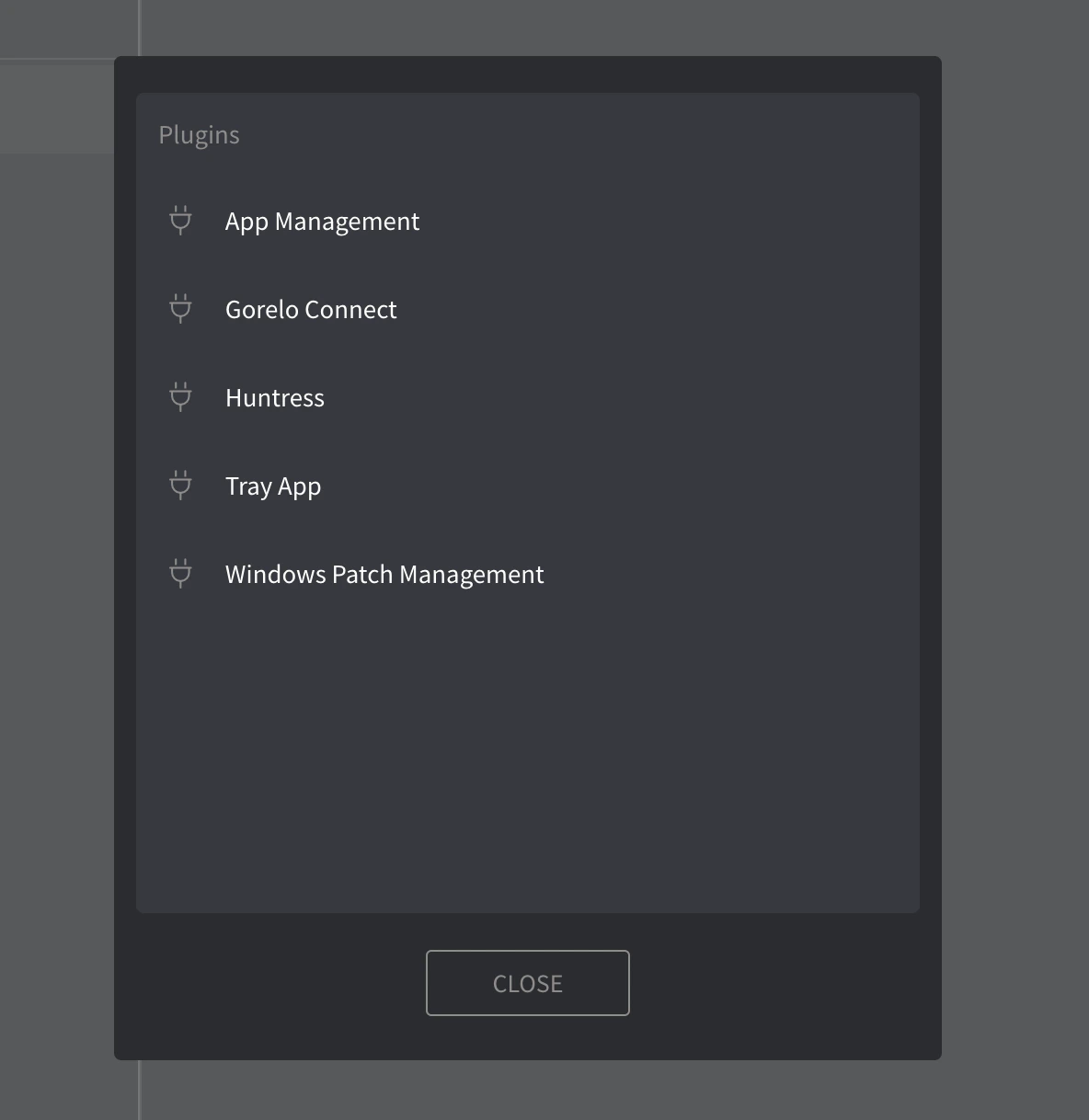
4. 從彈出視窗中選擇 **Windows Patch Management**。
 ## 運作方式
此外掛透過本機原則設定 **Windows Automatic Updates**,讓裝置能依你在 Gorelo 政策中定義的設定自主接收、安裝並重新開機以套用更新。
套用後,這些設定會覆寫本機使用者偏好,並一直強制執行直到政策被移除或修改。
## 更新設定
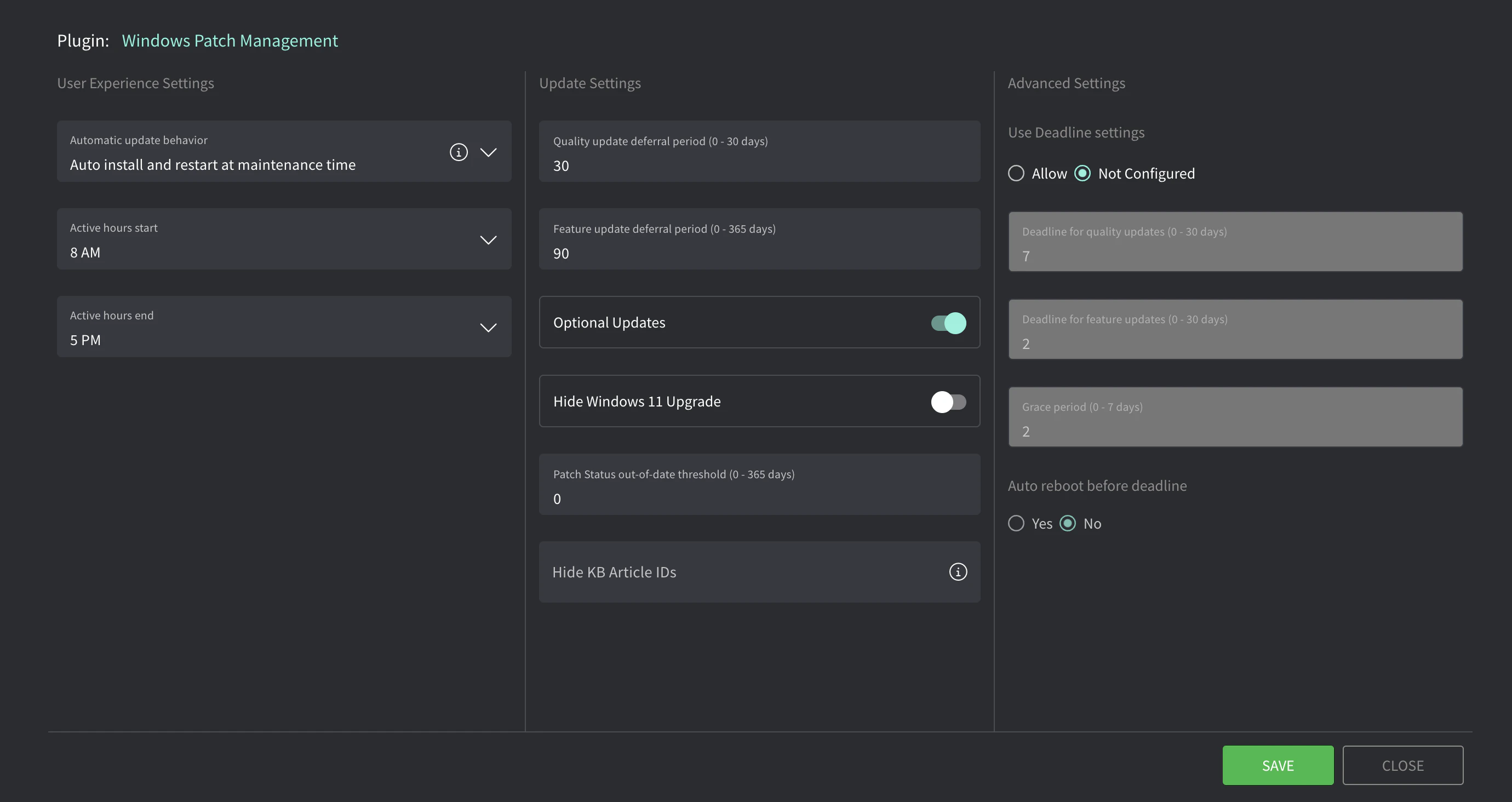
從你的 **Policy** 清單,點擊鉛筆圖示以編輯 Windows Patch Management 外掛設定。會開啟具有下列選項的彈出視窗。
## 運作方式
此外掛透過本機原則設定 **Windows Automatic Updates**,讓裝置能依你在 Gorelo 政策中定義的設定自主接收、安裝並重新開機以套用更新。
套用後,這些設定會覆寫本機使用者偏好,並一直強制執行直到政策被移除或修改。
## 更新設定
從你的 **Policy** 清單,點擊鉛筆圖示以編輯 Windows Patch Management 外掛設定。會開啟具有下列選項的彈出視窗。
 | **設定** | **說明** |
| :----------------------------- | :----------------------------------------------------------------------------------------------------------------------------------------------------------------------------------------------------------------------------------------------------------------------------------------------------------------------------------------------------------------------------------------------------------------------------------------------- |
| **Automatic update behavior** | 設定更新動作:`Recommended: Auto install and restart at maintenance time`。 **Auto install and restart at maintenance time**
| **設定** | **說明** |
| :----------------------------- | :----------------------------------------------------------------------------------------------------------------------------------------------------------------------------------------------------------------------------------------------------------------------------------------------------------------------------------------------------------------------------------------------------------------------------------------------- |
| **Automatic update behavior** | 設定更新動作:`Recommended: Auto install and restart at maintenance time`。 **Auto install and restart at maintenance time**
更新會自動下載,並在裝置未使用或未用電池供電時透過 Automatic Maintenance 安裝。需要重新開機時,裝置會在未使用時重新開機。可使用 Active hours 設定定義禁止自動重新開機的時段。 **Auto download and schedule the install**
自動下載更新並依下方指定的排程安裝。當預定的安裝時間選擇 **「Automatic」** 時,Windows 會自動檢查、下載並安裝更新。除非已在 **「Always automatically restart at scheduled time」** 中設定,否則裝置會依 Windows 預設設定重新開機 |
| **Active hours start/end** | 適用於「Auto install and restart at maintenance time」。可避免在工作時間內自動重新開機。 |
| **Scheduled install day/time** | 適用於「Auto download and schedule the install」。會在此日期/時間安裝更新。 |
## OS 更新截止日
這些設定定義資產在強制執行前安裝更新的時間長度。若啟用,資產會先嘗試在一般維護時間安裝更新。若在截止日內未能完成,會進入寬限期,期間使用者會被提示排程重新開機。寬限期結束後,更新與重新開機會被強制執行。
| **設定** | **說明** |
| :------------------------------- | :--------------------------------------------------------------- |
| **Use Deadline settings** | 啟用後,更新會在設定的時間內被強制執行。 |
| **Deadline for quality updates** | 更新提供後資產必須在進入寬限期前安裝的天數(0–30)。`Recommended: 2 days` |
| **Deadline for feature updates** | 更新提供後資產必須在進入寬限期前安裝的天數(0–30)。`Recommended: 7 days` |
| **Grace period** | 截止日後,使用者被提示重新開機或排程重新開機的天數(0–7)。之後裝置會強制重新開機。`Recommended: 2 days` |
| **Auto reboot before deadline** | 啟用後,可在截止日前讓系統自動重新開機以完成安裝。`Recommended: Yes` |
\
將這些設定與 CIS Controls、Essential Eight、NIST 等對齊時,延遲期 + 截止日 + 寬限期定義了總天數。例如,若你要求關鍵更新在發布後 7 天內安裝:
* Quality update 延遲期 = 3 天
* Deadline for quality updates = 2 天
* 寬限期 = 2 天
* 3 + 2 + 2 = 7 — 你已達到最大 7 天。
⚠️ 建議在首次使用 Gorelo 入職時以「Not configured」作為起點,因為這是影響最小的選項。當你決定改為「Allow」時,先讓截止日與寬限期值設高很多,然後慢慢降低到你偏好的數字。