> ## Documentation Index
> Fetch the complete documentation index at: https://help.gorelo.io/llms.txt
> Use this file to discover all available pages before exploring further.
# ScreenConnect 整合
> 將 ScreenConnect 與 Gorelo 整合,可一鍵建立遠端桌面工作階段並安裝 agent,包含 Instance ID、API 路徑與憑證設定。
Gorelo 與 ScreenConnect 整合,可一鍵建立遠端桌面連線並安裝 agent。
1. 前往 **Settings** > **[Integrations](https://app.gorelo.io/Admin/admin-settings#integrations)。**
2. 點擊 ⚙️**齒輪** 圖示以設定 **ScreenConnect。**
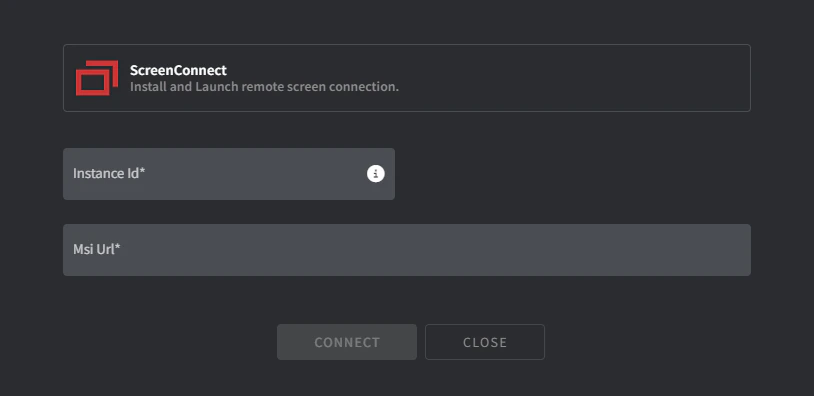 3. 填入必填欄位:
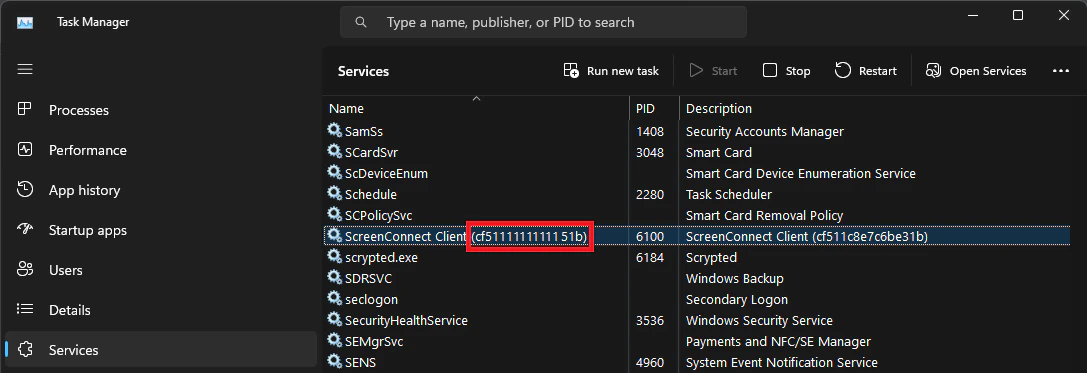
* **Instance ID**
1. 存取一個已安裝 ScreenConnect Client 的端點。
2. 前往 **Services**。
3. 複製括號中的 ScreenConnect Client Service 的值:
3. 填入必填欄位:
* **Instance ID**
1. 存取一個已安裝 ScreenConnect Client 的端點。
2. 前往 **Services**。
3. 複製括號中的 ScreenConnect Client Service 的值:
 * **MSI URL**
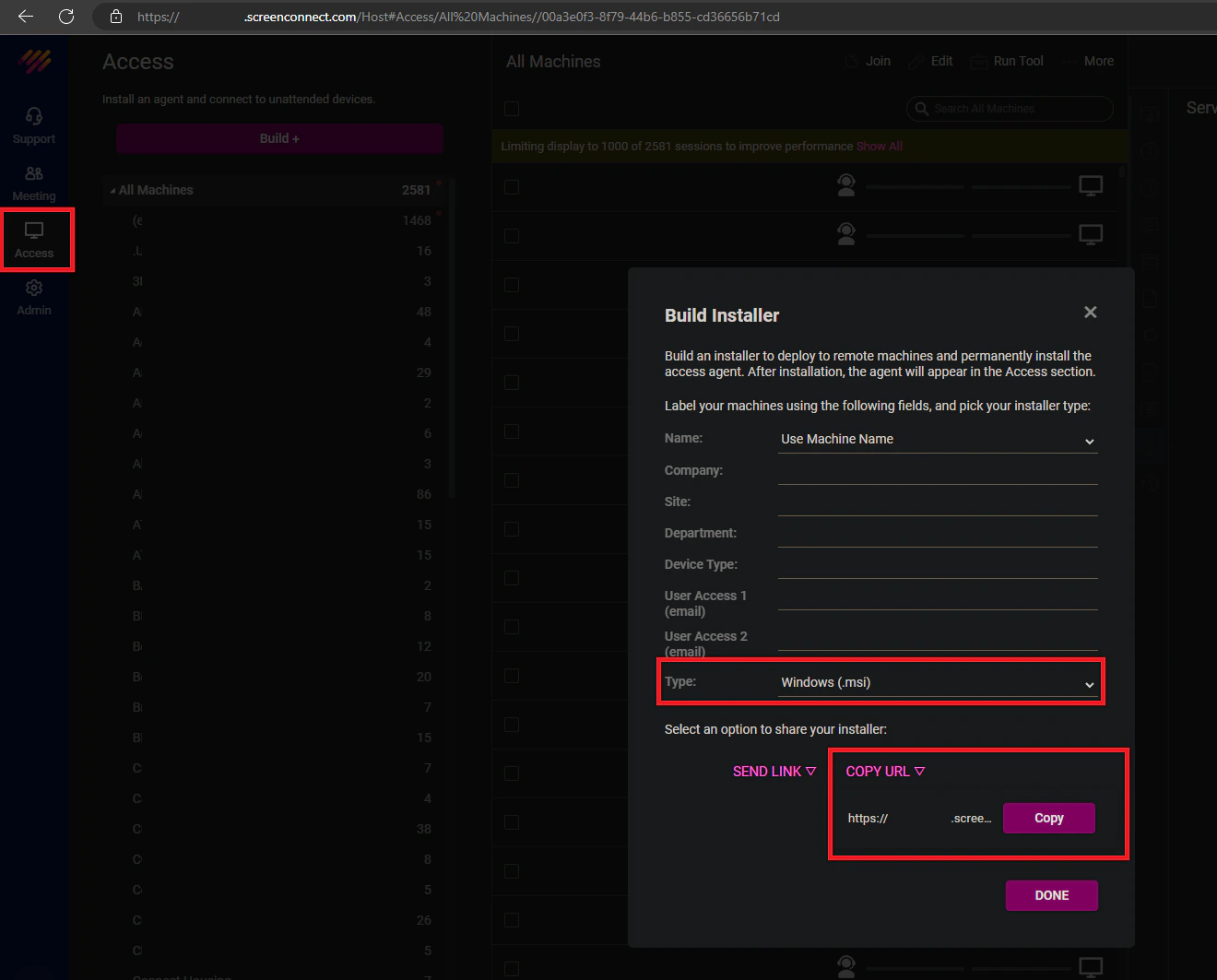
1. 登入你的 ScreenConnect 租戶。
2. 點擊 **Access。**
3. 點擊 **Build。**
4. 將類型變更為 **Windows (MSI)。**
5. 點擊 **copy URL。**
* **MSI URL**
1. 登入你的 ScreenConnect 租戶。
2. 點擊 **Access。**
3. 點擊 **Build。**
4. 將類型變更為 **Windows (MSI)。**
5. 點擊 **copy URL。**
 4. 點擊 **Connect。**
Gorelo 會在安裝時自動將客戶名稱插入 ScreenConnect 的 company 欄位。其他設定請見步驟 3。
1. 在主選單前往 [Policies](https://app.gorelo.io/Asset/policy-management)。
2. 將 ScreenConnect 外掛加到現有政策,或建立新政策。
3. 點擊 **Distribute。**
**小提示!**
更多資訊請見[Policies](/how-policies-work)指南。
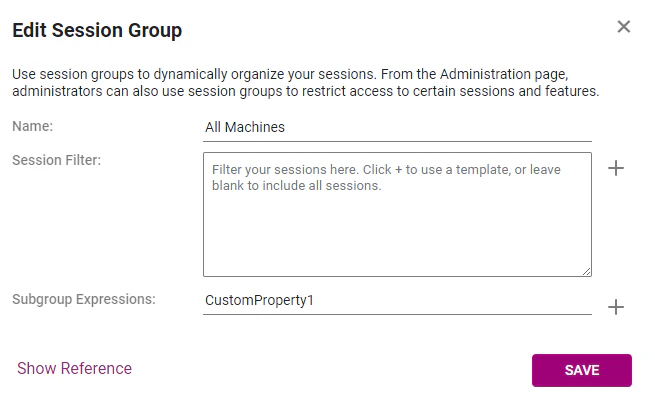
1. 登入你的 ScreenConnect 租戶。
2. 前往 **Access**。
3. 在 **All Machines** 工作階段群組上點擊**三點選單**並點擊 **Edit。**
4. 在 **Subgroup Expressions** 欄位輸入 `CustomProperty1`。
5. 點擊 **Save。**
4. 點擊 **Connect。**
Gorelo 會在安裝時自動將客戶名稱插入 ScreenConnect 的 company 欄位。其他設定請見步驟 3。
1. 在主選單前往 [Policies](https://app.gorelo.io/Asset/policy-management)。
2. 將 ScreenConnect 外掛加到現有政策,或建立新政策。
3. 點擊 **Distribute。**
**小提示!**
更多資訊請見[Policies](/how-policies-work)指南。
1. 登入你的 ScreenConnect 租戶。
2. 前往 **Access**。
3. 在 **All Machines** 工作階段群組上點擊**三點選單**並點擊 **Edit。**
4. 在 **Subgroup Expressions** 欄位輸入 `CustomProperty1`。
5. 點擊 **Save。**
 ## 疑難排解
### 特定資產上 ScreenConnect 沒有連線
若特定資產上 ScreenConnect 沒有顯示連線,請依下列步驟重新安裝:
1. 前往該特定資產的詳細資料頁面。
2. 點擊左下方的 **Policy** 分頁:
## 疑難排解
### 特定資產上 ScreenConnect 沒有連線
若特定資產上 ScreenConnect 沒有顯示連線,請依下列步驟重新安裝:
1. 前往該特定資產的詳細資料頁面。
2. 點擊左下方的 **Policy** 分頁:
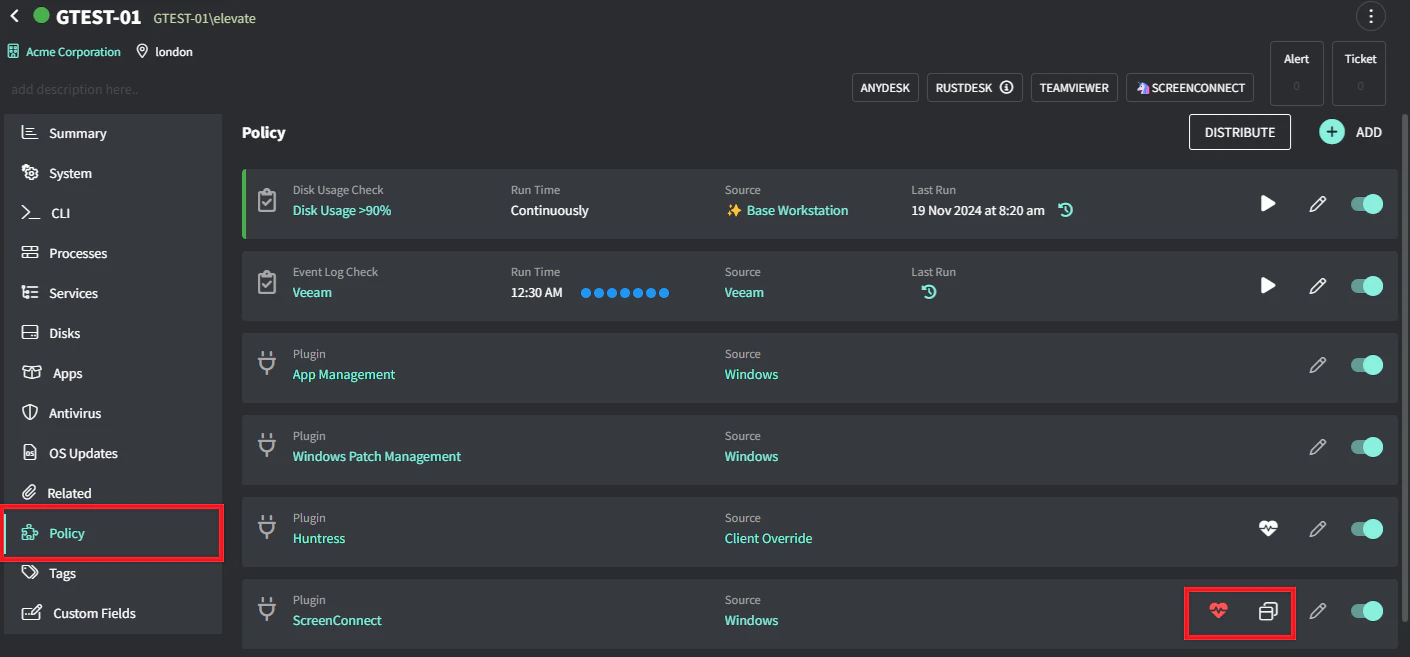 3. 點擊 ScreenConnect 外掛的 heart 圖示。
4. 點擊 ScreenConnect 圖示以重新安裝。
3. 點擊 ScreenConnect 外掛的 heart 圖示。
4. 點擊 ScreenConnect 圖示以重新安裝。