> ## Documentation Index
> Fetch the complete documentation index at: https://help.gorelo.io/llms.txt
> Use this file to discover all available pages before exploring further.
# Slide 備份整合
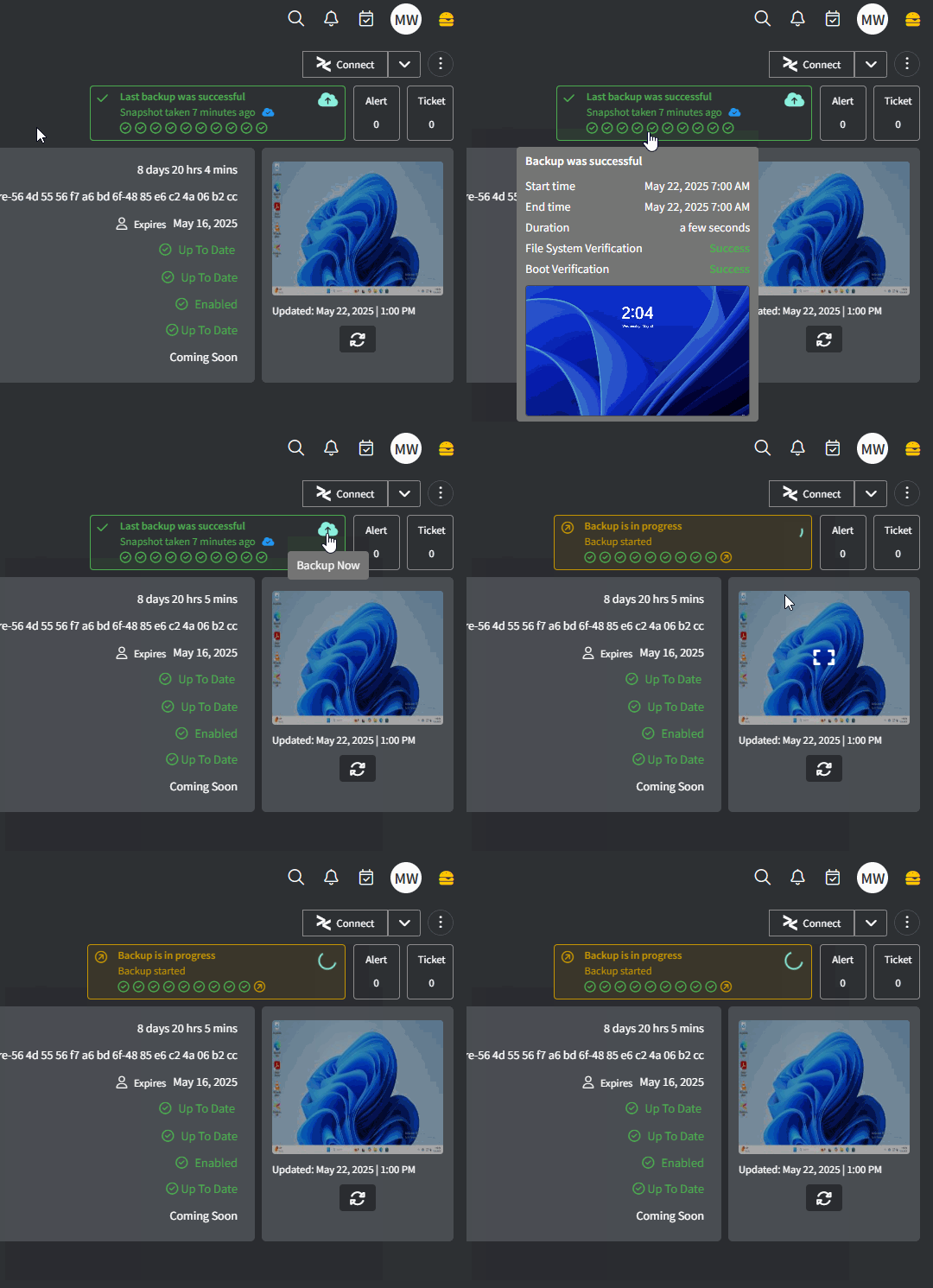
> 將 Slide 與 Gorelo 整合,可從受保護的 Windows 端點的 Asset Detail 頁面直接檢視快照狀態並啟動新備份。
Gorelo 與 Slide 整合,可讓你從 Asset Detail 頁面檢視現有快照狀態並啟動新快照。
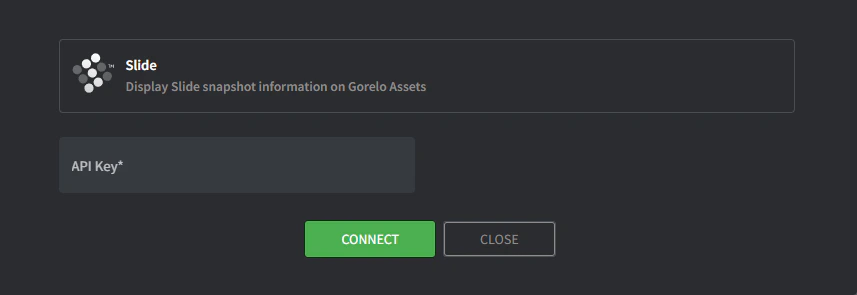 * API Key:
1. 前往 [https://console.slide.tech/settings](https://console.slide.tech/settings)
2. 「Create API Token」
3. 將 token 複製貼上到 Gorelo
要看整合的實際運作,前往 Gorelo 中已對應的資產,你會在右上角看到 Slide 備份資訊:
* API Key:
1. 前往 [https://console.slide.tech/settings](https://console.slide.tech/settings)
2. 「Create API Token」
3. 將 token 複製貼上到 Gorelo
要看整合的實際運作,前往 Gorelo 中已對應的資產,你會在右上角看到 Slide 備份資訊:
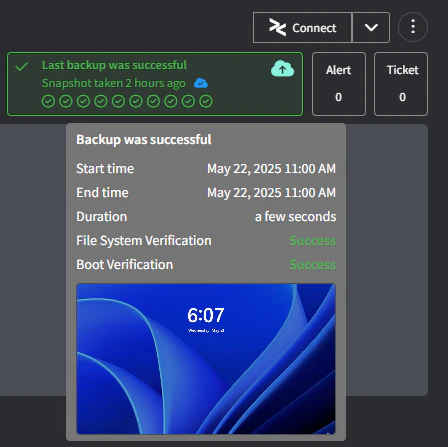 * **黃色:** 最近 10 個快照的狀態(從舊到新)。將滑鼠移上以查看更多細節。
* **紅色:** 雲端複製的狀態(實心藍色表示已複製到雲端,僅外框表示未複製到雲端)。
* **橘色:** 點擊以啟動快照。
* 點擊其他任何地方以前往 Slide portal。
* **黃色:** 最近 10 個快照的狀態(從舊到新)。將滑鼠移上以查看更多細節。
* **紅色:** 雲端複製的狀態(實心藍色表示已複製到雲端,僅外框表示未複製到雲端)。
* **橘色:** 點擊以啟動快照。
* 點擊其他任何地方以前往 Slide portal。