> ## Documentation Index
> Fetch the complete documentation index at: https://help.gorelo.io/llms.txt
> Use this file to discover all available pages before exploring further.
# 撰寫與測試指令稿
> 在 Gorelo 中撰寫並測試 PowerShell、CMD 或 Bash 指令稿,可選擇類型、設定超時,並在部署前透過 CLI 在 agent assets 上測試。
任何無法以 checks 與 plugins 原生完成的事情,都可以使用**指令稿**。
## 建立指令稿
1. 從主選單前往 [**Scripts**](https://app.gorelo.io/Asset/script-list)。
2. 點擊左下角的 **Create a script**。
3. 為指令稿命名。
4. 在編輯器欄位中輸入或貼上你的指令稿(例如 `ipconfig`)。
5. 點擊右上角的 **Save**。
## 額外設定
* **Script type**:將指令稿類型從預設的 PowerShell 變更為 Command Line 或 Bash。PowerShell 與 Command Line 僅適用 Windows,Bash 僅適用 macOS。
* **Timeout**:可以分鐘為單位設定指令稿的超時時長。
* **Run as user**:將以最近登入使用者的身分執行指令稿。
* **Variables**:列出 Gorelo 中可用的變數清單。建立[**自訂資產欄位**](https://app.gorelo.io/Admin/admin-settings#asset#assetcustomfields)、[**自訂客戶欄位**](https://app.gorelo.io/Admin/admin-settings#crm#clientcustomfields) 與 [**自訂檔案**](https://app.gorelo.io/Admin/admin-settings#asset#filerepository) 會填入此清單。
**小提示!**
透過自訂欄位與警示獲得額外功能,請參考 [**GoreloAction**](/gorelo-action-cli)
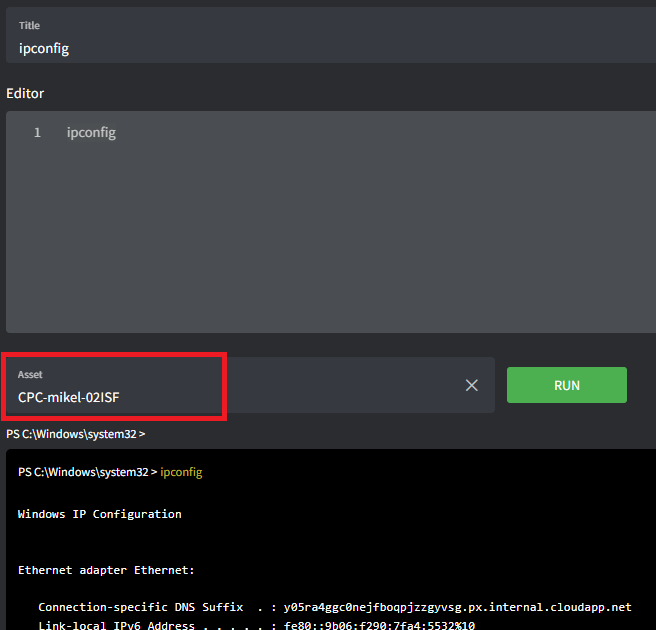
## 測試你的指令稿
1. 開啟或建立新指令稿。
2. 將游標放在頁面底部的 **Asset** 欄位。
3. 輸入你想測試的資產主機名稱。
4. 點擊 **Run**。