

Dynamic Quantities are used to automate your billing by increasing/decreasing quantities of products/bundles and suggesting things that haven’t been billed yet. Asset Tags, Contact Tags (M365) and Pax8 subscriptions are currently supported.
Set up rules
1
Navigate to the Contracts list.
Then click Dynamic Quantities up the top right.
2
Click the Rules tab.
You will see Dynamic Elements that Gorelo has detected from each Source. Example: Source of Asset Tag and a Dynamic Element of Windows Workstation.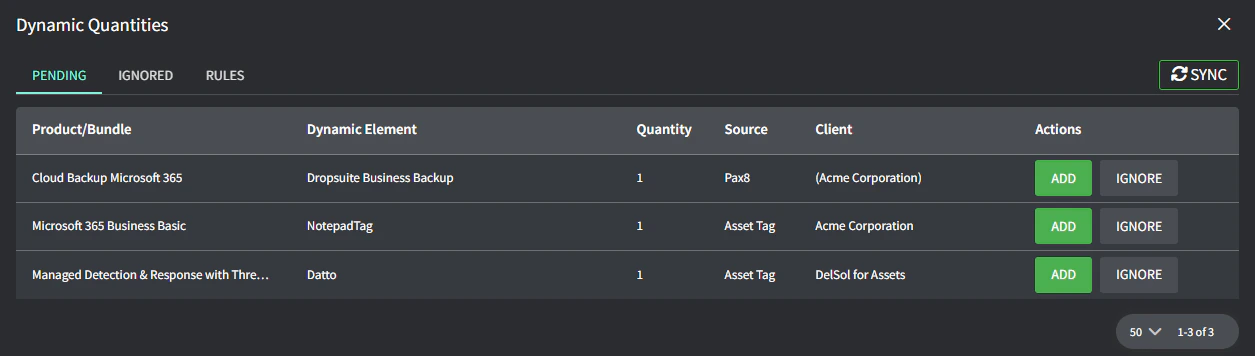
3
Go to the Auto Action column.
Select what you’d like to occur when this dynamic element is detected (and not currently mapped to a contract).
- Unmapped: This element will appear in the Pending tab and directly on each contract ready for you to map a product/bundle.
- Suggest: Choose a product/bundle to suggest. This element will appear in the Pending tab and directly on each contract ready for you to click ‘Add’ as the product/bundle has been suggested.
- Ignore: This element will not appear in the Pending tab or directly on each contract.
See what’s pending
You should check this Pending tab regularly to make sure you’re billing for everything. Anything that appears here should be either added to a contract, individually ignored or ignored via the Rules tab.1
Navigate to the Contracts list > Dynamic Quantities up the top right.
2
Click the Pending tab.
You will see all dynamic elements that are pending contract addition:
- Add will navigate you to the client’s contract (or list of contracts) so you can add from there.

- Ignore will hide just this specific dynamic element for this specific client (and appear in the Ignored tab)
