

Add the plugin
- Navigate to Policies.
- Select the Windows tab.
- Click + Add and select Plugin.
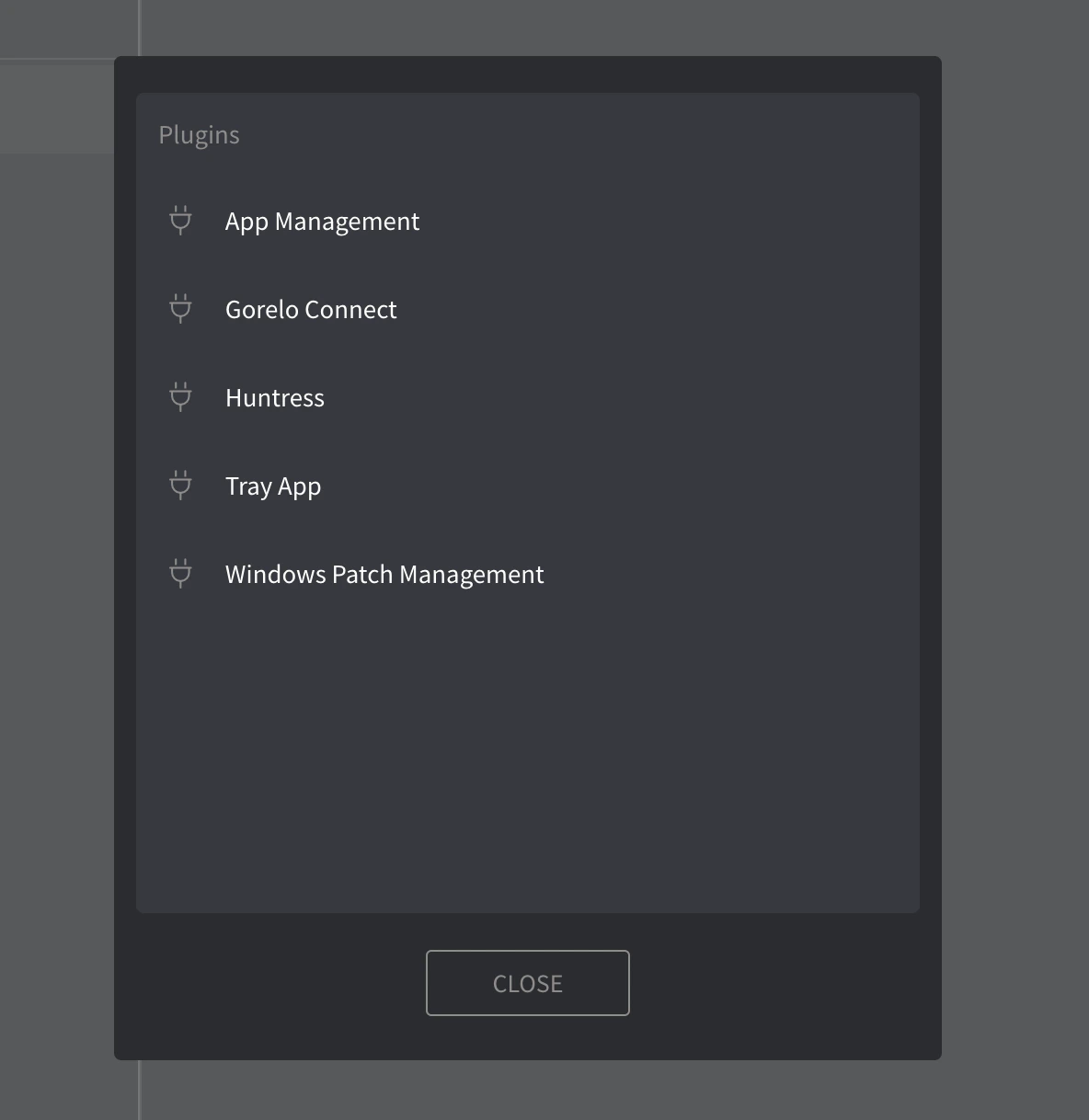
- From the pop-up, select Windows Patch Management.
How it works
This plugin configures Windows Automatic Updates via local policy, allowing devices to autonomously receive, install, and reboot for updates based on the settings defined in your Gorelo policy. Once applied, these settings override local user preferences and are enforced until the policy is removed or modified.Update settings
From your Policy list, click the pencil icon to edit the Windows Patch Management plugin settings. This opens a pop-up with the following options.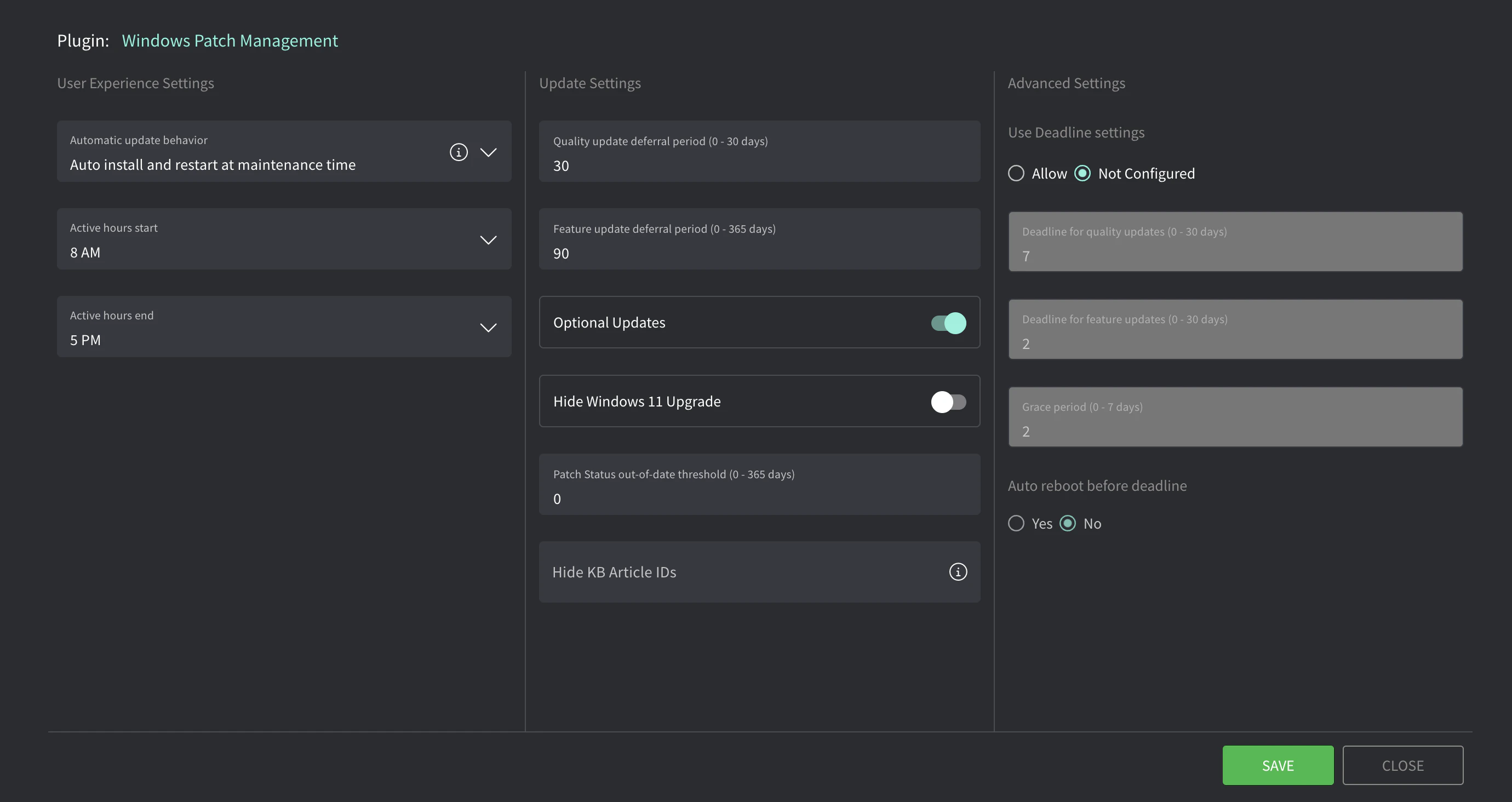
Deadline for OS updates
These settings define how long an asset has to install updates before enforcement kicks in. If enabled, the asset will first attempt to install updates during regular maintenance time. If it fails to do so within the deadline, it enters a grace period where the user is prompted to schedule a restart. Once the grace period expires, the update and restart will be forced.When aligning these settings with CIS Controls, Essential Eight, NIST etc., the deferral period + deadline + grace period define the total number of days. For example, if you require critical updates to be installed within 7 days of release:
- Quality update deferral period = 3 days
- Deadline for quality updates = 2 days
- Grace period = 2 days
- 3 + 2 + 2 = 7 — you’re now at the maximum of 7 days.