How It Works
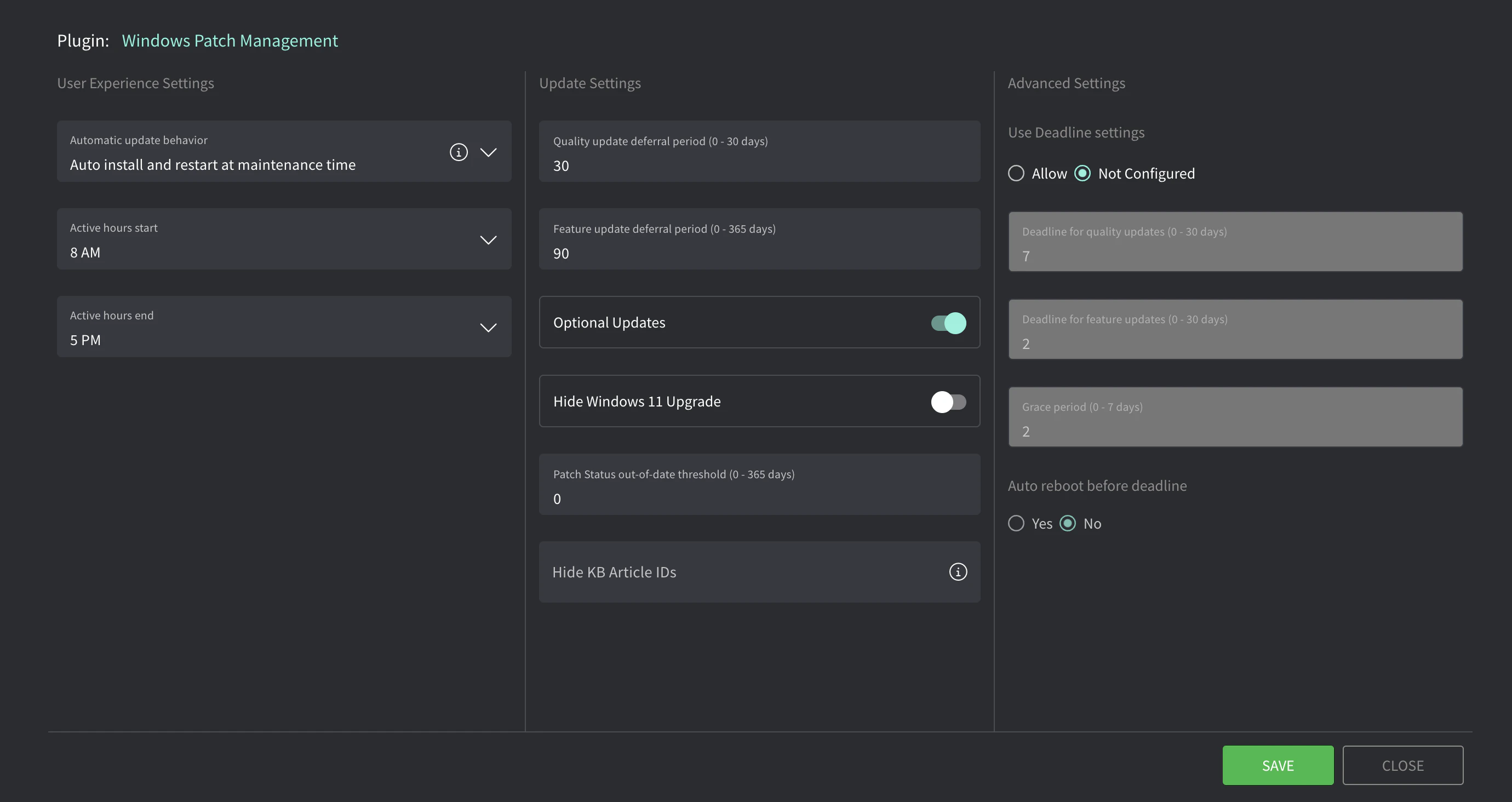
This plugin configures Windows Automatic Updates via local policy, allowing devices to autonomously receive, install, and reboot for updates based on the settings defined in your Gorelo policy. Once applied, these settings override local user preferences and are enforced until the policy is removed or modified.Update Settings
| Setting | Description |
|---|---|
| Automatic update behavior | Sets the update action: Recommended: Auto install and restart at maintenance time. Auto install and restart at maintenance timeUpdates download automatically and then install during Automatic Maintenance when the device isn’t in use or running on battery power. When restart is required, the device restarts when not being used. Use the Active hours settings to define a period during which the automatic restarts are blocked. Auto download and schedule the install Automatically download updates and install them on the schedule specified below. When “Automatic” is selected as the scheduled install time, Windows will automatically check, download, and install updates. The device will reboot as per Windows default settings unless configured in “Always automatically restart at scheduled time” |
| Active hours start/end | For ‘Auto install and restart at maintenance time’ Prevents automatic restarts during working hours. |
| Scheduled install day/time | For ‘Auto download and schedule the install‘ Updates are installed on this day/time. |
Deadline for OS Updates
These settings define how long an asset has to install updates before enforcement kicks in. If enabled, the asset will first attempt to install updates during regular maintenance time. If it fails to do so within the deadline, it enters a grace period where the user is prompted to schedule a restart. Once the grace period expires, the update and restart will be forced.| Setting | Description |
|---|---|
| Use Deadline settings | If enabled, updates will be forced within set timeframes. |
| Deadline for quality updates | Number of days (0–30) after the update is offered that the asset has to install it before entering the grace period. Recommended: 2 days |
| Deadline for feature updates | Number of days (0–30) after the update is offered that the asset has to install it before entering the grace period. Recommended: 7 days |
| Grace period | Number of days (0–7) after the deadline where the user is prompted to restart or schedule a restart. After this, the device will force the restart. Recommended: 2 days |
| Auto reboot before deadline | If enabled, allows the system to automatically reboot to complete installation before the deadline expires. Recommended: Yes |
When aligning these settings with CIS Controls, Essential Eight, NIST etc., the deferral period + deadline + grace period define the total number of days E.g. If you require critical updates to be installed within 7 days of release:
- Quality update deferral period = 3 days
- Deadline for quality updates = 2 days
- Grace period = 2 days
- 3 + 2 + 2 = 7 — you’re now at the maximum of 7 days.