1

Navigate to Library → Upload

2

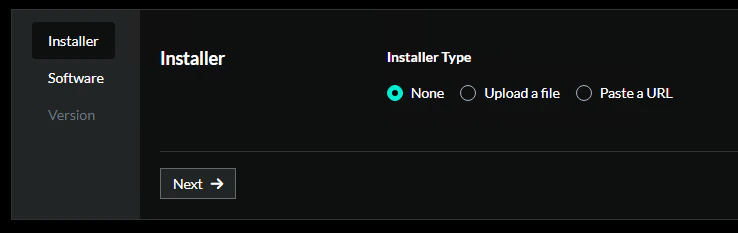
On the Installer step:

Select Installer Type = None
Image 127
3

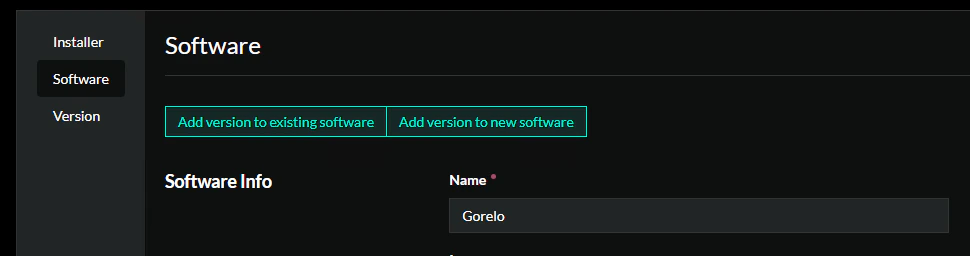
On the Software step:

  • Select ‘Add version to new software’
  • Under Software Info
    • Name = Gorelo
Image 128
4

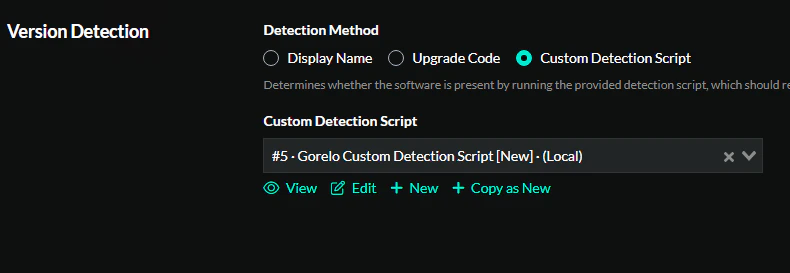
Under Version Detection

  • Select ‘Custom Detection Script’
  • Add a ‘New’ script as per below with the default settings
Image 129
5

Copy-paste the script

$registryPath = "HKLM:\SOFTWARE\Gorelo"
$valueName = "AgentVersion"

try {
    $version = Get-ItemPropertyValue -Path $registryPath -Name $valueName -ErrorAction Stop
    Write-Output $version
} catch {
    Write-Error "Unable to read version: $($_.Exception.Message)"
    exit 1
}
6

Under Installation

  • Select ‘Custom Detection Script’
  • Add a ‘New’ script and paste the Agent Asset installation command from your Gorelo tenant
Image 129
7

On the Version step —

  • Version String = 8.42.0.0
8

Click ‘Create’

You will need to add this new software to your Deployments and then adopt the asset in Gorelo. Use a specific Client/Location installation command to skip the adoption requirement.
You can use a Intune to deploy the Gorelo agent after Autopilot has done it’s thing.
1

Create the Gorelo install script

  1. Navigate to the Asset List
  2. Click ‘+ Assets’ up the top-right and then ‘Agent Asset’
  3. Select Client/Location (optional) and then Request Agent
  4. Copy the PowerShell script and save it somewhere as ‘GoreloInstall.ps1’
2

Add the Intune platform script

  1. Open Intune and log in with a Global Administrator account
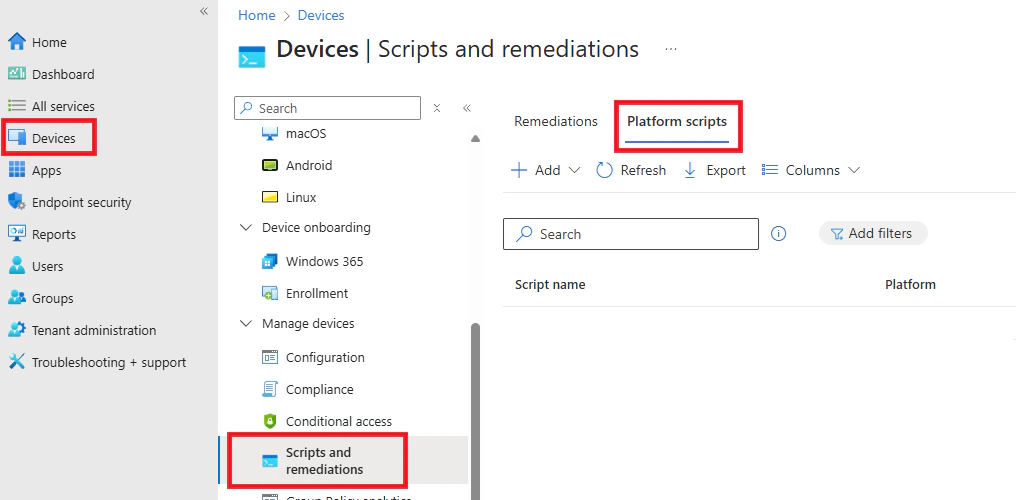
  2. Navigate to Devices in the left-menu and then Manage devices —> Scripts and remediations
  3. Select the Platform scripts tab at the top
Image
  1. Click the + Add button and select Windows 10 and later
  • Name: GoreloInstall
    • Click Next
  • Script location: upload the GoreloInstall.ps1 script
  • Run this script using the logged on credentials: No
  • Enforce script signature check: No
  • Run script in 64 bit PowerShell Host: Yes
    • Click Next
  • Included groups: Select the specific groups
    • Click Next
  • Review the details and click Add
Image