

Views are boards that filter your data on each (like Tickets, Assets, Alerts). You can customize your filters in many ways and then save the result as a View. You can also share Views globally with your team.
Use Client Focus when you want to filter based on a specific client. The Client Focus works in combination with your selected View. For example:
- You have a View that shows ‘Mine & Unassigned’ tickets.
- When applying a Client Focus will filter the data to only show ‘Mine & Unassigned’ for that specific client.
Create a view from alerts
This example uses the Alerts list.- Navigate to the Alerts list
- Click ‘Create a view’ at the bottom of the Views pane
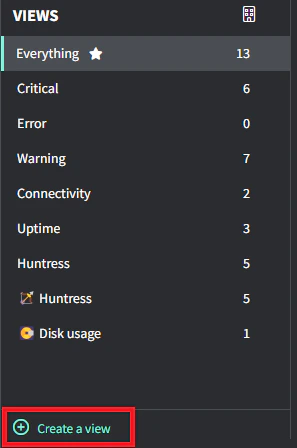
- Enter the fields to filter the list
- Name: this is the name that shows in the Views pane (emojis work), e.g., 🏹 Huntress
- Keyword: this will filter by keyword in the Alert name (white text)
- Clients: leave blank for all clients or choose specific clients
- Severity: choose one or multiple severity levels
- Type: choose one or multiple types
- Ticketed: toggle on to show alerts that have been associated with a ticket
- Ignored: toggle on to show ignored alerts
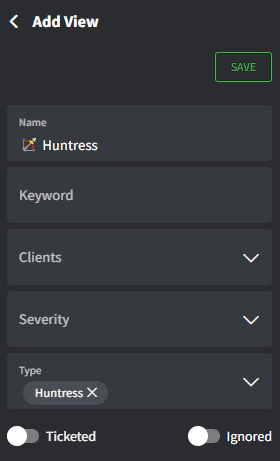
- Click Save and navigate back to the Views pane
Filter alerts by client
The Alerts list is used as an example here.- Navigate to the Alerts list
- Click the Client Focus button in the top right of the Views pane
- Enter the client’s name. Your list will now be filtered by the View AND the Client Focus.
Next steps
Tickets
Manage your clients’ requests and organize your work.
Alerts
Monitor important events or issues in Gorelo.