

1
Navigate to Settings > Billing > Invoice Template.
2
Select a template.
For example, “Standard”.
3
Go to General Section.
Toggle on Show Pay Now.
4
Choose an option.
Select either: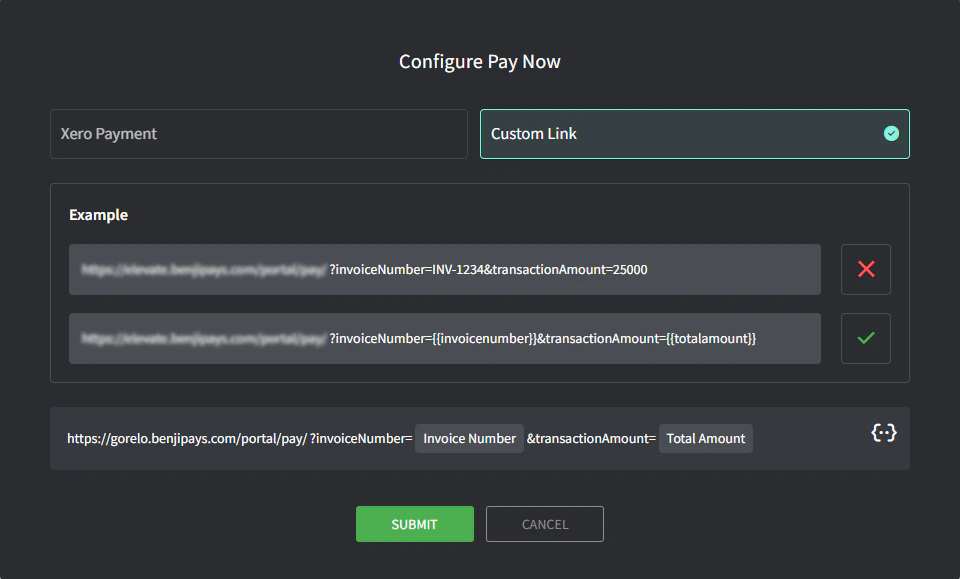
- QuickBooks/Xero (based on your accounting integration): this option embeds the native payment link, which takes the user to QuickBooks or Xero respectively.
- Custom Link: this option allows you to use a custom URL with variables for the Invoice Number
{{invoicenumber}}and Total Amount{{totalamount}}. For example: Benji Pays
5
Click Submit.
All Invoice PDFs generated with the selected template (Standard) will now show a ‘Pay Now’ button that’s linked to your chosen method.