Times Entries and Products

1

Navigate to Approve and Invoice

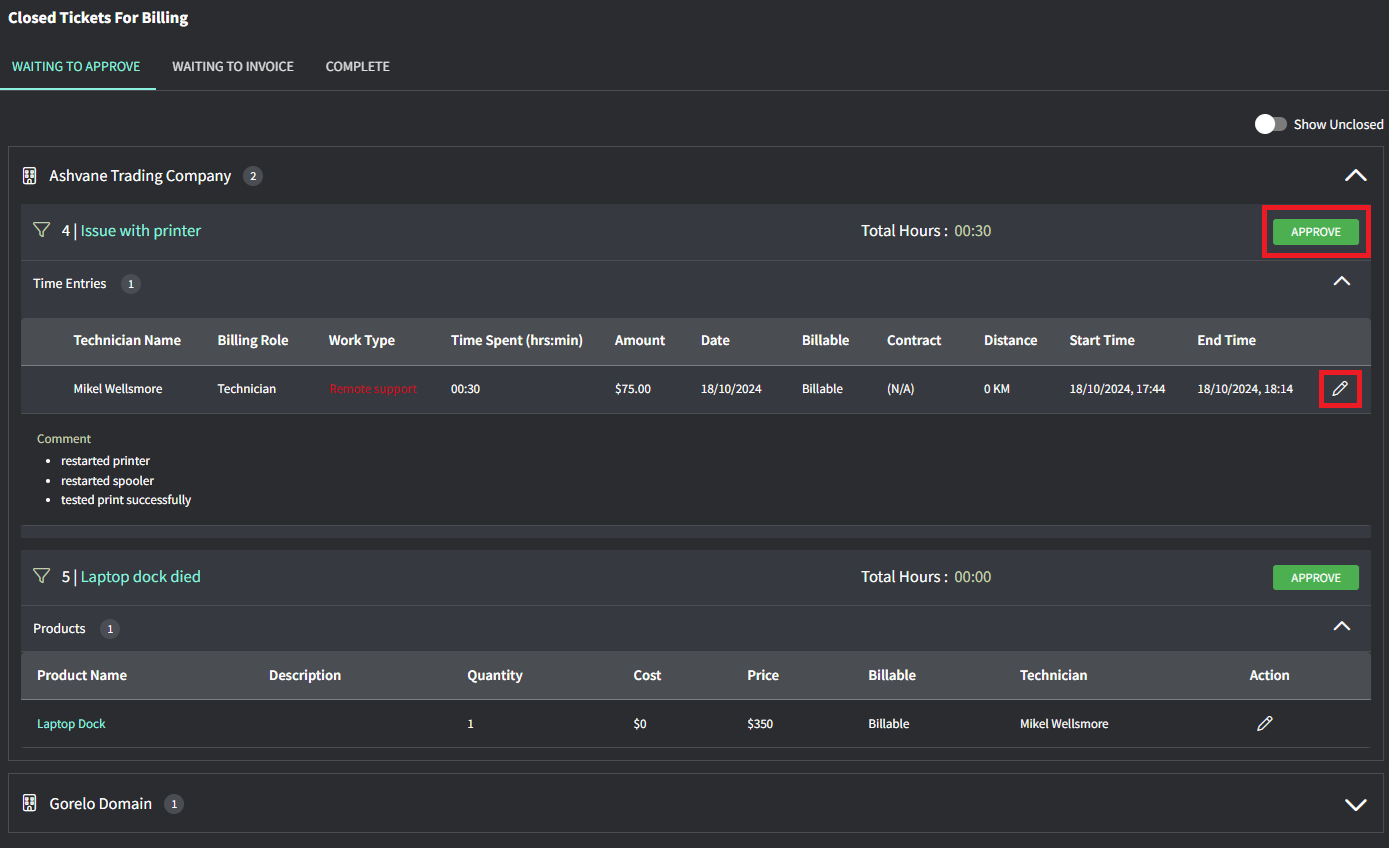
You will land on the ‘Waiting to Approve’ tab and will see everything that requires approval before flowing through to the contract or onto an invoice.
2

Edit the time entry or product

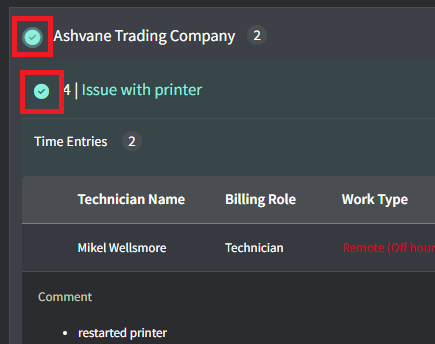
After that, click Approve when you’re happy with everything on the ticket
Image 137
Tips!
  • The Contract column will show (N/A) if it’s not associated with a contract and is just using default labour rates
  • The Work Type will show in red if the time entry is outside of your configured Business Hours
  • You can partially bill for time and products on Unclosed tickets by toggling on ‘Show Unclosed’ up the top-right of the Waiting to Approve screen.