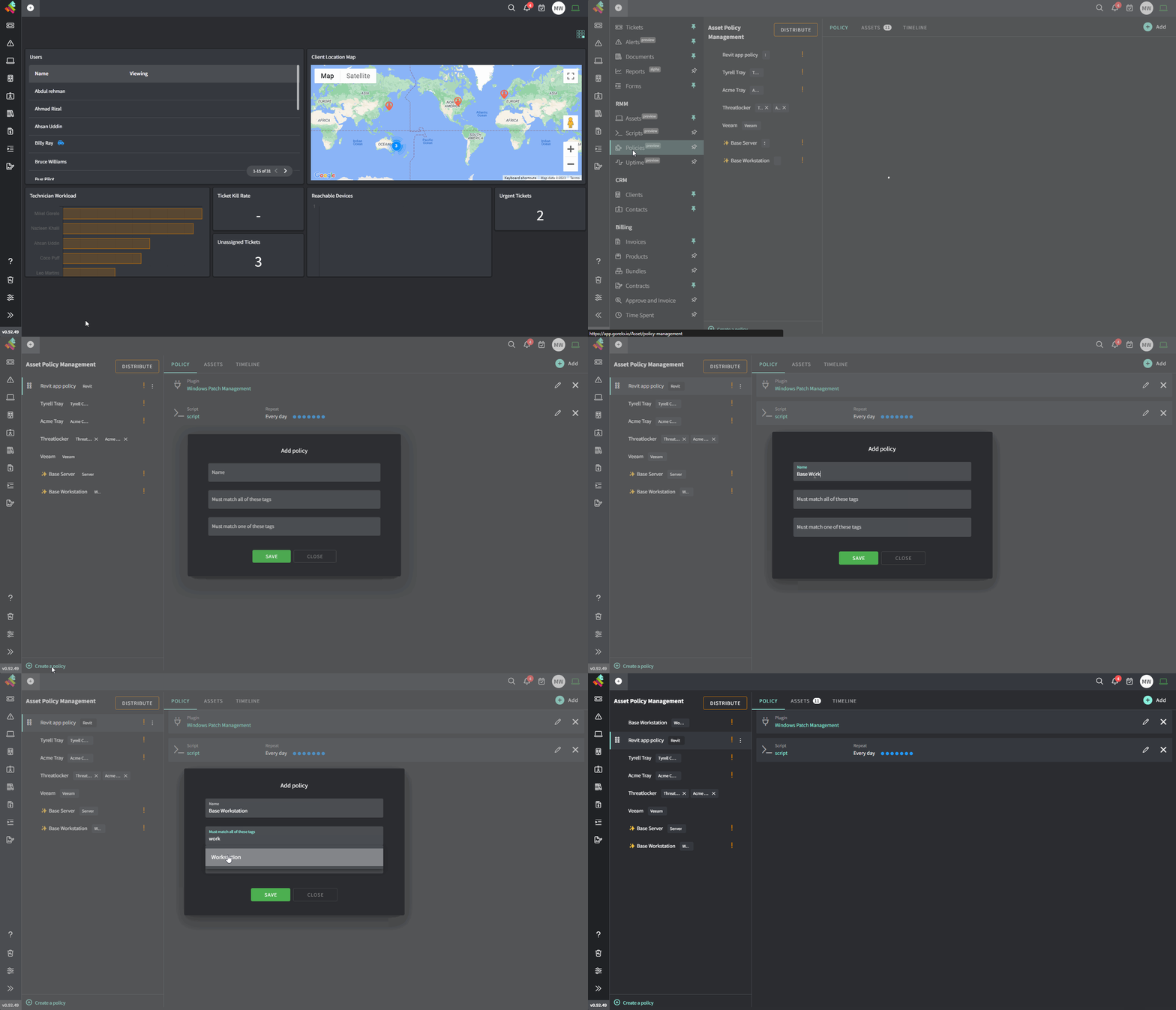
Policies are used to distribute checks, plugins, and scripts to assets via the use of tags. Let’s create our first policy to distribute the Screenconnect plugin to all workstations.
  1. Navigate to Policies from the menu
  2. Click ‘Create a policy’ down the bottom-left
  3. Name the policy ‘Base Workstation
  4. Add the ‘Workstation’ tag under ‘Must match all these tags
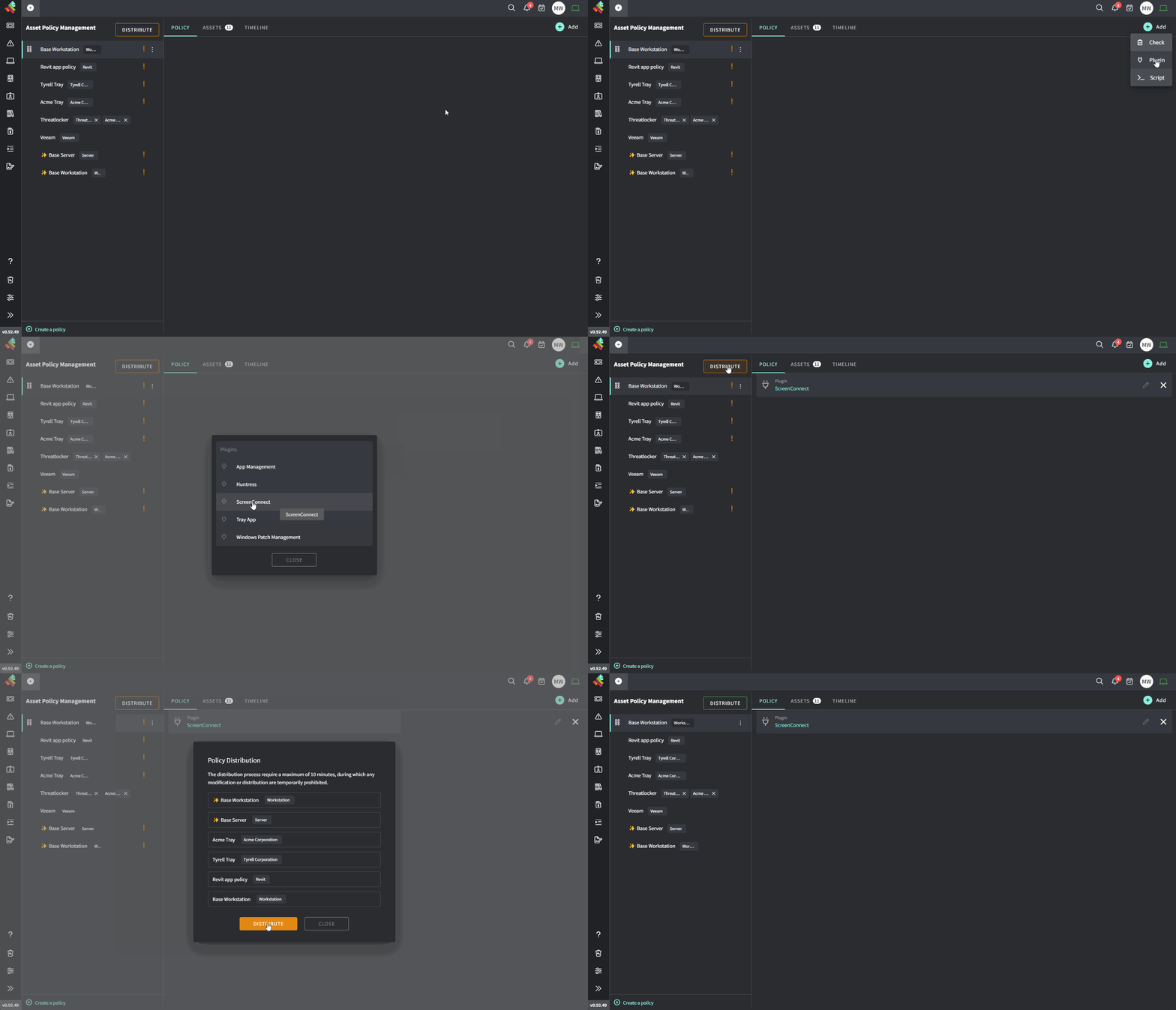
  5. While ‘Base Workstation’ policy is selected in the left-column, hover Add, choose Plugin and select Screenconnect
    019342fb 2464 79be B04c 4ed8d68f97db
  6. Distribute the policy up the top-left
    019342fb 23de 7957 Af0d 89d33e49d3e7
The same process can be adapted for any check/plugin/script.
We apply policies much like a router’s Access Control List (ACL). Checks/Plugins/Scripts are applied hierarchically from top to bottom. If an identical item exists higher in the hierarchy, it overrides those lower down. A good example would be Windows Patch Mangement in your ‘Base Workstation’ policy right at the bottom. Further up the list you would then create a client-specifc policy with Windows Patch Mangement and this would override the one in your ‘Base Workstation’ policy.