1
Create the app in AzureAD.
- Navigate to Azure > Microsoft Entra ID.
- In the left menu, click App registrations.
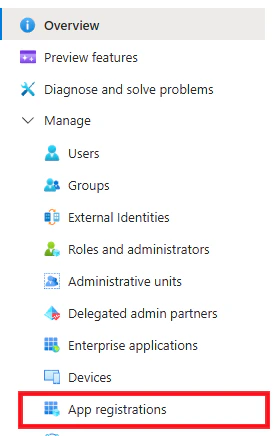
- Click +New registration.
- Name: Gorelo Calendar
- Supported account types: Accounts in this organizational directory only
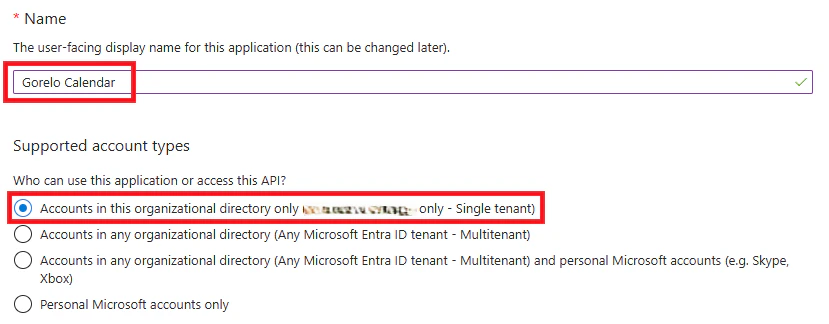
- Click Register.
- Navigate to API permissions from the left menu.
- Click Add a permission:
- Select Microsoft Graph.
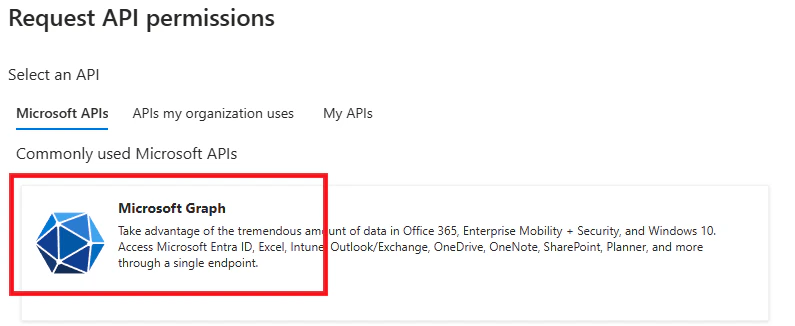
- Select Application permission.
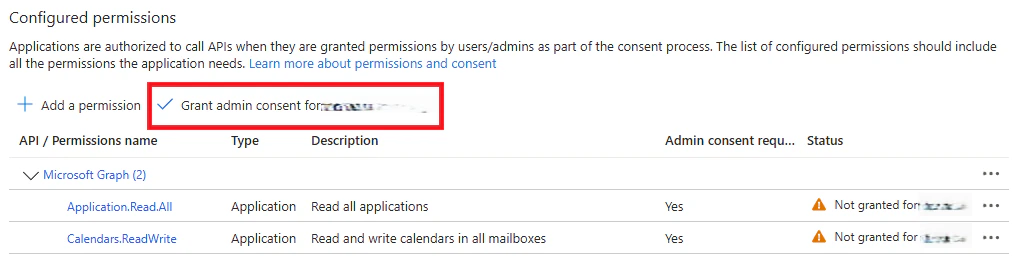
- Select permissions: Application.Read.All
- Select permissions: Calendars.ReadWrite
- Select Microsoft Graph.
- Click Add permissions.
- Click Grant admin consent for the recently added permissions.
- Navigate to Certificates & secrets in the left menu.
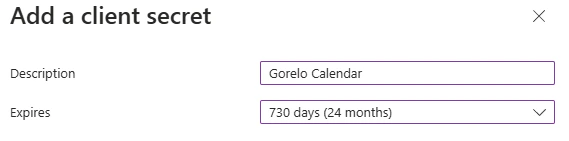
- Click + New client secret.
- Enter a Description and Expiration.
- Copy the Secret Value and save for later.

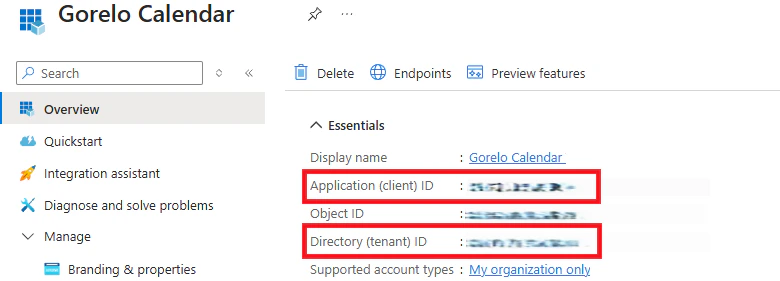
- Navigate to Overview in the left menu.
- Copy the Application (client) ID and Directory (tenant) ID and save for later.
2
Integrate in Gorelo.
- Navigate to Settings > Integrations.
- Click the ⚙️cog icon to configure Outlook.
- Enter the Client ID, Tenant ID and Secret Key you saved from earlier.
- Click Connect.
- Each user will then need to toggle on sync via their calendar in Gorelo.