

1
Integrate with ScreenConnect.
- Navigate to Settings > Integrations.
- Click the ⚙️cog icon to configure ScreenConnect.
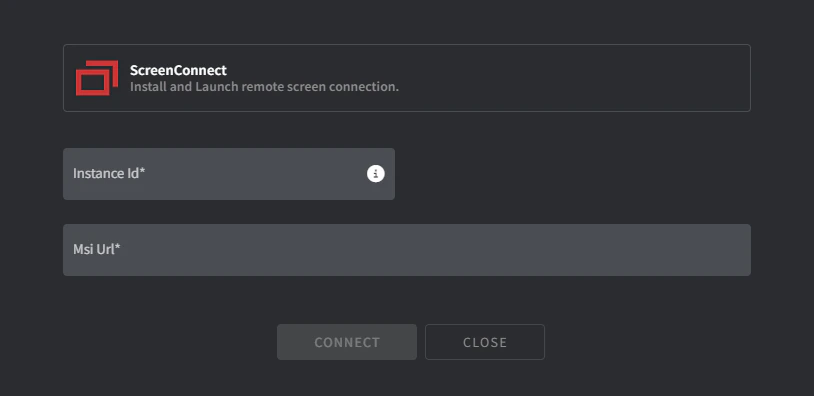
- Fill in the required fields:
- Instance ID
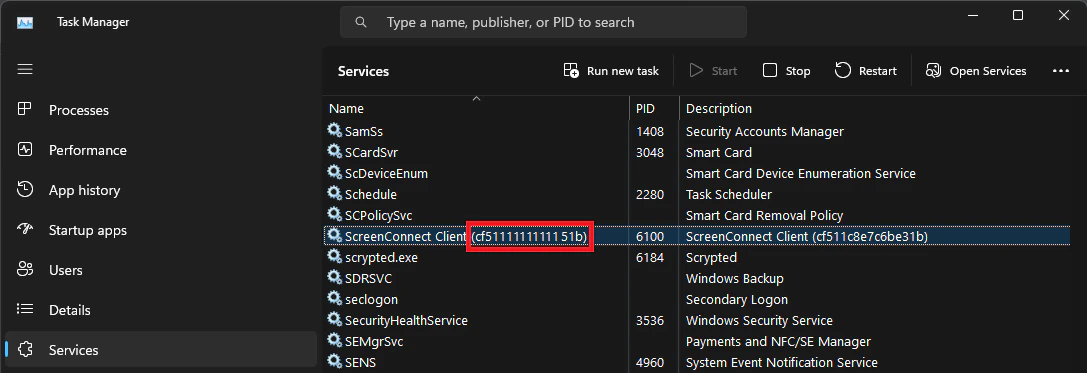
- Access one of your endpoints that already has your ScreenConnect Client installed.
- Navigate to Services.
- Copy the value of the ScreenConnect Client Service in parentheses:
- MSI URL
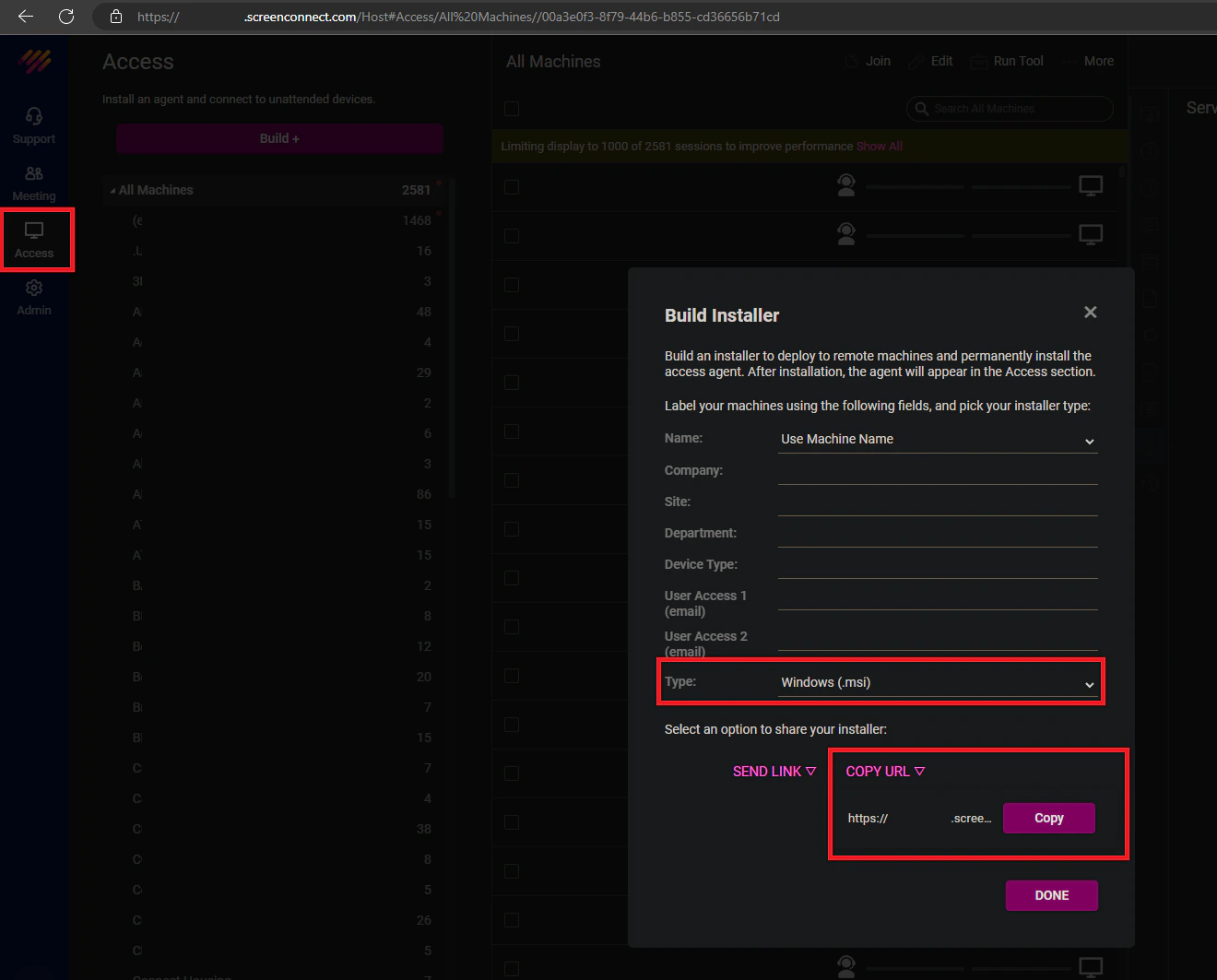
- Log in to your ScreenConnect tenant.
- Click Access.
- Click Build.
- Change type to Windows (MSI).
- Click copy URL.
- Click Connect.
2
Distribute the ScreenConnect Plugin.
- Navigate to Policies in the main menu.
- Add the ScreenConnect plugin to an existing policy or create a new one.
- Click Distribute.
3
Optional: Create a sub-session group in ScreenConnect for each client.
- Log in to your ScreenConnect tenant.
- Navigate to Access.
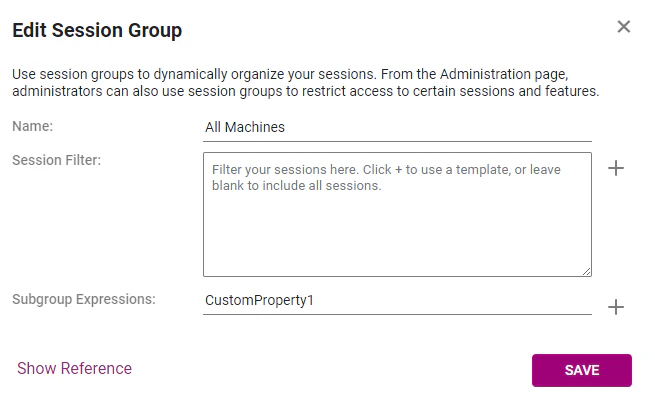
- Click the 3-dot menu on the All Machines session group and click Edit.
- Enter
CustomProperty1in the Subgroup Expressions field. - Click Save.
Troubleshooting
ScreenConnect is not connecting on a specific asset
If ScreenConnect doesn’t show a connection on a specific asset, reinstall it by following these steps:- Navigate to the details page of the specific asset.
- Click the Policy tab down the bottom-left:
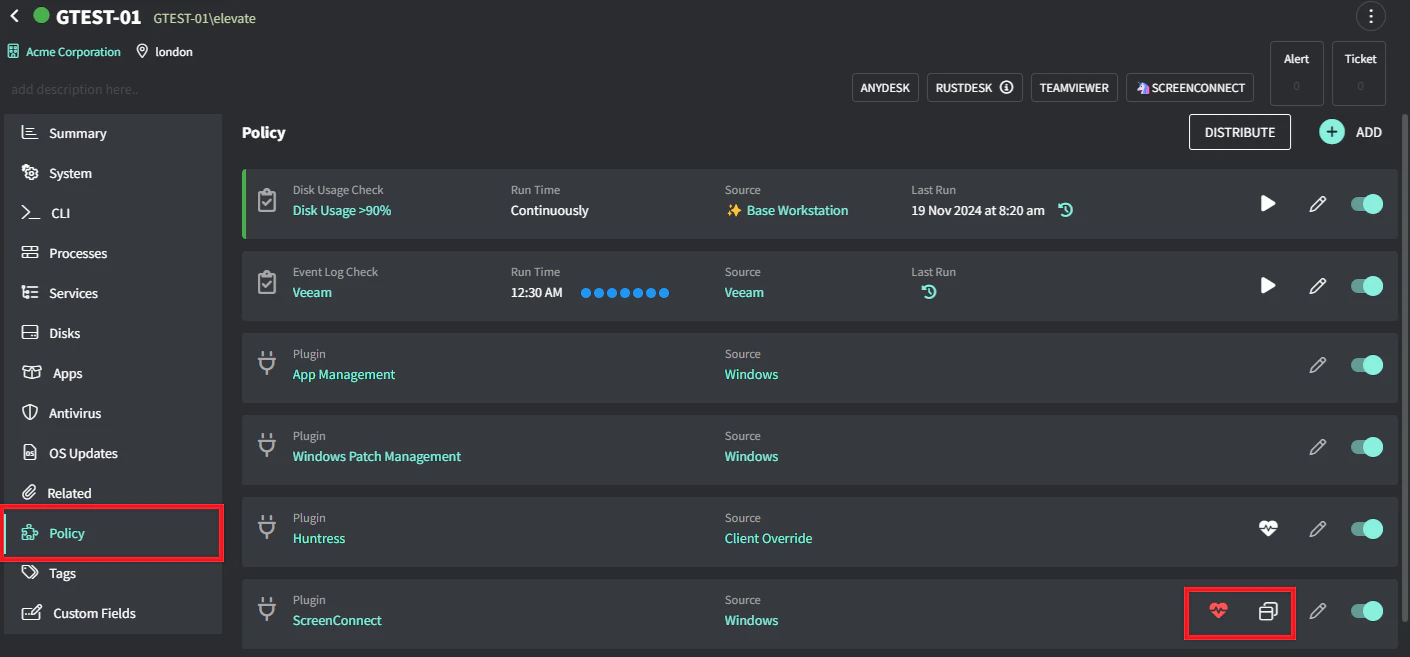
- Click the heart icon on the ScreenConnect plugin.
- Click the ScreenConnect icon to reinstall.