Documentation Index
Fetch the complete documentation index at: https://help.gorelo.io/llms.txt
Use this file to discover all available pages before exploring further.
Follow this guide to integrate other tools in Gorelo, like Splashtop, AnyDesk, TeamViewer, etc.
You can integrate Gorelo with any remote access tool that supports launching via a URL, like Splashtop, AnyDesk, or TeamViewer.
This example uses:
- Splashtop Business
- RustDesk
- Webroot
Create the custom asset field.
- Navigate to Settings > Assets > Custom Fields.
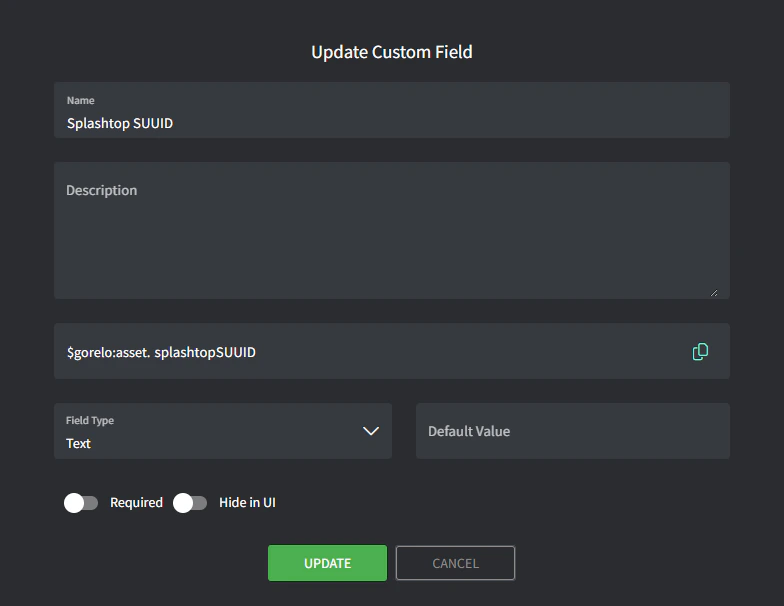
- Add custom field with the following details:
- Name:
Splashtop SUUID
- Variable:
splashtopSUUID
Write the script.
- Navigate to Scripts.
- Create a script with the following details:
- Name:
Store-SplashtopSUUID
- Content:
# Define registry path for 64-bit machines
$regPath64 = "HKLM:\SOFTWARE\WOW6432Node\Splashtop Inc.\Splashtop Remote Server"
# Define the value name for the SUUID
$regValue = "SUUID"
# Try to retrieve the SUUID from the 64-bit registry
if (Test-Path $regPath64) {
try {
$suuid = Get-ItemProperty -Path $regPath64 -Name $regValue -ErrorAction Stop
# Check if the SUUID value is present
if ($suuid.$regValue) {
$suuidValue = $suuid.$regValue
Write-Output "Splashtop SUUID: $suuidValue"
# Write the SUUID to the Gorelo custom field
GoreloAction -SetCustomField -Name 'asset.splashtopSUUID' -Value $suuidValue
} else {
Write-Output "SUUID not found in the registry."
}
} catch {
Write-Output "Error retrieving SUUID from the registry: $_"
}
} else {
Write-Output "Splashtop registry not found."
}
Deploy the script via a policy.
- Navigate to Policies.
- Edit an existing policy that covers the assets you want to store the Splashtop SUUID for.
- Add the
Store-SplashtopSUUID script and set to repeat daily at your preferred time.
- Save and distribute the policy.
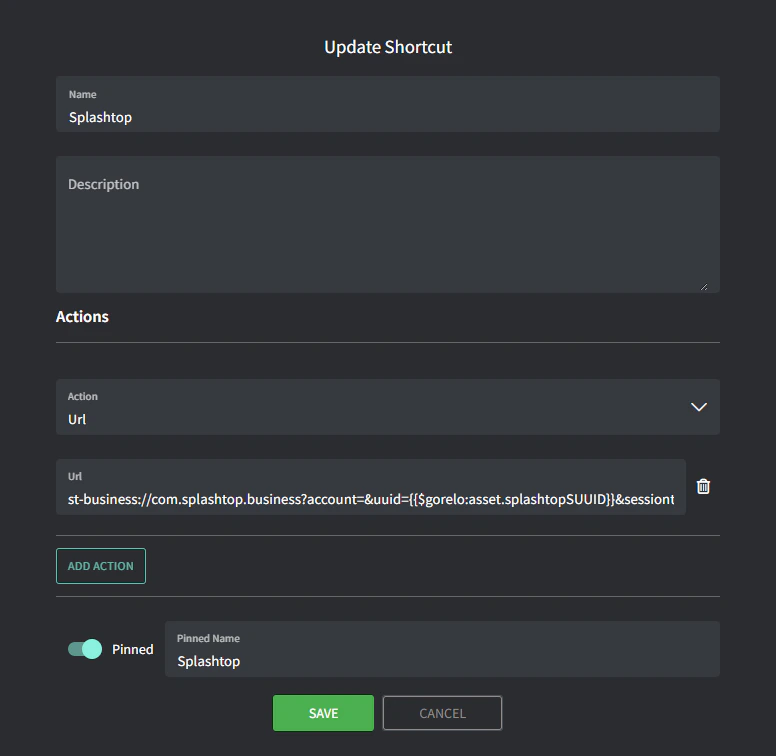
Create the shortcut.
- Navigate to Asset Shortcuts.
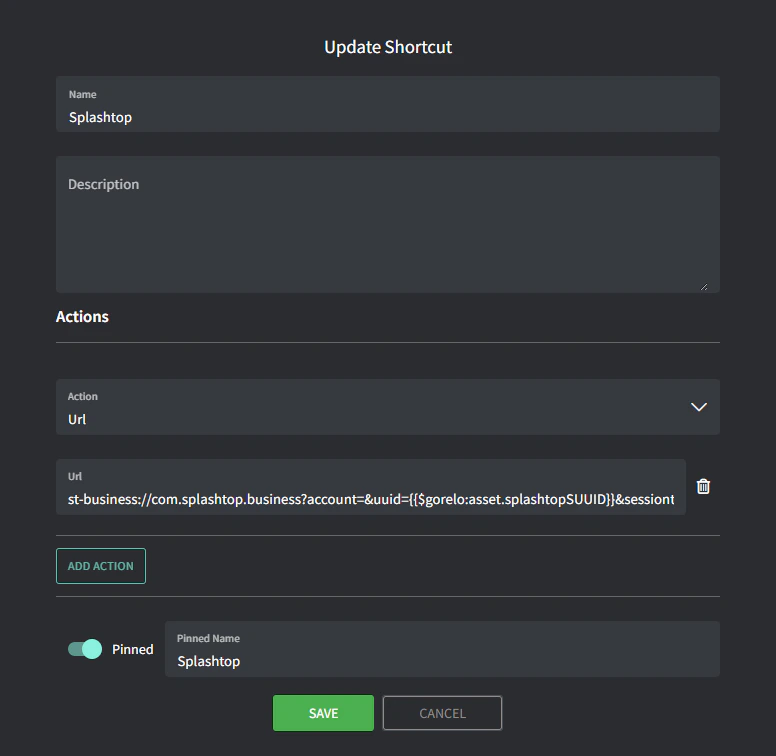
- Add a new shortcut with the following details:
- Name:
Splashtop
- URL:
t-business://com.splashtop.business?account=&uuid={{$gorelo:asset.splashtopSUUID}}&sessiontype=remote
- Pinned Name:
Splashtop
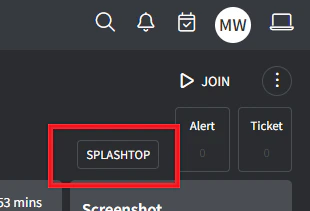
You should now see the SPLASHTOP shortcut up the top-right corner of the Asset Detail page. If the script successfully populated the $gorelo:asset.splashtopSUUID variable, then this shortcut will launch the Splashtop Business application.
The shortcut does not install Splashtop — another script would need to be used for that, for example:# Installs Splashtop Streamer using the installer MSI uploaded to $gorelo:file.splashtopInstaller
# Runs a silent install using the 12-digit deployment key at $gorelo:client.splashtopKey
#Check for presence of SplashtopKey
if ([string]::IsNullOrEmpty($gorelo:client.splashtopKey)) {
Write-Output "No SplashTop Key stored for this client. Automatic installation cancelled."
GoreloAction -Alert -Severity 3 -Name "No Splashtop Key stored for this client" -Description "No Splashtop Key is stored in the client custom field so the automatic installation has been cancelled" -Suppress 0
} else {
Write-Output "Splashtop Key Found: " $gorelo:client.splashtopKey
Write-Output "Installer Path: " $gorelo:file.splashtopInstaller
}
#Install Splashtop
msiexec /i $gorelo:file.splashtopInstaller USERINFO="dcode=$gorelo:client.splashtopKey,hidewindow=1,confirm_d=0" /qn /norestart
It is strongly recommended to host your own RustDesk server and modify the initial install script to support this.Create the custom asset field.
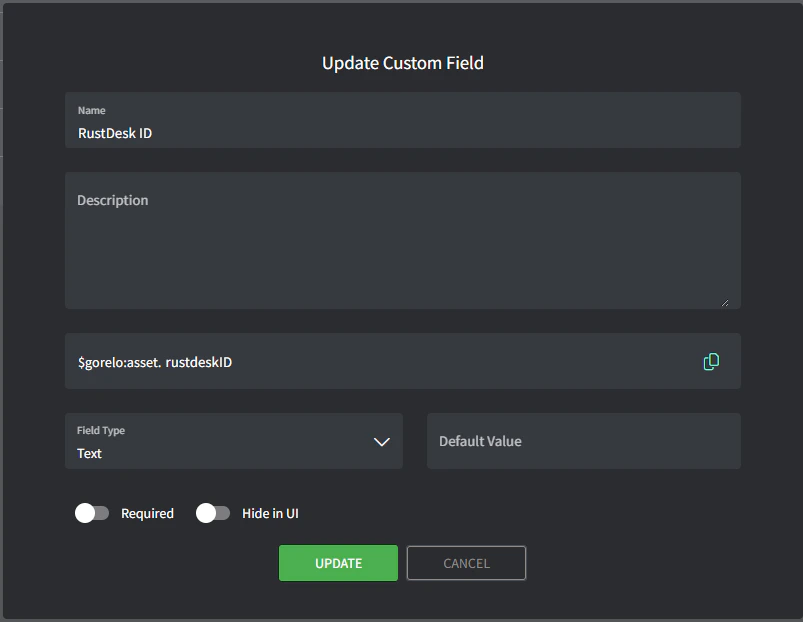
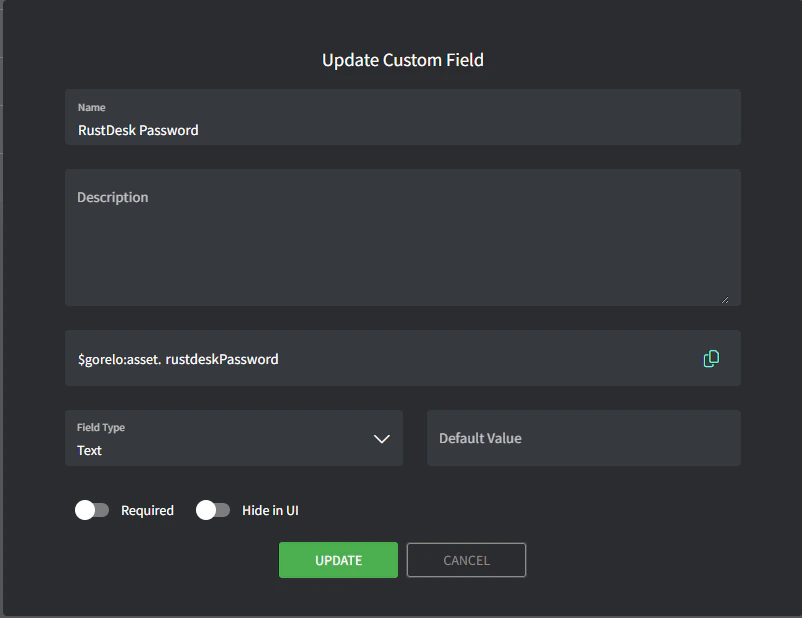
- Navigate to Settings > Assets > Custom Fields.
- Add custom field with the following details:
- Name: RustDesk ID
- Variable: rustdeskID
- Add custom field with the following details:
- Name: RustDesk Password
- Variable: rustdeskPassword
Upload the installer file.
- Navigate to Settings > Asset > Files
- Add a file with the following details:
- File: Upload the latest RustDesk MSI installer
- Variable: rustdesk
Write the script.
- Navigate to Scripts
- Create a script with the following details:
- Name: Install Rustdesk
- Content:
#Install Rusdesk
msiexec /i $gorelo:file.rustdesk /qn /norestart CREATESTARTMENUSHORTCUTS="N" CREATEDESKTOPSHORTCUTS="N" /l*v install.log
- Create a script with the following details:
- Name: Write Rustdesk ID and Password
- Content:
$RustDeskPath = "$env:ProgramFiles\RustDesk\RustDesk.exe"
# Get Rustdesk ID using the executable
$RustdeskID = cmd /c "`"$RustDeskPath`" --get-id"
if ($RustdeskID) {
# Write ID to Gorelo custom field
GoreloAction -SetCustomField -Name 'asset.rustdeskID' -Value $RustdeskID
Write-Output "Rustdesk ID: $RustdeskID written to Gorelo"
# Generate random 16 character password
$Password = -join ((65..90) + (97..122) + (48..57) | Get-Random -Count 16 | ForEach-Object {[char]$_})
# Set the password in Rustdesk
cmd /c "`"$RustDeskPath`" --password $Password"
# Write password to Gorelo custom field
GoreloAction -SetCustomField -Name 'asset.rustdeskPassword' -Value $Password
Write-Output "Rustdesk password set and saved to Gorelo"
exit 0
} else {
Write-Output "Failed to get Rustdesk ID"
exit 1
}
Deploy the scripts via a policy.
- Navigate to Policies.
- Edit an existing policy that covers the assets you want to install and connect to via RustDesk.
- Add a continuous Service check for RustDesk Service. Add the ‘Install Rustdesk‘ script as a remediation step.
- Add the ‘Write Rustdesk ID and Password’ script and set to repeat daily at your preferred time.
- Save and distribute the policy.