Add a prompt
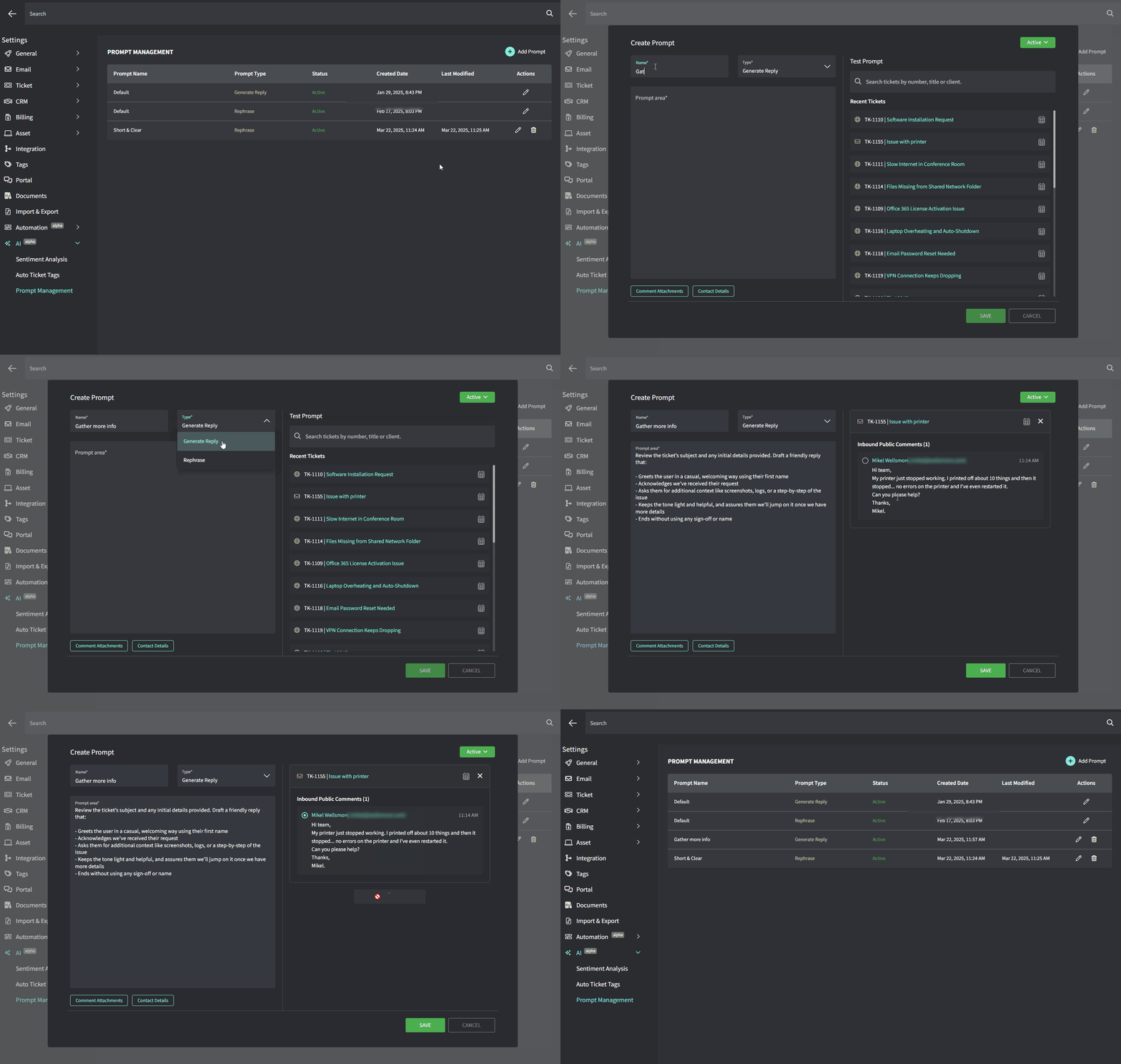
- Navigate to Settings → AI → Prompt Management
- Click Add Prompt and fill out the following fields:
- Name: A quick label so you know what it’s for
- Prompt Type: Select Generate reply or Rephrase
- Prompt Text: The actual text or instructions you want the AI to follow
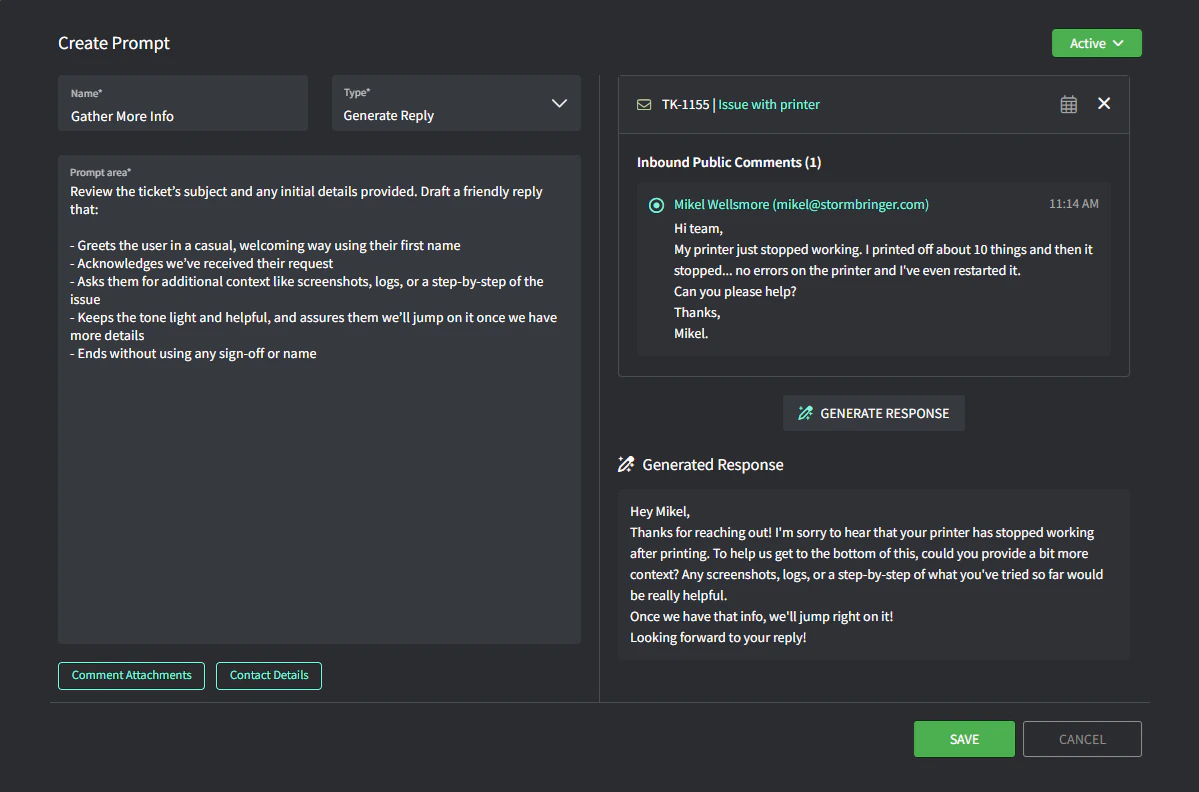
- On the right-side, you can test each prompt type:
- For Generate Reply — select the ticket and then select a comment and click ‘Generate Response’
- For Rephrase — type your text and click ‘Rephrase’
- Change the status to Active (top-right) when you’re ready to make it available for use on tickets
- Click ‘Save’
How the prompts work
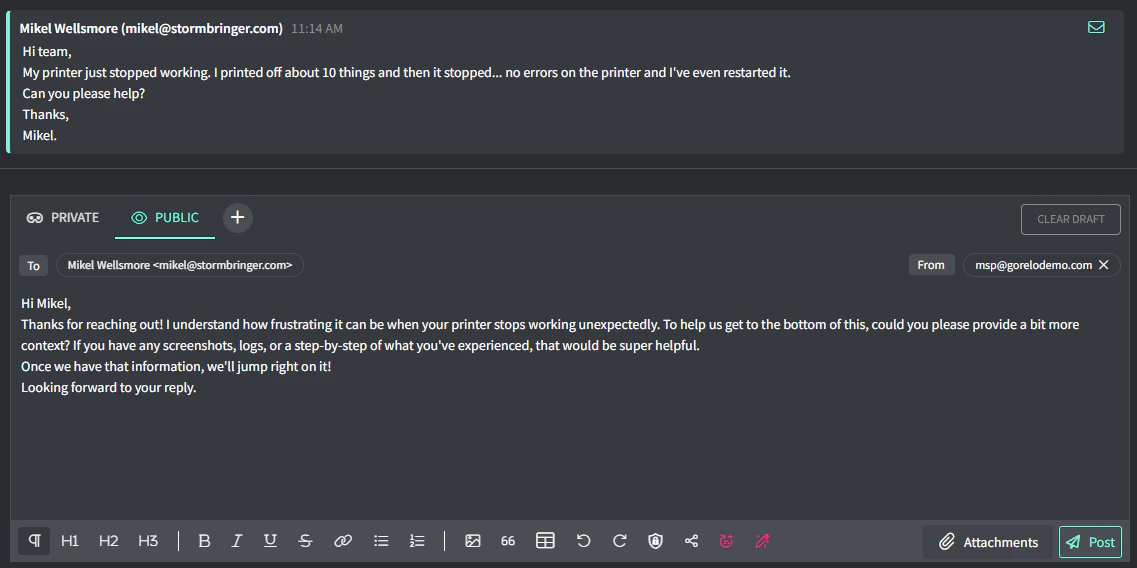
Generate reply:- Uses details from the ticket title, latest comment, and contact info.
- Example: If your prompt says, “Gather More Info,” the AI will use the ticket’s context to create that reply.
- Rephrase:
- Takes whatever text you’ve typed in the comment box and reworks it.
- Example: If you write a response but want a more concise version, click Rephrase.
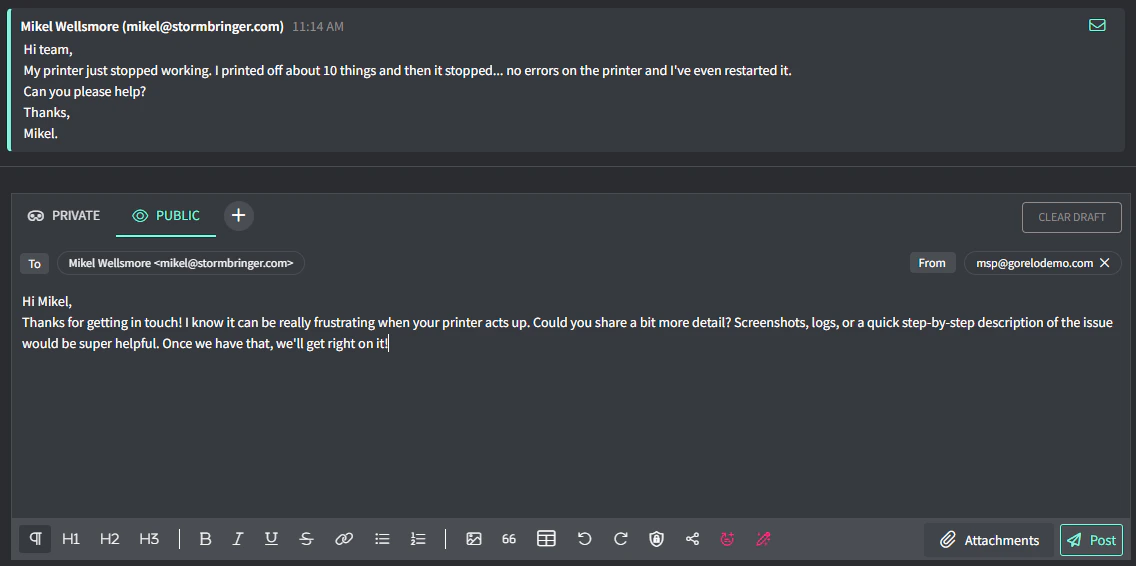
Rephrase or generate a reply
- In the ticket’s Public Comment box, you’ll see two buttons:
- Rephrase your text (for Rephrase prompts)

- Generate a reply (for Generate reply prompts)
- Rephrase your text (for Rephrase prompts)
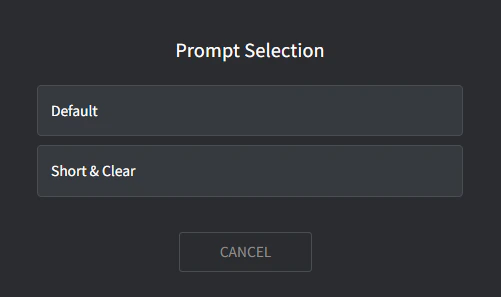
- If you’ve got more than one active prompt for a type, a popup appears and lets you pick which one to use.