Enable sentiment analysis
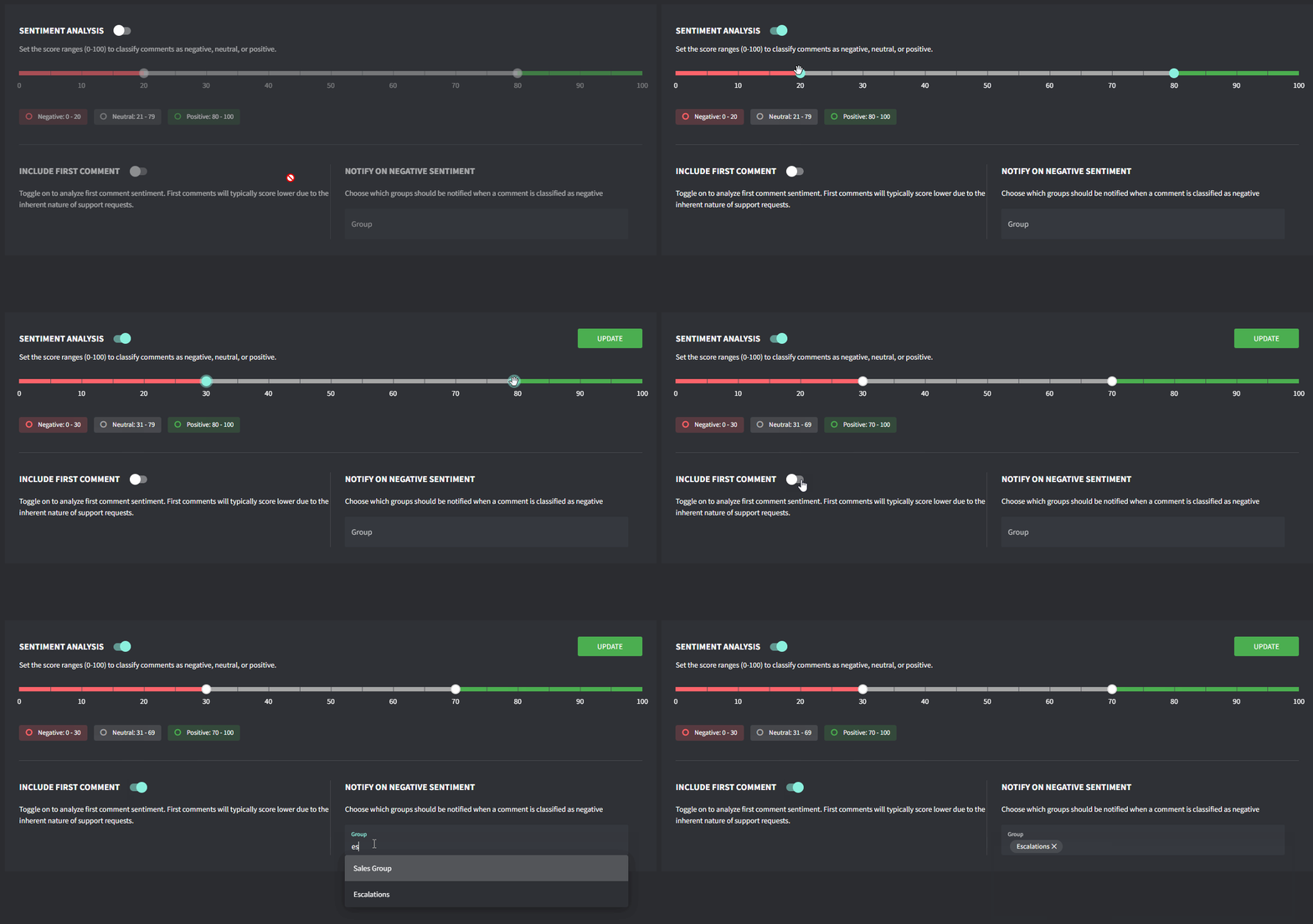
- Go to Settings → AI → Sentiment Analysis
- Toggle Sentiment Analysis on
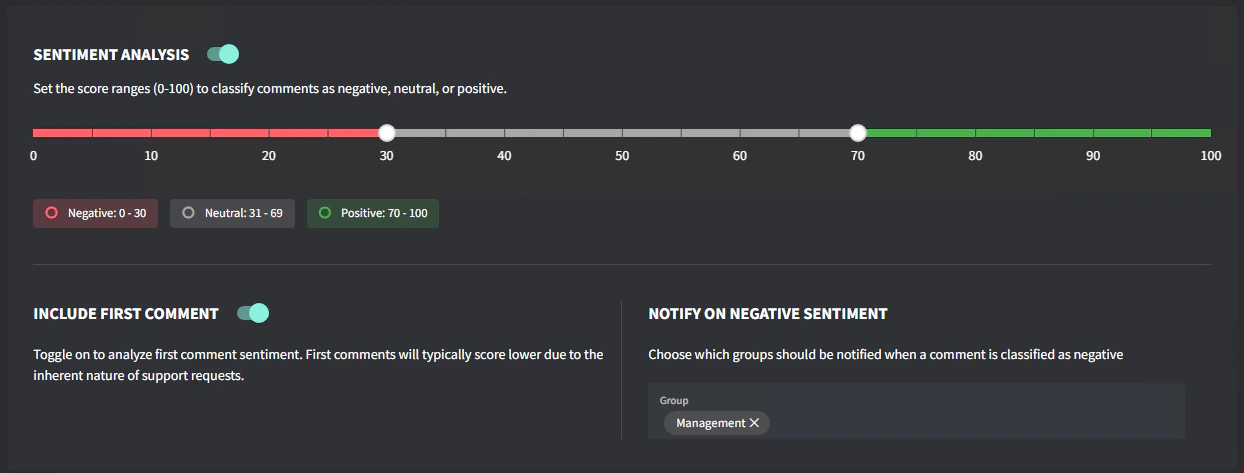
- Set your Score Range and what you classify as Negative/Positive
- Toggle whether you’d like to score the first comment.
NOTE: First comments will typically score lower due to the inherent nature of support requests. - Select which Groups should receive notifications when a comment is classified as negative
- Click Update
How it works
- AI analyzes the text of each inbound comment (Public, Third Party, Approval)
- Each comment receives a sentiment score (ranging from 1 to 100)
- Negative scores indicate unhappy clients (1 being extremely negative)
- When a comment’s score falls below your negative threshold, notifications are sent to the designated groups
- To see the sentiment score, hover over the profile icon next to each comment in the ticket timeline