

Add a custom domain
- Navigate to Settings > Email > Settings
- Click Add Domain in the top-right corner
- Enter your domain name
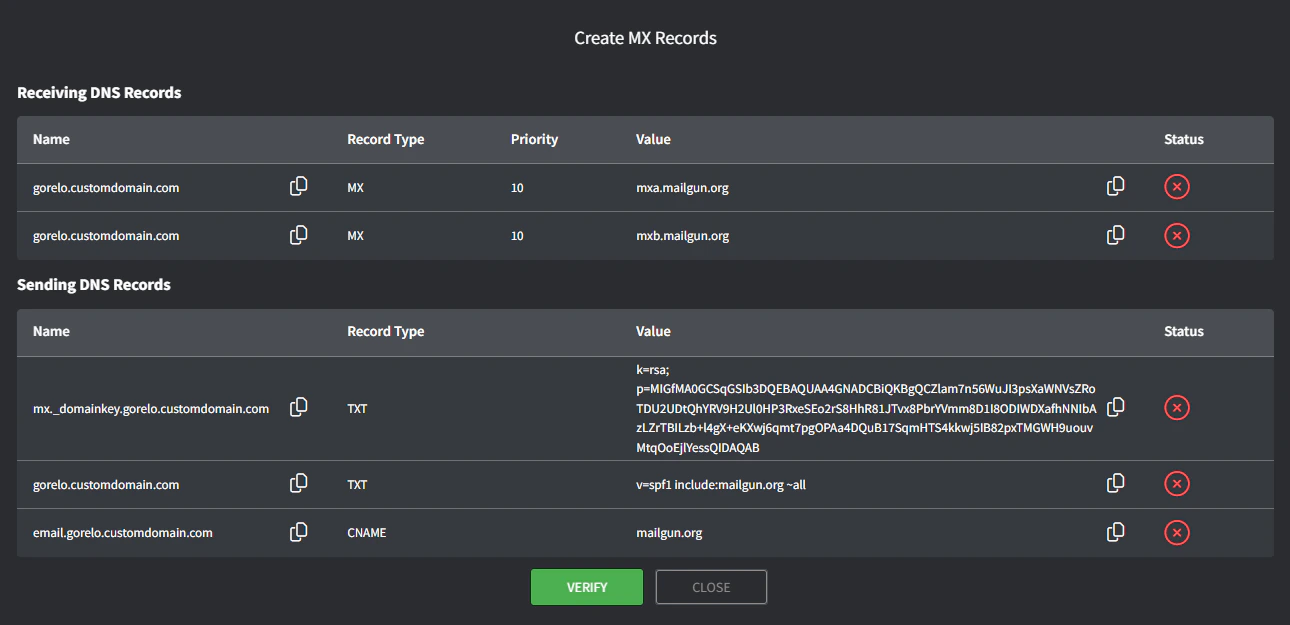
- Add the DNS records to your DNS provider and click Verify (note the ‘gorelo.’ subdomain on everything).
Add/edit a custom email address
Adding a custom domain automatically creates two custom email addresses that you can edit.- Gorelo creates help@ as your default ticketing email address
- Gorelo creates accounts@ as your default billing email address (outbound only)
- Navigate to Settings > Email > Settings
- Click the edit button on the far right of the help@ email address
- Update any fields you need to:
- Configuration
- Display name: This is what appears as the name in Outlook/Gmail etc. when an email is received from this address.
- Email: This is what appears as the From address and Reply-to in Outlook/Gmail etc.
- Group: These groups will be automatically added to all tickets that are created from inbound emails to this address. Outbound sending is also limited to just these groups.
- You can also Automatically apply clients, tags and users.
- Auto Response
- ‘Contacts will receive an email when a new Ticket is created by them through email’
Toggle this on to generate an automatic response when a new ticket is received
This is the Ticket Created Email template - ‘Contacts will receive an email when a Ticket is merged’ Toggle this on to generate an automatic response when a ticket has been merged (contacts of the source ticket)
- ‘Contacts will receive the emails for the ticket statuses selected below’
Toggle this on to generate an automatic response when a ticket status is changed to any of the selected.
This is the Ticket Status Updated template
- ‘Contacts will receive an email when a new Ticket is created by them through email’
- Email Template Management
- Select either Ticket Created Email or Ticket Status Updated from the dropdown
- Preview shows you what the email will look like
- Template is HTML and allows full customization
- Variables lists the available variables for both the subject and body of the email
- Select either Ticket Created Email or Ticket Status Updated from the dropdown
- Configuration
- Click Save
- Test sending an email from an unrelated email account (e.g., Gmail) directly to the Forwarding Address

Forward emails to Gorelo
- Navigate to Settings > Email > Settings
- Copy the Forwarding Address of your default ticketing email address, e.g., help@gorelo.gorelodomain.com

- Navigate to your email provider
- Find the matching mailbox (without the gorelo. subdomain), e.g., help@gorelodomain.com
- Configure this mailbox to forward to the Forwarding Address, e.g., help@gorelo.gorelodomain.com
- Test sending an email from an unrelated email account (e.g., Gmail) to the matching mailbox, e.g., help@gorelodomain.com
Troubleshooting
Emails are rejected/quarantined/marked as spam
Some SPF and DMARC configurations don’t play well with mail that’s forwarded or sent on your behalf—which is how Gorelo handles outbound emails. This can happen even after a successful DNS records verification. Adjusting SPF and DMARC doesn’t weaken your protection: it allows legitimate mail flow through services like Gorelo without being accidentally blocked by your anti-spoofing protections. The following settings are the most likely to break delivery:Recommended alternatives
Change your SPF and DMARC configuration to the following setting.Changes apply to your root domain, not the ‘gorelo’ subdomain you verified records for.
Results
After changing your settings, you should obtain the following configuration within your DNS registrar:
Alternatively, you can also omit the DMARC configuration, as omitting it defaults to a relaxed alignment.
Learn more
Why Mailhardener recommends SPF softfail over fail
Why softfail SPF works.
What is DMARC alignment
Understand DMARC policies and configuration.
FAQ
Doesn't adjusting my SPF and DMARC settings weaken my protection against spoofing?
Doesn't adjusting my SPF and DMARC settings weaken my protection against spoofing?
No. It ensures that legitimate emails sent through services like Gorelo aren’t mistakenly blocked, without reducing your protection against spoofing.
How do I change my SPF settings?
How do I change my SPF settings?
- Go to your domain’s DNS settings (where your domain is managed: registrar or DNS host).
- Find the existing TXT record that starts with
v=spf1. - Edit that record and replace
-allwith~all. You should have something like the following: - Save the changes.
- Wait for DNS propagation (can take a few minutes to a few hours).
Do I need to configure adkim and aspf?
Do I need to configure adkim and aspf?
You can specify the previously suggested configuration, or omit it completely, since these settings default to relaxed when omitted.
Can I use a different email template for each help queue?
Can I use a different email template for each help queue?
Templates are set per custom email address, not per group. To use a different Ticket Created Email or Ticket Status Updated template for each queue:
- Create a separate custom email address for each queue, for example
help@andbilling@. - Assign each email address to the matching Group in its Configuration settings.
- Customize the templates under Email Template Management for each address.
How do I change my DMARC settings?
How do I change my DMARC settings?
- Go to your domain’s DNS settings.
- Find the TXT record for DMARC (usually
_dmarc.yourdomain.com). - Edit the record and change:
adkim=s→adkim=raspf=s→aspf=r
- Save your changes. You should obtain something like:
- Wait for DNS propagation.